Malwarebytes was the cause in a confirmed KB5033375 failure where Windows repeatedly undid the installation. Removing it with its cleanup tool got one owner past the loop after update resets hadn't solved it.
That case dates from December 2023. Today, aim to install the current update for a supported Windows version. Don't force this old cumulative package onto a newer Windows release just to clear an old failure record.
In this guide
1. Check which Windows release needs the update
Press Windows + R, enter winver, and record both the release and build number. KB5033375 applies to the 22H2 and 23H2 releases of Windows 11. It brought those releases to builds 22621.2861 and 22631.2861 respectively.
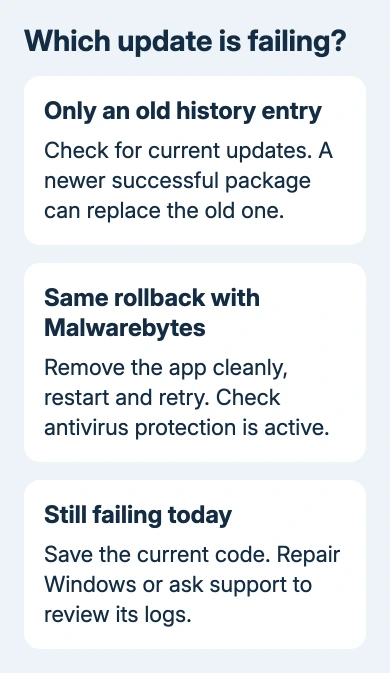
Open Settings > Windows Update > Update history. Look for the latest failed attempt, including its date and error code.
Windows can retain a years-old failure in this list even after installing newer packages; that entry doesn't need to turn into a success.
Go back to the main update page. Select Check for updates. If a newer cumulative update installs and the PC restarts successfully, check its result in Update history.
Windows doesn't need every old cumulative package installed separately.
Microsoft's KB5033375 release information identifies the original builds.
Those build numbers help you recognize the old case. A newer Windows release doesn't need this particular KB installed.
If your PC still runs 23H2, check the edition too. Support ended in November 2025 for Home and Pro, then in November 2026 for Enterprise and Education. Ask your organization's IT team about its upgrade plan on a managed computer.
2. Remove Malwarebytes when it matches the confirmed case
Open Malwarebytes and record the installed version and your license details. The original owner had Malwarebytes Premium. Their PC rolled back cumulative updates even after a long list of update-service resets and repair commands.
The owner later confirmed that removing Malwarebytes solved it. If you have the same software and rollback pattern, try removing it before running that reset script again.
On Windows 11, open Settings > Apps > Installed apps. Find Malwarebytes, open its three-dot menu, and choose Uninstall. Follow its removal prompts and restart when asked.
If normal removal leaves parts of Malwarebytes behind or fails, follow the vendor's Support Tool cleanup instructions.
In the tool, the cleanup controls are Advanced > Clean; allow the requested restart.
Decline an immediate Malwarebytes reinstall until you've tried Windows Update again. Putting it back first would leave you testing the update with the same software installed.
After removal, open Windows Security > Virus & threat protection and check that a real-time antivirus provider is active.
If Windows shows that no protection is running, resolve that before browsing or downloading other files.
Now run Check for updates again, install what's offered and restart. Success means Windows reaches the desktop without undoing changes and the new package appears as installed.
If that happens, discuss the old conflict with Malwarebytes support before reinstalling it.
3. Read the actual error when Malwarebytes isn't involved
A PC without Malwarebytes needs a different explanation. Don't install and remove it as a repair, and don't assume every security app causes the same failure. Write down the code from the current attempt before changing update settings.
The original thread included 0x8007054f in Event Viewer. To check your own, press Windows + R, enter eventvwr.msc, and open Windows Logs > System. Look near the failure time for a WindowsUpdateClient entry.
Open that event, then check both tabs: General and Details. Save the error code, update title and timestamp together. Check that the entry names the update you just tried, rather than a different failed update.
The Windows Update error-code guide matches repairs to specific codes.
A connection failure during download and a rollback after restart aren't the same stage of installation.
I'd stop repeating a batch file once it has already produced the same rollback. In this case the owner had run DISM, System File Checker and cache resets before the successful software removal. Doing them again wasn't the missing step.
4. Repair Windows when the current update still rolls back
On a PC running a supported version of Windows 11, open Settings > System > Recovery. Find Fix problems using Windows Update. If present, choose Reinstall now.
Windows downloads a repair package that keeps your installed apps, personal files and settings.
Create a fresh backup before beginning this repair. Allow Windows to finish with internet access and external power available. Once Windows returns, restart if requested and retry the current update.
Check the new result rather than the historical KB5033375 row.
That recovery option requires at least version 22H2 of Windows 11. It also needs an update dated February 2024 (the optional release) or newer. A December 2023 installation without later updates won't have it.
On a work PC, your organization's update policies can also hide it.
If the option is missing, use the supported installation-media repair route with help from Microsoft support.
Ask for an in-place repair, which keeps your files and installed apps as it reinstalls Windows. Have support check that the edition and installation media match your PC before you begin.
Get the recurring rollback reviewed
For a personal PC, open Get Help, search for Windows Update installation problems, and request support with the current KB number and error code.
Include whether Malwarebytes removal changed anything and whether the repair installation completed.
If the adviser asks for Windows update and repair logs, they're in C:\Windows\Logs\CBS. Those records helped identify the software conflict in the original thread.
Use the case's private upload route for logs, rather than posting your computer's logs publicly.
An organization using an update server should check the offered package and deployment rules first.
The ESET update-connection case illustrates a different security-software fault; use it only if its product and error fit.
The Short Version
Check whether KB5033375 is a current failure or just an old history entry. If Malwarebytes matches the confirmed case, remove it cleanly and retry with antivirus protection active.
Otherwise follow the current error and repair or upgrade Windows through its supported route.
Checked November 27, 2026.
 If you have any business, I can build it online