Rebuilding the search index and turning off recent items has fixed Explorer crashes naming windows.storage.dll for one owner. Try those changes before reinstalling Windows if direct folder shortcuts work but the usual launch crashes.
If Explorer crashes whenever you open a folder, it needs different checks than a crash that only affects Home. Check what triggers yours before repairing Windows; the module's name can't explain the crash on its own.
In this guide
1. Open a folder directly and change the starting page
Press Windows + R, enter %USERPROFILE%, and press Enter. This opens your user folder directly. Try opening Documents and another local folder from that window.
If those folders open, Explorer's starting page seems to be the problem, rather than every folder. Keep that working window open while you change where Explorer starts.
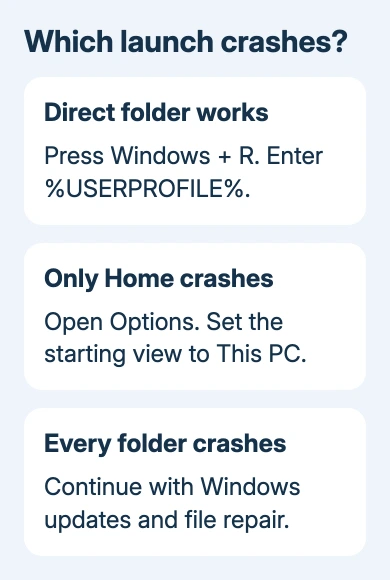
Use the Home crash guide's starting-page steps to select This PC in Explorer Options. If only Home fails, that guide also covers clearing its saved shortcut lists.
Changing the starting page lets you avoid Home when it crashes, but it doesn't repair windows.storage.dll. If the taskbar icon now opens Explorer, keep using This PC while you finish updating Windows.
If the direct folder also crashes, skip the destination change and continue with the next fix. Opening Home again won't tell you more if ordinary folders already crash.
2. Install pending updates and restart Windows
Open Settings > Windows Update in Windows 11 and select Check for updates. Install the offered updates. After saving open documents, choose Start > Power > Restart to finish the installation.
On Windows 10, the update page is Settings > Update & Security > Windows Update. Check that version's support status too; being able to open Windows Update doesn't mean your PC still receives standard security updates.
Microsoft recommends updating and restarting in its Explorer troubleshooting steps. Restart even when there isn't a restart-required message, so pending installation work can finish.
After signing in, repeat the exact launch that crashed: the taskbar icon, Start menu entry, or direct folder path. A working folder shortcut doesn't tell you whether the taskbar launch is fixed.
If Explorer still closes, note exactly when that new crash happened. You'll need that time to match the crash to its error record, rather than an unrelated older failure.
3. Turn off recent items and rebuild the search index
Open Settings > Personalization > Start. Turn off Show recently opened items in Start, Jump Lists, and File Explorer. Some newer layouts call it Show recommended files in Start, recent files in File Explorer, and items in Jump Lists.
Then search Start for Indexing Options and select its Control Panel entry. From Advanced, use Rebuild in the Troubleshooting group. Confirm the rebuild and let indexing finish before judging the result.
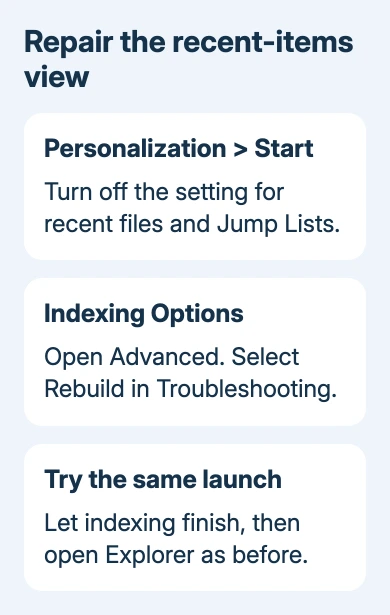
The search index is Windows' catalog of file information. Rebuilding it replaces that catalog without deleting your documents. Until rebuilding finishes, searches can miss files.
One owner reported a week without these crashes after combining both changes. Another found Explorer worked under a different profile. If this helps, keep recent items off; if it doesn't, continue with the event and file checks.
4. Match the event to the failure on screen
Right-click Start > Event Viewer. Expand Windows Logs > Application and open the Application Error event for that failed launch. Check both the application and module fields.
For this fault, the application should be explorer.exe, with windows.storage.dll named as the faulting module. Record the exception code and both version numbers as well, or use Copy > Copy Details as Text.
The DLL is part of Windows, but that name doesn't tell you what caused the crash. Windows, an Explorer add-on, or something else running inside Explorer could be involved. Save the full event, not just the filename.
A popup about an absent add-on file differs from an Application Error event. Save the popup's exact wording if you see one; the right repair depends on which DLL message appeared.
Don't download DLL files from a repair site or replace the System32 copy by hand. System repair tools can check protected Windows files without substituting an unknown file or mixing Windows versions.
5. Repair protected Windows files once
Right-click Start > Terminal (Admin) and approve the administrator prompt. Run the following commands separately, letting the first finish before starting the second:
DISM.exe /Online /Cleanup-Image /RestoreHealth
sfc /scannow
DISM repairs the component store, where Windows keeps files used for updates and repairs. Next, System File Checker uses this repaired source when it checks protected system files. Keep your computer online while DISM runs.
If SFC says it repaired files, restart and try the original Explorer launch. If some files remain unrepaired, keep SFC's message for support. Repeating both commands over and over won't help.
If SFC finds nothing to repair, its protected-file check passed. That doesn't rule out an Explorer crash. In the original report, DISM and SFC completed successfully, but the crash continued.
That owner also reported that disabling third-party Explorer extensions and performing a clean boot didn't stop it. Explorer did work in safe mode, but those mixed results didn't reveal what caused the crash.
6. Use a repair reinstall before choosing a reset
On updated Windows 11 PCs, open Settings > System > Recovery. Choose Reinstall now beside Fix problems using Windows Update. Follow the prompts, keeping power and internet available.
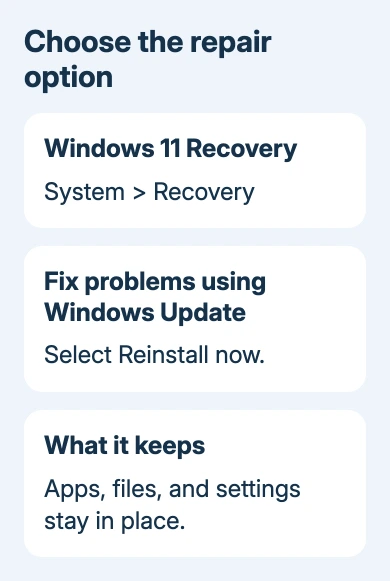
Windows downloads your installed release again for repair, keeping your files, apps, and settings. Older installations and managed PCs sometimes lack this option. The Windows repair install guide explains the available routes.
Copy important files to backup storage before starting recovery. Check that the backup actually contains the files you need, especially when a cloud folder includes items that haven't finished uploading.
I'd choose the repair route before Reset this PC. Resetting can remove applications, and the owner in the original discussion specifically reported that a reset hadn't fixed their Explorer crash.
The original asker later confirmed a reinstall worked and said months afterward that the problem hadn't returned. Removing a detected unwanted program had only helped briefly before the crashes returned.
If the repair that keeps your apps fails, open Get Help and request Windows support. Include the event and your repair results. Ask about a clean installation, which removes apps and files, with your backup and recovery key ready.
The Short Version
Try This PC, recent-items settings, and an index rebuild for launch-only crashes. Check updates and system files before recovery. Reinstalling stopped the original owner's crashes, but a reset hadn't helped.
Checked November 27, 2026.
 If you have any business, I can build it online