Repeated restart requests after KB5048667 can continue even when Windows lists the update as installed. Owners cleared the loop with an update reset or a repair installation. Check the installed build before another download.
Error 0x800f0838 also appeared during manual installation. For that error, check which earlier update the package needs. Installing this December 2024 patch today won't bring Windows fully up to date.
In this guide
1. Check whether the update installed or keeps failing
Open Settings > Windows Update > Update history and find KB5048667. Record whether it shows a successful installation, a failure, or repeated attempts. Save the complete error code shown with the failed entry.
Press Windows + R, enter winver, and press Enter. On Windows 11 24H2, the December 10, 2024 cumulative update KB5048667 brought the system to OS Build 26100.2605. Record the version and full build shown on your PC.
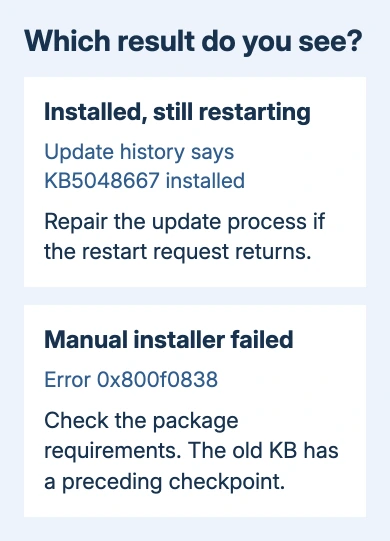
Some owners saw a successful history entry but kept getting restart requests. A manual installer stopping with 0x800f0838 needs a different check. Neither calls for endless restarts.
If the computer already has a newer cumulative update, work on its current failure rather than trying to return it to build 26100.2605. The old update number explains the original problem. It isn't the build your current PC needs.
Check Settings > System > About > Windows specifications for the edition too. For Home and Pro editions, the final 24H2 updates arrived October 13, 2026. Those PCs need a supported newer release offered through Windows Update.
Enterprise and Education on 24H2 have a different schedule, with monthly security updates continuing until October 12, 2027. The 24H2 support dates explain that distinction. Ask IT about the approved release on a managed computer.
2. Complete one restart and run the current diagnostic
Save your work, open Start > Power, and select Update and restart if it's offered. Otherwise select Restart. At the desktop, return to Windows Update. Does that item still request a restart?
A pending restart can be a normal part of installation. The fault occurs when that same request returns afterward. Leave the update components alone once installation completes without another restart request.
Open Get Help from Start and search for Windows Update troubleshooter. Follow the diagnostic and apply any repair it offers. Then check Windows Update again rather than judging success by the diagnostic's completion message alone.
If the diagnostic won't run, save its own error separately from the update's installation error. The asker saw both problems. Use the Get Help diagnostic repair steps if the app can't start its checks.
I'd stop repeating restarts once the same request returns unchanged. At that point, the useful next step is repairing the update process, not another cycle through the power menu.
3. Reset downloaded update files if the loop remains
On Microsoft's forum, an owner confirmed that an update-component reset stopped the repeated restart request. Installing both packages hadn't cleared it. A later reply confirmed the reset worked too.
The package can install successfully while Windows Update keeps asking for a restart. Reinstalling the package alone didn't repair the remaining restart state for those owners.
To clear the downloaded update files, follow the Windows Update cache reset. It explains how to stop the update service, clear its downloaded contents, and start the service again.
Use that procedure only after installation has stopped, not while Windows is applying an update. Once the service is running again, return to Settings > Windows Update, select Check for updates, and let Windows download what it needs.
The reset that worked for those owners changed more than just the downloaded files. A later Dell XPS owner said the repairs failed. If the loop remains, try the repair installation next instead of repeatedly clearing downloads.
4. Reinstall Windows without removing your applications
A different owner confirmed that an in-place upgrade fixed the problem without losing files, applications, or settings. It installs Windows over your existing copy. That's different from a reset that removes apps.
In Windows 11, go to Settings > System > Recovery. Within Fix problems using Windows Update, choose Reinstall now. Microsoft's current-version repair instructions describe this built-in route.
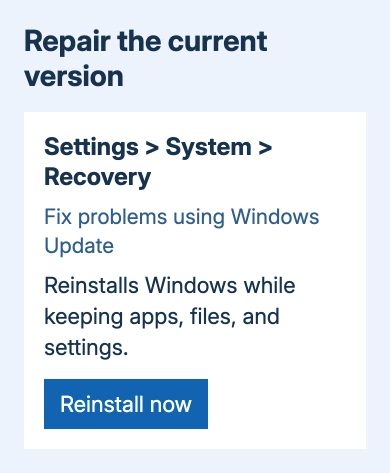
Save a separate backup of your essential files first. Leave the PC plugged into wall power with internet access throughout the repair. The confirmation lets you schedule an automatic restart for 15 minutes after completion.
Select OK when ready. Windows Update downloads a repair version and installs it while preserving apps, files, and settings. Restart when the repair completes if you didn't allow the automatic restart.
On a work-managed PC, this option might be missing because IT controls updates. Ask IT for a repair that keeps applications and data. Don't change the PC's management settings.
When a manual installer still reports 0x800f0838
KB5048667 has a preceding checkpoint update, KB5043080. A checkpoint is an earlier package that later updates build on. The official KB instructions list KB5043080 before KB5048667 for individual manual installation.
Windows Update handles checkpoints automatically. A package you download yourself can need that earlier update too. When the old installer fails, check whether Windows Update offers a newer cumulative update instead.
If it still fails, ask for Windows Update support in Get Help. Include your Windows edition, build, KB, and error code. Say whether history shows success despite restart requests, and which repairs you completed.
The Short Version
Read the build number and history first. Complete one restart, run Get Help, and repair the update process if the request returns. Owners confirmed a component reset or an in-place repair, but some PCs still needed further help.
Checked November 27, 2026.
 If you have any business, I can build it online