KB5022913 error 0x8007371b can mean Windows' update data is damaged. Downloading the update again won't repair that data. Run DISM, then System File Checker. If updates still won't install, try a Windows repair installation.
KB5022913 was a February 2023 preview for Windows 11 22H2. In 2026, aim to get your PC onto a supported Windows release that can install updates, rather than force that old preview onto a newer system.
In this guide
1. Check whether KB5022913 still belongs to this PC
Press Windows + R, enter winver, and press Enter. Record the Windows version and build. Open Settings > Windows Update > Update history and check the latest failed update's name and error code.
The KB5022913 release notes identify it as an optional, non-security preview for Windows 11 22H2, OS build 22621.1344. It isn't a current update for every Windows 11 release.
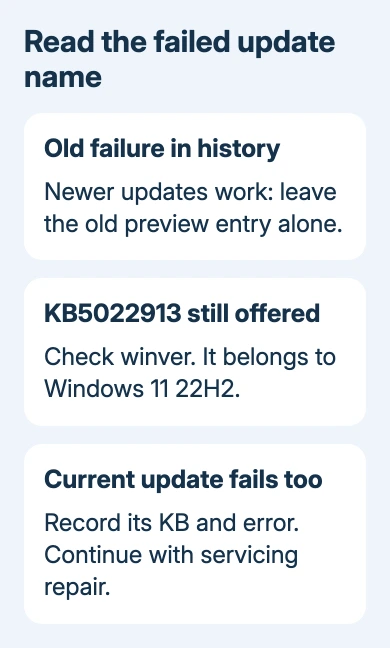
If newer cumulative updates have installed and the old failure appears only in history, don't reinstall the preview to change that historical entry. Check whether today's update scan completes instead.
If you're still on 22H2, that release has reached the end of servicing. Check Windows Update for a supported feature update offered to your device. On a managed PC, check the upgrade plan with IT.
When a current update also fails with 0x8007371b, continue with the repair steps. Record the current KB number too. That tells support whether the problem only affected the old update or is still happening on a newer release.
2. Run the Windows Update troubleshooter once
Open Settings > System > Troubleshoot > Other troubleshooters. Choose Run beside Windows Update. On current Windows installations, this can open the update troubleshooter in Get Help.
Follow the prompts and save open documents before any requested restart. Reopen Windows Update, select Check for updates, and retry the package currently offered. Note whether the error changes or the installation completes.
The troubleshooter can fix common update problems, but wait until you've tried installing the update again to judge whether it worked. Even after it reports making changes, you still need to see the update install.
In the original report, the troubleshooter claimed to apply a fix, yet the same update error returned. Clearing the download cache and restarting the Windows Update service also failed for that owner.
I'd repair Windows' update components after one failed retry. Another download of the same update won't replace missing information inside Windows itself.
3. Repair the component store, then check system files
Right-click Start and open Terminal (Admin). Approve the administrator prompt. Enter this command and let DISM finish:
DISM.exe /Online /Cleanup-Image /RestoreHealthDISM checks and repairs the Windows component store, where Windows keeps files and information used for updates and repairs. DISM needs internet access to retrieve the files it uses for this repair.
When DISM completes successfully, run:
sfc /scannowThe repaired source lets System File Checker check your protected Windows files next. If it repairs files, restart and retry Windows Update. If either tool fails, write down the complete result before moving on.
If Windows Resource Protection reports that it couldn't start the repair service, SFC hasn't completed a scan. It hasn't checked the files yet. This was another symptom in the original KB5022913 report.
Defender security-intelligence updates can also install while Windows' update components are broken. That happened to the owner: a Defender update worked, but the cumulative update kept failing.
For another code, use the Windows Update error-code guide to match the repair to that result. Don't assume a new code is the same problem simply because it appeared on the same update screen.
4. Uninstall a quality update when the timing matches
Several owners got updates working by uninstalling the latest quality update from recovery, then checking for updates again. One owner couldn't uninstall it. You can try this before a repair installation, but it won't work for every PC.
Get your BitLocker key first, using another device if needed. For recovery, hold Shift and choose Restart in the power menu. Navigate to Troubleshoot > Advanced options > Uninstall Updates and select Uninstall latest quality update.
Follow the prompts, return to Windows, and scan for updates again. This removes an installed quality update, not just a failed history entry. It also removes that update's fixes, so let Windows install the currently offered replacement.
If recovery can't remove it, continue with the repair reinstall. Don't switch to removing feature updates or deleting servicing registry keys to force the same attempt.
5. Reinstall the current Windows version for repair
On a sufficiently updated Windows 11 PC, open Settings > System > Recovery. Locate Fix problems using Windows Update. Choose Reinstall now and confirm with OK when ready.
Microsoft says this repair preserves apps, files, and settings while reinstalling your Windows release. Leave it plugged in with internet access until completion, then restart if needed.
Put your important files on backup storage before starting this recovery step. Although the repair is designed to keep them, you could still need your backup if installation is interrupted or the storage fails.
This option can be missing on older installations and organization-managed computers. A PC still running its original 2023 installation may lack the later update that adds this option. Use the installation-media route next if necessary.
Afterward, run Windows Update again and check the current update result. Check whether Windows can install updates again; an old failure staying in the history doesn't mean the repair failed.
6. Use installation media when the Recovery option is absent
Get official Windows 11 installation media appropriate for your computer from the Windows 11 download page. Choose media that matches your PC's architecture and Windows language, and supports upgrading the version you have installed.
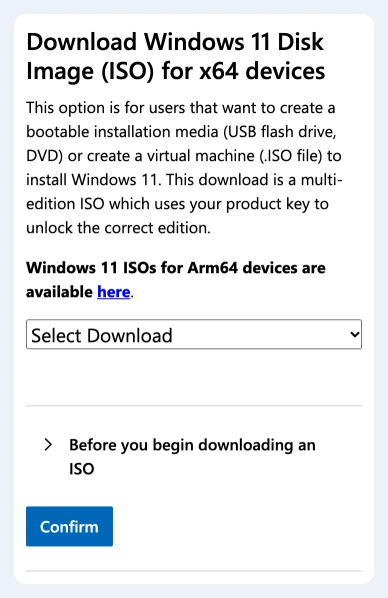
While signed in to Windows, mount the ISO and open setup.exe from its drive. Follow Setup and check Change what to keep. For a repair, select Keep personal files and apps before proceeding.
If that choice is missing, cancel and check that your media matches, or ask support. Starting the PC from USB takes you into a separate installation process. To keep installed apps during this repair, launch Setup inside Windows.
The repair install walkthrough covers this route. A newer supported release can also be an upgrade, so confirm compatibility and the offered choices before starting.
The original asker confirmed that repairing Windows from inside the running installation fixed the problem after a few days and two more restarts. A newer update initially showed a different code, then installed successfully.
Don't import another PC's COMPONENTS hive or delete its DerivedData entries. The adviser found entries missing from this owner's uploaded registry file. A patch for that PC changed the error to 0x800f081f, but the update still failed.
If Setup also fails, open Get Help and request Windows installation support. Provide winver, the current failed KB, DISM and SFC results, and C:\Windows\Logs\CBS plus C:\Windows\Logs\DISM\dism.log. Ask for review of repair or Setup logs.
The Short Version
Check the release and failed KB. Try the troubleshooter, DISM and SFC, then quality-update removal if appropriate. Persistent failures need repair installation or a support review of the servicing logs.
Checked November 27, 2026.
 If you have any business, I can build it online