A TPM that says it's ready in tpm.msc is being detected by Windows, even if Windows Security doesn't show its details. Update Windows and restart before changing firmware; an LSA protection warning on the same page needs its own check.
A missing security-processor panel is a different problem from Local Security Authority protection being off. Fixing an LSA warning won't install a TPM, and clearing a working TPM isn't the right first move for either symptom.
In this guide
1. Confirm the TPM status in its own console
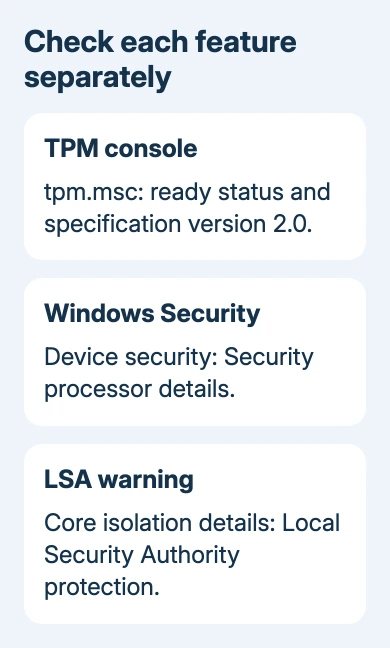
Press Windows + R, enter tpm.msc, and press Enter. Check whether Status says the TPM is ready. Under TPM Manufacturer Information, read Specification Version.
If it says ready and shows specification version 2.0, Windows can see your TPM 2.0. The TPM, or trusted platform module, helps Windows protect keys used for encryption.
Record the manufacturer name and firmware version too. Those details let your PC maker check for known firmware problems with the TPM your computer actually uses.
If the console instead says a compatible TPM cannot be found, Windows isn't detecting the TPM. The linked guide explains the firmware labels; use your model's own instructions for any firmware change.
Don't select Clear TPM to refresh a missing panel. Clearing removes TPM-stored keys and can affect encrypted data and sign-in credentials. Erasing a ready TPM isn't necessary just because one app doesn't show it.
2. Install updates and compare the two screens again
Open Settings > Windows Update > Check for updates. Install available Windows and security-platform updates, save your work, and restart. Open Windows Security > Device security again afterward.
Look for Security processor details, then compare its specification information with tpm.msc. If both now show the TPM, the two screens agree again. Keep the new Windows build in your notes in case the panel disappears again.
The available Device security controls vary with Windows version and installed hardware. A missing control doesn't necessarily mean your hardware has failed.
Press Windows + R, run winver, and note its release and build information. The original report involved Windows 11 22H2 in March 2023, so don't expect its screenshots and workarounds to match today's Settings layout.
If the TPM remains ready but the panel stays absent, continue with the app repair in section 4. If Windows Security names Local Security Authority protection, check that separate warning next.
On an organization-managed PC, share screenshots of both results with IT before changing security settings. Their policies can control which protections are enabled and whether you can change them locally.
3. Check LSA protection separately from the TPM
Open Windows Security > Device security > Core isolation details. Find Local Security Authority protection when that control is available. This protects the Windows sign-in process against attempts to steal credentials.
Turn the switch on if it's off and your organization's policy allows it. Restart when requested. After signing in, return to Core isolation details and check that the switch stayed on.
If the switch is unavailable or the warning stays, check the record of your latest startup. Right-click Start > Event Viewer, expand Windows Logs > System, and look for WinInit event 12 at that startup time.
In that event, look for LSASS.exe, protection level 4, and confirmation that the process started with protection enabled. That tells you LSA protection was running at startup, even if the app's warning is wrong.
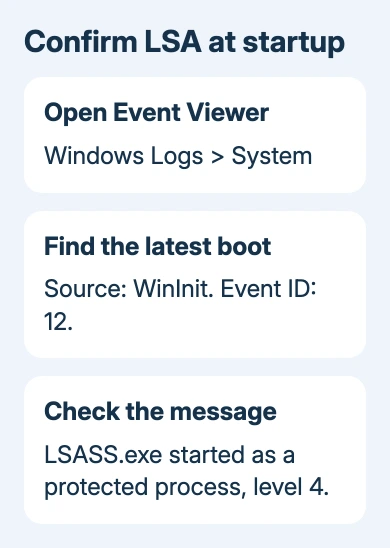
That event confirms LSA protection at startup, not every security feature on your PC. It won't explain the missing TPM panel either. Keep the two results separate when you ask for help.
The original thread's accepted reply used a registry value named RunAsPPLBoot. Owners report that this cleared the LSA warning. They didn't confirm that it repaired missing TPM details, which was part of the original question.
Microsoft's current instructions use RunAsPPL or an LSA policy instead. I'd choose the switch, or leave the current policy change to IT. The old registry workaround cleared a different warning for those owners.
4. Repair the Windows Security app if its display stays wrong
Search Start for Windows Security, open its right-click menu, and select App settings when available. Find the Reset section and try Repair first. Close the settings window and reopen Windows Security after it finishes.
Where you'll find the app can differ between Windows 11 releases. If that shortcut isn't offered, check its entry under Settings > Apps > Installed apps or Settings > System > System components for Advanced options.
Use Windows' own repair control. If your release doesn't offer it, skip this step and tell support it was missing. An unofficial download of the security app could create problems of its own.
Compare Device security with tpm.msc once more. If the details reappear, the app's display needed repair. If they don't, save the results rather than repeatedly repairing or resetting the app.
A separate red X in Windows Security can involve the antivirus display. Check which category has the warning so support doesn't confuse that problem with your security processor.
5. Send the disagreement to the right support team
When Windows Security won't show the processor even though tpm.msc still says ready, open Get Help and request Windows Security support. Include the Windows build, both screens, update results, and whether app repair was available.
For an LSA warning, add the state of the switch after restart and the latest relevant WinInit event. Ask support to check the Windows Security display and LSA policy. A TPM that says ready in its console doesn't need activation.
If tpm.msc changes to an error or stops detecting the module, contact the PC or motherboard manufacturer instead. Give them the exact model, BIOS version, TPM manufacturer, and the new console message.
Before any firmware work they recommend, make sure your BitLocker recovery key is accessible from another device. Ask the manufacturer which TPM firmware steps fit your model. Avoid trying unrelated BIOS switches.
The Short Version
A ready TPM 2.0 in tpm.msc is detected by Windows. Update and restart, repair the security app if offered, and check LSA protection as a separate feature. Don't clear the TPM to fix a missing details panel.
Checked November 27, 2026.
 If you have any business, I can build it online