A damaged Quick access entry can make File Explorer Home crash. Open Explorer to This PC, then clear its history. Owners with this Home-only failure also restored it by resetting the saved shortcut caches.
A crash when you open Home needs a different approach from Explorer freezing in every folder. If This PC and ordinary folders work, start with Home's saved entries rather than rebuilding the whole PC.
In this guide
1. Make Explorer open to This PC
Press Windows + R, type C:\, and press Enter. This opens a drive directly, avoiding Home. If your Windows drive has another letter, enter that drive instead.
In File Explorer, choose See more (…) > Options. On the General tab, change Open File Explorer to to This PC, then select Apply and OK.
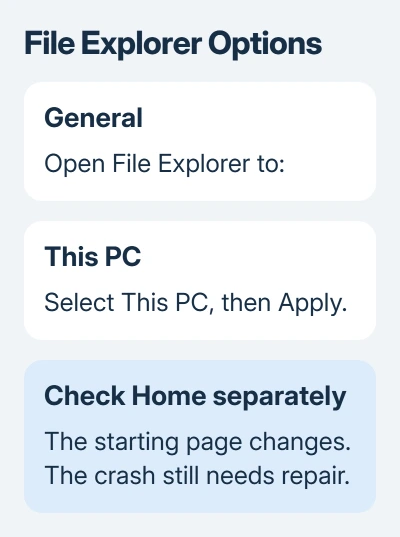
Press Windows + E again. If Explorer shows your drives instead of crashing on Home, the new starting-page setting is working. It gets your folders within reach while you repair the troublesome page.
Microsoft's File Explorer instructions explain that 22H2 renamed Quick access to Home. An earlier Windows 11 installation uses the older name.
For a simple change to the starting page without a crash, the Explorer landing-page setting is enough. For the crash, continue with the history check and reset.
2. Clear history through Folder Options first
Open See more (…) > Options again. In General > Privacy, select Clear beside the File Explorer history control. Then try opening Home from the sidebar.
This clears Explorer's recent history through its own settings. It doesn't delete your documents. If Home now opens repeatedly without closing the window, you can skip the deeper cache reset.
If the crash happens after Home starts filling its recent or frequent lists, temporarily clear the Privacy checkboxes that show recent files and frequent folders. Select Apply, then try Home again.
Some Windows 11 builds also show an Office.com or account-based files option. Disable that option temporarily when your build offers it. Don't search for an identical list of checkboxes when your build shows fewer choices.
When Home works with a list disabled, leave that list off while checking the entries it was loading. A pinned folder on a disconnected drive or unavailable network share deserves attention before you add the shortcut back.
For ordinary cleanup without a crash, the Explorer cache and history controls explain the difference between recent activity and thumbnail previews. Clearing thumbnails is a different cleanup from resetting Home shortcuts.
If Home still closes the window after you clear its history, try the cache reset in the next section. Owners in the crash discussion confirmed that it worked.
3. Reset the shortcut caches when Home still closes
An owner in the Home crash discussion confirmed that clearing the recent-item and destination caches restored Home. Several later replies also reported success.
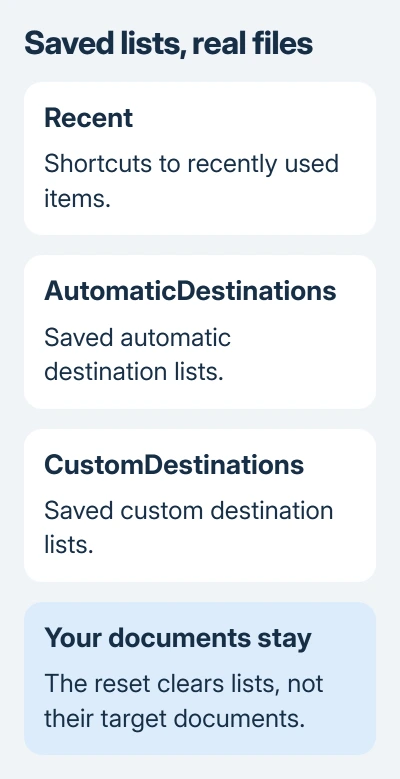
This reset removes saved recent shortcuts and can clear pinned items and taskbar Jump Lists. Note any pins you want to recreate. Your actual documents remain in their own folders.
Close File Explorer windows. Open Start, type Command Prompt, and open it from the Windows account affected by the crash. The commands use that account's %APPDATA% folder, so use your account rather than a different administrator's.
Paste the following lines into Command Prompt, one at a time, pressing Enter after each. Copy the complete paths without shortening them:
del /F /Q "%APPDATA%\Microsoft\Windows\Recent\*"
del /F /Q "%APPDATA%\Microsoft\Windows\Recent\AutomaticDestinations\*"
del /F /Q "%APPDATA%\Microsoft\Windows\Recent\CustomDestinations\*"
Recent holds recently used shortcuts. The destination folders store shortcut lists, including Jump Lists shown when you right-click taskbar apps. These commands clear those cache locations while leaving the documents they point to in place.
The posted answer used an elevated Command Prompt. Opening it normally keeps the commands in your own account; if access is denied, ask IT to help clear that same account's caches rather than signing in as somebody else.
A message that no matching files were found can simply mean a cache folder is already empty. Note any access-denied or path errors, because they mean that part of the reset didn't finish.
4. Restart and rebuild the useful pins
Close Command Prompt and choose Start > Power > Restart. Use Restart here so Explorer loads the cleared lists in a fresh session. After signing in, open Explorer and select Home.
Home should open without Explorer disappearing and returning. You may see fewer recent items and pins because you've removed their saved lists. Recent activity can build again as you use files.
Open Home a few times, then open one local folder and return to it. If it stays responsive, pin a needed folder by right-clicking that folder and choosing Pin to Quick access.
I'd add essential pins back gradually. If the crash returns immediately after one particular network or removable-drive folder is pinned, remove that entry and check whether the location is reachable.
You can keep This PC as the starting page or restore Home through Folder Options once it works. To check whether the reset worked, open Home itself, whichever starting page you choose.
If other folders crash too
A crash in ordinary folders, search results, or every Explorer window needs broader attention. Resetting Home's shortcuts won't fix every problem with Explorer add-ons, Windows system files, or the service that runs searches.
Open Get Help, describe a repeatable File Explorer crash, and provide the Windows build from Settings > System > About. Say whether opening C:\ works and whether Home still crashes after the three cache commands and a restart.
For a managed computer, give IT any access errors from the reset and the name of a location that triggers the crash. With those details, IT can check the failing location or command instead of repeating a reset that hasn't helped.
The Short Version
Open Explorer to This PC, clear its history, then reset the three shortcut caches if Home still crashes. Restart and try Home itself before rebuilding pins. The reset clears saved lists, so keep track of the shortcuts you need.
Checked November 16, 2026.