Windows can open a desktop file with a long name yet refuse to delete or rename it. Try removing that file through WinRAR's file manager. This worked for one owner after Safe Mode and other deletion attempts had failed.
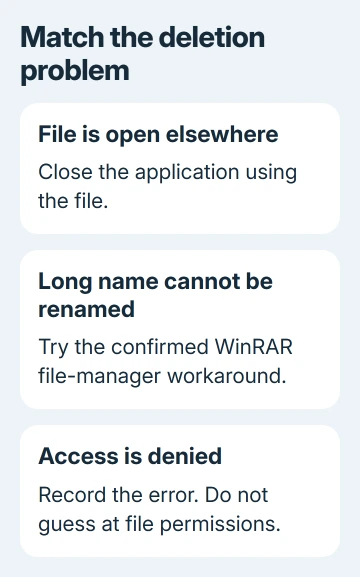
Check the error first. A file that's open in another program, an access-denied message, and a long filename aren't interchangeable problems. Let the message guide your choice of fix, rather than forcing every deletion the same way.
In this guide
1. Read the message and locate the real desktop folder
Select the unwanted file once and press Delete. Read the complete message. For a file-in-use message, close the application that has it open and try again. A restart can release an application that hasn't closed properly.
For a file that refuses both deletion and renaming, inspect its name and location. The confirmed case involved a roughly 240-character image name. Its owner could open the image, but couldn't rename it or save over the original.
Check File Explorer's Desktop address bar. Your desktop may sit inside OneDrive, rather than directly inside your Windows user folder. Use the location containing the file, not a desktop path copied from someone else's PC.
Open the selected item's Properties and check its type and location. A shortcut points to an item elsewhere; a document or image is the stored file itself. Make sure you're removing the intended item.
Before permanently deleting the file, save a copy elsewhere if the contents still matter to you. Being able to open the image in an editor doesn't give you a backup, and this workaround can't recover it afterward.
2. Try a shorter name when Windows allows it
Right-click the file and choose Rename, or press F2 with the item selected. Replace the long descriptive part with a short name. Keep its real extension, such as .webp, unchanged so the file type stays recognizable.
On Windows 11, use View > Show > File name extensions in File Explorer to see that ending. On Windows 10, open the View tab and enable File name extensions. This helps you avoid removing the extension while shortening the name.
If renaming works, try a normal deletion again. If it fails, read whether the error changed. A new message about an open file needs the application closed; repeating a name change won't release an application lock.
The Windows path limits include the folders leading to a file. Longer-path support also depends on the app. A newer Windows version won't make every app handle long names the same way.
The original owner couldn't shorten the name. Their image editor also saved a separate copy instead of replacing the original. Another file manager gives you a different way to delete it; editing hadn't let the owner remove the original.
If the actual name is nul, con, or another reserved Windows name, use the separate reserved-filename deletion method. That guide addresses a different naming rule from an unusually long image filename.
3. Browse to the file from inside WinRAR
Open an up-to-date copy of WinRAR. Use its address bar to browse to the desktop folder you confirmed in section 1. This is WinRAR's file-manager view of a normal folder, not a command to make a RAR archive.
Find the exact unwanted file in that list. Compare its name, type, size, and modified date with the item in File Explorer. If the desktop has several similarly named images, select only the one you intend to remove.
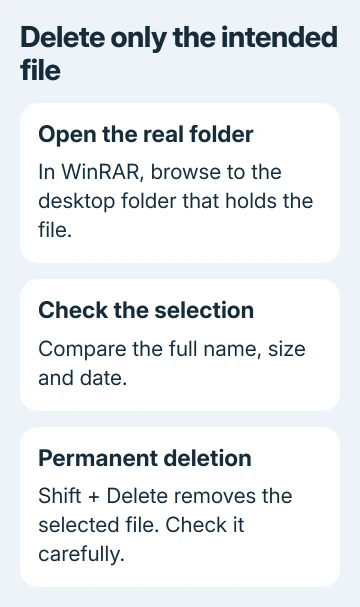
Press Shift+Delete with that file selected. Read any confirmation carefully and confirm only the intended file. This is permanent deletion, so don't expect the file to be waiting in the Recycle Bin afterward.
Return to File Explorer and refresh the Desktop folder. Check that the file is gone from the folder itself, rather than just that its desktop icon moved. If it remains, record the exact error WinRAR produced.
The file disappeared after this workaround; Safe Mode and command-line attempts had failed for that owner. If your result is access denied or a file-in-use error, follow that message. The workaround doesn't cover every deletion fault.
I'd use the file-manager view before copying a deletion command with a long, difficult filename. You can inspect the selected item directly before confirming its removal.
4. Separate OneDrive and permission errors from naming faults
If the desktop item is in OneDrive, check its sync status before another deletion attempt. A sync error or a file that returns afterward means you need to check syncing instead of assuming the name is still stopping deletion.
Deleting from a synced folder can remove the item from OneDrive and other connected devices too. Free up space instead keeps the cloud copy and removes its local storage use. Decide whether you want the cloud copy kept or deleted too.
For an Access denied message on a company-managed PC, have IT check the file's ownership and permissions. Give them the full path and error.
If the desktop icon remains but the actual folder contains no matching file after a refresh, record that difference for support. Show support both views to explain the mismatch.
5. Stop if the next step would delete more than the file
Keep deletion limited to the single unwanted item. Commands aimed at the Desktop folder or wildcard matches could remove neighboring documents. Keep the full path and latest error to give support if the file still won't delete.
Ask for long-name file-deletion help through Get Help. Include the rename result, whether another file manager found the item, and whether OneDrive syncs that desktop. That tells support exactly which step failed.
If something wanted was removed instead, use the Windows file-recovery steps promptly. Recovery depends on where the file was stored and how it was deleted, so don't assume a permanent-delete operation can simply be undone.
The Short Version
Confirm the file's real desktop path. Try a shorter name with the same extension. If deletion still fails, use WinRAR's file-manager view and Shift+Delete on that item. Access, sync, and in-use errors need their own checks.
Checked November 16, 2026.