Moving the same folder to the Desktop can make ZIP compression work because it shortens the full path to the files inside. Try a copy in a short local folder before repairing Windows or changing the right-click menu.
This fits a specific Windows 11 problem: Compress to ZIP file does nothing in a nested folder, yet succeeds with the same contents on the Desktop. If ZIP creation fails everywhere, check whether the destination allows new files instead.
In this guide
1. Give the same files a shorter source path
Press Windows + R, enter %USERPROFILE%, and press Enter. Create a folder named z inside your account folder. This gives you a short local destination without needing permission to create folders at the root of C drive.
Copy the troublesome folder into z, keeping the original in place. Right-click the copied folder and choose Compress to ZIP file. On versions with a Compress to submenu, choose ZIP File there.
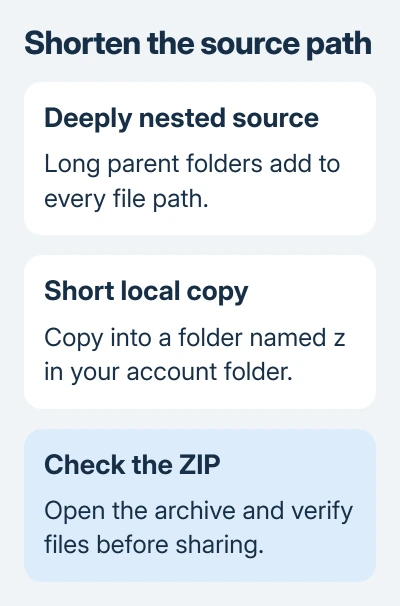
When the ZIP appears, open it and check several files to make sure they're there and open correctly. This check matters even when compression finishes, especially if your original folder contains many nested folders.
An owner in the Desktop-versus-subfolder discussion confirmed that moving the same folder to the Desktop worked. They also confirmed that the older Send to command failed in the original subdirectory.
Path length fits that comparison, though the replies don't confirm which filename failed or whether renaming helped. The short copy lets you create the ZIP and check whether the location matters; it won't repair every ZIP fault.
If the copied folder compresses, continue with the next section to shorten the working layout. If it still doesn't, try a single small local file as described later.
2. Shorten the folders inside the selection
Your account folder, all parent folders and the filename count toward the path. Renaming the outer folder doesn't shorten the folder names inside it. Look inside the copy for repeated names and deeply nested folders.
For example, a folder can have a short name such as Reports while its contents sit inside several years of archived projects. The deepest document has a much longer path than the folder you're right-clicking.
Shorten names in the copy, or move the copy closer to your account folder, then create the ZIP again. Leave linked project files in their original structure unless you know their apps can handle a changed path.
Microsoft's Windows path documentation explains the traditional MAX_PATH limit of 260 characters. It also explains that the Windows shell and the file system have different path requirements.
A file being visible in Explorer doesn't mean every operation on it can handle its full path. Some programs support long paths while another Windows component still has trouble with the same files.
A path shorter than 260 characters can still fail to compress. Path handling depends on the operation and the app involved. Check whether those same files compress from a much shorter location.
3. List unusually long paths without changing files
For a large folder tree, PowerShell can list long paths more quickly than opening every subfolder. Open the copied source folder, click Explorer's address bar, type powershell, and press Enter.
Run this read-only command:
Get-ChildItem -Recurse | Where-Object {$_.FullName.Length -gt 260} | Select-Object FullNameIt lists accessible items whose full paths exceed 260 characters. The list gives you specific places to shorten in your working copy. It doesn't delete, rename, or compress anything.
Even with no paths listed, a path problem can remain. The command may encounter folders it can't read, and the ZIP operation has its own behavior. Read any error messages instead of assuming the scan covered everything.
If PowerShell prints a long location across several display lines, that wrapping doesn't add characters to the filename. Copy the whole displayed path when comparing it with the shorter working copy.
I'd use the short copy before editing a Windows long-path policy. Long-path support also needs the application to support it; turning on a registry setting isn't a universal fix for Explorer's ZIP command.
4. Check a simple ZIP in the original destination
Create a small text file in the folder where compression failed. Right-click that one file and try ZIP compression. If that works, you know Windows can create at least a small ZIP in that folder.
If the text file won't save, fix the folder's availability or write access first. Use a local folder you control, or ask its administrator for access. Archive settings won't fix a folder that refuses ordinary saves.
If the small ZIP works but the original folder doesn't, compress smaller groups from a local copy. This helps identify a particular file or subfolder that stops the operation. Check that cloud files have downloaded before including them.
For broader archive errors, including failures while extracting an existing ZIP, follow the Windows compressed-folder error checks. For extraction failures, check both the existing ZIP and the folder you're extracting it into.
A missing third-party menu is another case. If you installed 7-Zip and only its command is absent, check the 7-Zip right-click menu rather than treating it as this built-in compression failure.
When a short local copy still won't compress
Restart Windows and repeat the single-file ZIP check in the short local folder. If even that fails, open Get Help and report that File Explorer can't create a ZIP from one ordinary local file.
Report your Windows version, shown in Settings > System > About, whether an archive appears at all, and whether moving the original folder changes the result. Include the full error text when Windows shows one.
If another archive app successfully compresses the working copy, open the resulting archive and verify the stored files before sending it. Keep the source files until the recipient has the files they need.
The Short Version
Copy the folder to a short local path and retry ZIP creation. If that works, shorten the copied folder tree. The older Send to command didn't cure the reported fault, and a long-path registry switch won't help every app.
Checked November 16, 2026.