The directory-name error after moving Desktop into OneDrive can come from a shortcut or script still using the old folder path. Open the same item from its actual folder first, then check the shortcut's Target and Start in locations.
If many Desktop items fail after the move, check how Desktop was relocated and reconnect OneDrive through its supported settings. The error doesn't mean Desktop backup is unsupported, and reinstalling each app is a poor first move.
In this guide
1. Open the same item from its real folder
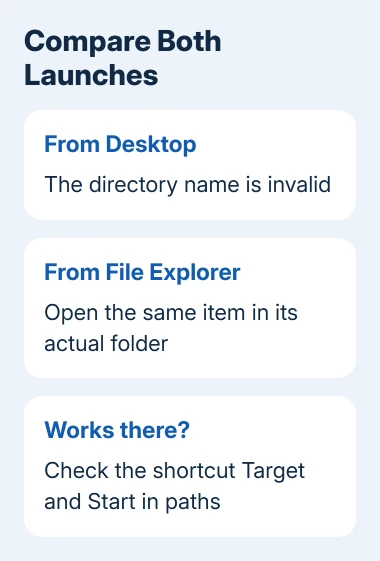
Right-click an affected desktop shortcut and select Properties. Note the location shown in Properties. Open File Explorer and browse to the Desktop folder inside the correct OneDrive account, then try the same item there.
In the saved report, several shortcuts and .cmd or .bat scripts failed from the desktop but worked from their folder in File Explorer. The item itself could run; the failure happened when launching it from the desktop.
A script is a file containing commands for Windows to run. Choose a familiar script you already trust for this check.
If it works from File Explorer, continue with the shortcut paths. If the program won't open from either place, record its own error too. A missing program or unavailable file needs attention before changing the Desktop location again.
Check whether only one shortcut fails or several unrelated items fail together. For one broken shortcut, check its saved settings. When several stop working just after a Desktop move, check the folder they share.
Both Windows versions, 10 and 11, offer shortcut Properties. Windows 11's right-click menu may place some older commands under Show more options. Open Properties for the affected shortcut, rather than another file beside it.
2. Correct a shortcut that still names the previous folder
In the shortcut's Properties > Shortcut tab, inspect Target and Start in. Target tells Windows what to launch. Start in tells it which folder to work from when it opens.
Compare both with the working locations in File Explorer. A Target pointing to a removed file or a Start in folder that no longer exists needs correction. Don't replace a working program path just because its shortcut now lives in OneDrive.
For example, a shortcut can still launch an installed program from Program Files while using an old Desktop folder as Start in. Moving the shortcut doesn't automatically make that old working folder valid.
Enter the real, existing path required by the shortcut, select Apply, then try it from the desktop again. Keep any extra words after the program path in Target. These command arguments can tell it which file or task to open.
If you're unsure what a company shortcut should contain, send IT its current Target and Start in values. Ask them to provide a corrected shortcut for the new Desktop location rather than guessing a command.
A .bat or .cmd file opened directly won't have the same Shortcut tab as a .lnk shortcut. Its commands can also contain old folder paths. Have its author review the saved paths if it fails from the real folder too.
3. Check how Desktop was moved into OneDrive
Select the notification-area OneDrive cloud and open Settings > Sync and backup > Manage backup. Look for Desktop and check whether it's backed up under the account you meant to use.
Microsoft says Desktop can be backed up from this menu. Use that supported method rather than relying on a manual move of the Desktop system folder.
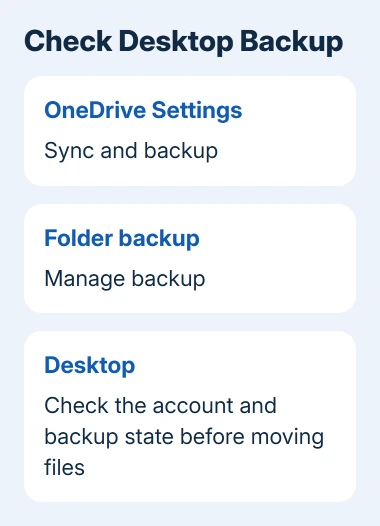
The original owner moved Desktop into OneDrive for Business manually and didn't report a fix that worked. Check your actual folder and shortcut paths before rebuilding the connection.
Don't turn Desktop backup off just to see what happens. Stopping backup now offers choices about where files stay, and choosing the wrong location can leave the desktop different from what you expect.
If you actually want a local Desktop again, stopping OneDrive folder backup is a separate task. For this error, first keep track of the current Desktop path and fix the launch problem without moving everything twice.
On a work PC, send IT the path and the Manage backup result. IT needs to check any company rules that change where Desktop is stored, especially if it affects several coworkers.
4. Reconnect OneDrive when the shared folder path is wrong
If the shortcut paths are correct but the account or folder arrangement remains wrong, use the unlink and relink procedure. It can help with some sync problems, but it isn't a confirmed cure for every directory-name error.
Let any local work finish syncing, or save a separate copy of it, before disconnecting. Open the cloud icon, choose Settings > Account > Unlink this PC, then Unlink account. Keep the files in place.
Press Windows + R, enter %localappdata%\Microsoft\OneDrive\settings, and select OK. Remove the specific PreSignInSettingsConfig.json file as directed by that procedure, leaving the other contents alone.
Open OneDrive from Start if setup doesn't appear. Sign back in to the account you chose for Desktop. When it recognizes the existing folder, select Use this folder. Let reconnection finish, then retry the shortcut on Desktop.
Check the account and folder path carefully when more than one OneDrive account is available. Reconnecting a personal account won't repair a Desktop that was placed under a different organization's folder.
If the desktop item still fails while it opens from File Explorer, tell IT that result. Repeating account setup won't explain an individual shortcut that starts in the wrong directory.
5. Give support the two launch results
In a related OneDrive case, Properties showed an incorrectly formed file path. An owner fixed it by unlinking, uninstalling, clearing local OneDrive data, reinstalling, and syncing again. Resetting alone had failed.
That case involved synced PDFs, not the original Desktop shortcuts. If Properties shows an incorrectly formed path, give IT that detail and ask whether the sync app needs reinstalling.
With a work or school login, ask IT to check Desktop redirection, the OneDrive account's folder path, and the shortcut's working directory. Say whether the item runs from File Explorer and whether it broke immediately after the move.
For a personal account, use Contact Microsoft Support on the relinking help page. Provide the Windows version, the Desktop path, the affected file types, and the results before and after relinking.
If files have disappeared rather than refusing to launch, recovering a deleted OneDrive folder addresses recovery. Stop changing paths until you've found the files you need.
I'd give support one failed shortcut and one working example from the same folder. Those two examples help them check how Desktop is set up before they consider replacing an app.
The Short Version
Compare Explorer and desktop launches, correct stale shortcut paths, and check Desktop under Manage backup. Relink the intended OneDrive account if its folder connection is wrong. Report a persistent desktop-only failure with both results.
Checked November 16, 2026.