OneNote page tab colors follow the section color; Page Color only changes the note's background. Recolor a whole section, or add a short status word to each page title so you can spot finished work in the list.
That distinction explains the OneNote 2010 complaint: the note's background changed, but its tab didn't. In today's desktop version, the page background and the section's tabs still have separate color controls.
In this guide
1. Change the section color when every tab should match
Right-click the section tab, then choose Section Color and select a color. In the horizontal tab layout, section tabs sit across the top; the individual page tabs belong to the selected section.
This changes the section tab and its page tabs together. It doesn't recolor the note's background. Microsoft's page and section color instructions make that separation clear.
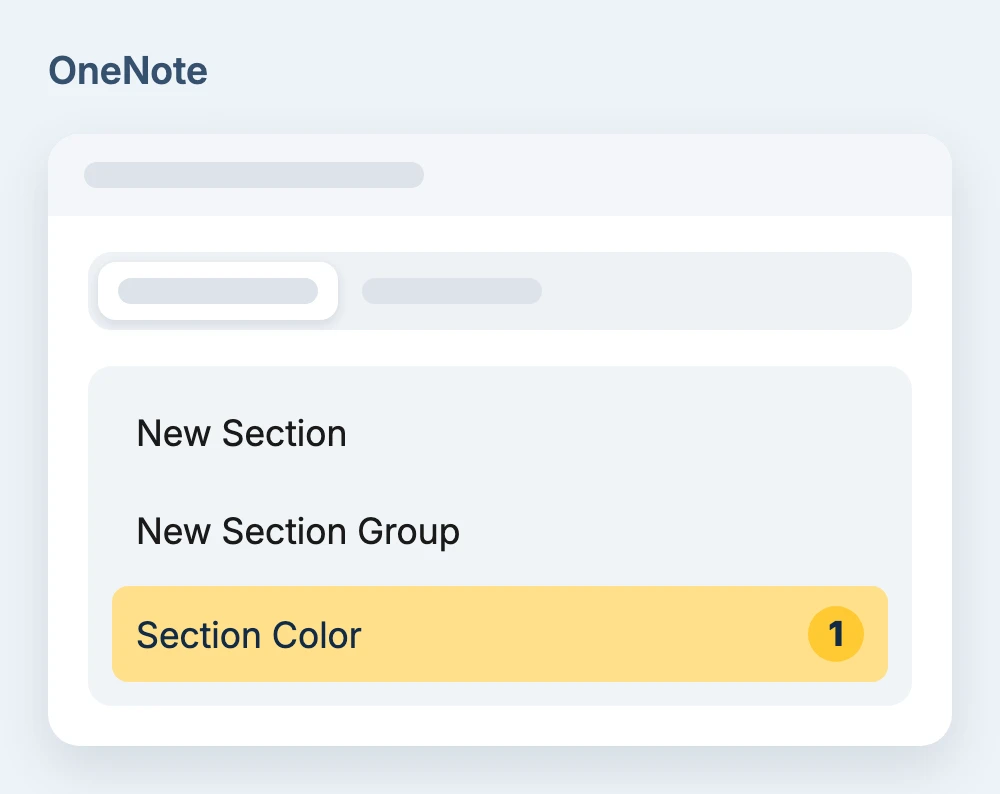
Check another page in that same section after selecting a color. Its tab should use the same color. That means the section color changed successfully, but you still can't use this control to give each page tab its own color.
For example, a project section can have one tab color while another project's section uses a different one. That's useful for grouping projects, but it won't show three priorities among pages that all remain inside the same section.
If only one page needs a different status, leave the section color alone and use the next option. Changing the whole section's color won't make that page stand out from its neighbors.
2. Put the status before the page subject
Open the page and click its title in the note heading. Add a short prefix such as Done:, Waiting: or Next:, keeping the meaningful subject after it. The page tab updates to match the title.
Try this on one page before changing a long list. Select a neighboring page, then look back at the renamed tab. The status should be visible without opening the note again.
I'd use this for a completion list. A word keeps its meaning when the page is selected, and people using the notebook don't have to remember what three similar shades mean.
Keep the prefix short enough that the subject still fits in the page list. Done: Travel receipts is easier to scan than a long sentence explaining that the receipts have already been processed.
The original accepted answer suggested a completed label in the title. That's a workaround for the missing individual color control, rather than a setting that unlocks extra colors.
For a shared notebook, agree on a small set of labels before renaming pages. Using Done on some pages and Finished on others makes the list harder to scan, even though both words mean the same thing.
If the new title appears on the note but the list is too narrow to read it comfortably, shorten the title first. Adding a longer status description won't help a cramped list.
3. Use read and unread for a temporary distinction
In OneNote for Windows, right-click a page tab and look for Mark as Unread or Mark as Read. These controls show whether a page has been read. They don't give it a permanent custom color.
One owner used these commands alongside subpages to make two groups stand out. That helped them organize their pages, but it didn't add a new page-color feature.
Try the command on one page, then open it and watch what happens to its reading status. See whether it works for your task before using it across the section.
I wouldn't use read/unread to keep a lasting record of approvals. Reading a note and completing its work are different events. Keep a title label when another person needs to know that a task is finished.
For grouping related pages, use the OneNote subpage controls. Indenting pages can make a long project easier to navigate, but it doesn't add independent tab colors.
Choose the simpler marker for the job. A temporary reminder to revisit a page can use reading status; a workflow with waiting, approved and finished states needs labels that say those things.
4. Change Page Color only for the note's background
Select the page, then choose View > Page Color and pick a shade. This changes the writing surface you see while reading the note. It doesn't assign that shade to its individual tab.
Open a second page to compare the result. A colored writing surface on the first page and a different surface on the second are expected. Their tabs can still follow the same section color.
Use background colors when you want to recognize a note's category while it's open. For example, a reference page can look different from working notes when you open it. Keep a title label if the category must be visible in the page list.
The current support instructions cover OneNote for Microsoft 365, 2024, 2021 and 2016. The original question concerned 2010. A different ribbon or navigation layout doesn't give individual page tabs a hidden color menu.
If changing the background is the only operation that seems to fail, check that you're changing the selected page in desktop OneNote. That's a different problem from successfully changing the background and expecting the tab to follow it.
When the notebook needs a clearer structure
Separate sections can carry separate colors. Create sections for categories you'll actually browse, then use OneNote's move controls to put the matching pages there. Check the destination before moving more pages.
Avoid splitting every single note into its own section just to get another shade. That makes browsing more work than using a short title label. Keep the organization useful even when you ignore its colors.
For notes that remain hard to locate after organizing them, the OneNote search repairs address search results separately. Recoloring tabs won't repair an index that isn't returning your notes.
If a required color control isn't available, send that feature request through OneNote's feedback controls. Reinstalling Office can't add a feature that the color menus don't provide.
The Short Version
Section Color changes a section and its page tabs together. Page Color changes the note's background. Use short title labels for lasting page status, with read/unread reserved for a temporary reading reminder.
Checked November 27, 2026.
 If you have any business, I can build it online