

Desktop OneNote leans on Windows Search to look through your notebooks, so when its index is damaged, OneNote finds nothing beyond the page you have open. Closing and reopening the notebook is the quick fix.
If that doesn't do it, rebuild the Windows index with OneNote's file types switched on and give it 10 to 15 minutes. That got search working again for several owners on OneNote 2013.
The same steps work for OneNote 2016 and OneNote for Microsoft 365; only one folder name changes.
In this guide
What OneNote search depends on
OneNote keeps a local cache of your notebooks, and Windows Search indexes what's in it. Any search beyond the page you're on goes through that index.
OneNote can even look fine in Indexing Options while search still fails; one asker saw exactly that.
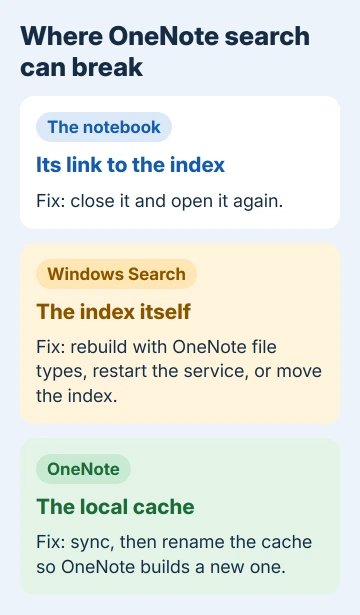
So three things can break the chain: the notebook's link to the index, the Windows index itself, or OneNote's cache. The fixes follow that order, quickest first.
Before any fix, two quick checks. OneNote can be set to search only the current section or notebook, which looks just like broken search. In OneNote 2013 and 2016, open the small drop-down arrow beside the search box and pick All Notebooks.
Then search File Explorer for a document you know is on the PC. If Windows can't find ordinary files either, the whole index is broken, and the Windows Search fixes come first.
1. Close the notebook and open it again
Let the notebook finish syncing first. Then right-click its name in the notebook list, choose Close This Notebook, and open it again from File > Open, where your recent notebooks are listed.
Two owners on Windows 10 got search back this way, one right after a Windows update had broken it. It takes a minute and changes nothing else, so it's the first thing I'd try.
2. Check OneNote's file types, then rebuild the index
Type Indexing Options into the Start menu and open it. Click Advanced, open the File Types tab, and scroll to the OneNote extensions: one, onepkg, onetoc and onetoc2.
Tick any that aren't ticked; not every PC lists all four. Then switch to the Index Settings tab, click Rebuild and confirm with OK.
Windows throws the old index away and builds it again, so searches anywhere on the PC are patchy for a while. Give it 10 to 15 minutes before testing OneNote.
That's how long it took for the owner who posted this fix, and one who confirmed it said the wait was what made it work. If you test after two minutes and give up, the fix looks like a failure when it simply wasn't finished.
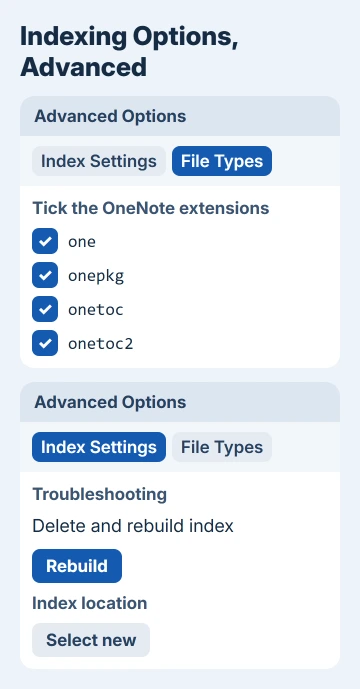
You can reach the same window from Settings too. On Windows 11 it's Settings > Privacy & security > Searching Windows > Advanced indexing options; on Windows 10 it's Settings > Search > Searching Windows > Advanced Search Indexer Settings.
A full rebuild on a big drive may run for as long as 24 hours, so if OneNote still finds nothing after 15 minutes, check whether it's done. Microsoft's Windows Search guide says Indexing Options shows Indexing complete once it's finished.
3. Restart the Windows Search service
Hit Windows+R, type services.msc and press Enter. Scroll to Windows Search, right-click it and choose Restart.
One owner still has to do this now and then, and it works for them on its own or together with clearing the cache in fix 4.
If the service shows as Disabled, double-click it, set Startup type to Automatic (Delayed Start), click Apply, then Start, and rebuild the index as in fix 2.
4. Clear OneNote's local cache
A damaged cache breaks search in a way a rebuild can't reach. Several owners on OneNote 2013 fixed it by clearing out the cache file, including some who'd already tried a rebuild and an Office repair without luck.
Anything that hasn't synced yet lives only in that cache, so let every notebook finish syncing first. Renaming the cache instead of deleting it means you can put it back.
Close OneNote completely. Press Windows+R, paste %localappdata%\Microsoft\OneNote and press Enter, then open the folder for your version:
- 15.0 for OneNote 2013: rename OneNoteOfflineCache.onecache to OneNoteOfflineCache.old.
- 16.0 for OneNote 2016 and OneNote for Microsoft 365: rename the cache folder to cache.old.
- 14.0 for OneNote 2010: rename the same .onecache file as for 2013.
Rename only the cache. The Backup folder next to it holds OneNote's automatic backups and can stay as it is.
Open OneNote again. It creates a new cache and syncs your notebooks into it, which takes a while for large ones, and search starts working once that's done.
Keep the renamed copy until you're sure nothing is missing. If OneNote shows a sync error such as 0xE000002E afterward, sort that out before deleting the old cache.
5. Move the index to a fresh folder
If you've come this far, the index folder itself may have broken permissions. One owner ran into that when the Windows search troubleshooter flagged access rights on the index folder.
Make a new, empty folder, such as C:\SearchIndex. In Indexing Options, click Advanced, then under Index location click Select new, choose the folder and click OK.
Restart the PC so the index moves, then rebuild it as in fix 2. A plain rebuild hadn't helped that owner, but the move followed by a rebuild got search working again.
What didn't help
Several owners on Microsoft's forum repaired Office and still had no search, so I'd save a repair for when everything here has failed. It takes far longer than any of these fixes and doesn't touch the index or the cache.
When search still finds nothing
OneNote 2013 stopped getting fixes when Office 2013 support ended in April 2023, so a search fault that began with a Windows update may never get a patch there.
Moving to OneNote for Microsoft 365, or the free desktop OneNote for Windows, gets you a supported app that opens the same notebooks.
Company and school PCs sometimes have Windows Search limited by policy, because some organizations restrict indexing, so that's a question for your IT department. On a personal PC, ask Microsoft's support team through Windows' Get Help app.
The Short Version
OneNote searches through the Windows index. Set the scope to All Notebooks, close and reopen the notebook, then tick the OneNote file types in Indexing Options, rebuild, and wait 10 to 15 minutes.
Still blank? Restart the Windows Search service, rename OneNote's cache after syncing, or move the index to a fresh folder.
Checked November 20, 2026.
 If you have any business, I can build it online






