The Outlook error This is not a valid style name can come from a signature displayed in Rich Text format. Switch classic Outlook to HTML, then recreate a broken signature. The released fix doesn't repair damaged entries.
These steps apply to the known issue in Microsoft 365 classic Outlook on Windows. A strange <DIV> appearing in the signature can be part of the same problem, including when you open or reply to an existing email.
In this guide
1. Change the default message format to HTML
In classic Outlook, select File > Options > Mail. Under Compose messages, set Compose messages in this format to HTML, then select OK.
Open a fresh message as a check. If the signature appears without the style-name error, Rich Text was causing trouble with that message's signature. Continue with signature repair if its text or layout is already damaged.
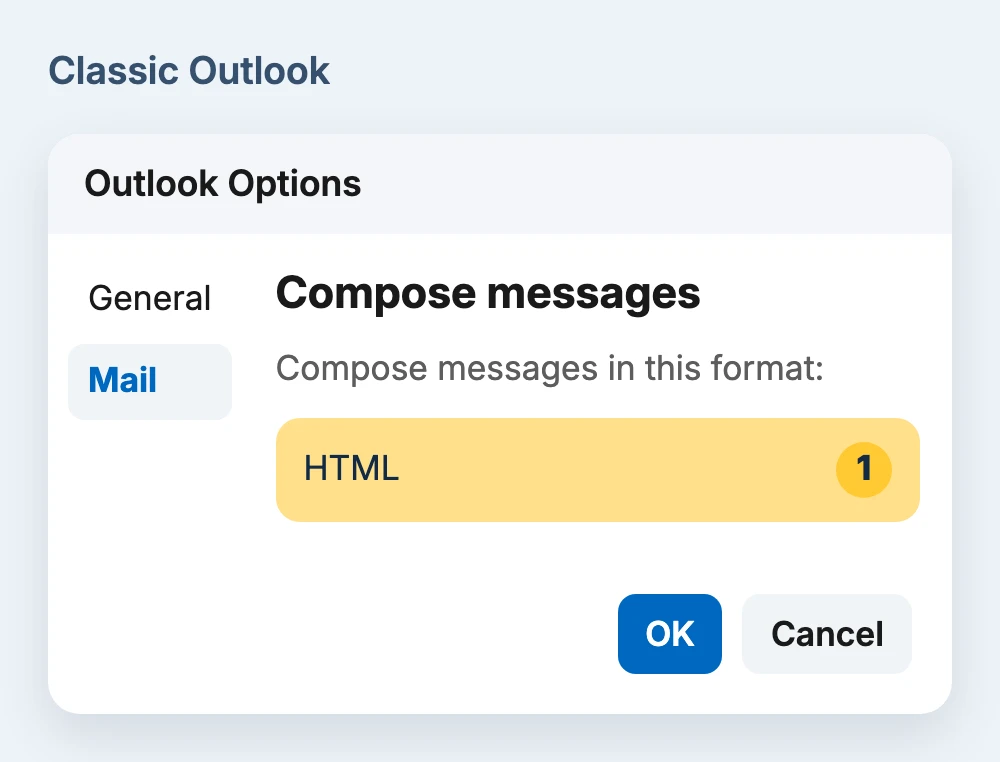
Microsoft says this style-name error occurs with some signatures in Rich Text format, and lists HTML as its first workaround.
Rich Text here means Outlook's message format, not simply an email containing bold text or a logo. HTML still supports formatted messages, so this change doesn't require you to send every email as plain text.
Check a new message separately from a reply to an old conversation. Changing the default doesn't repair the contents of an email you've already received. If only one old email triggers the error, include that detail when you report it.
If the error still appears when creating a new email, temporarily remove the automatic signature next. That tells you whether the saved signature is still causing trouble after the format change.
2. Turn off automatic signatures for a clean comparison
Open File > Options > Mail > Signatures. In Signatures and Stationery, check the E-mail account selection, then set New messages and Replies/forwards to (none). Confirm with OK.
The support notice describes these choices as None. Some dialog labels show parentheses around the word. Choose the empty-signature option rather than a signature you've named yourself.
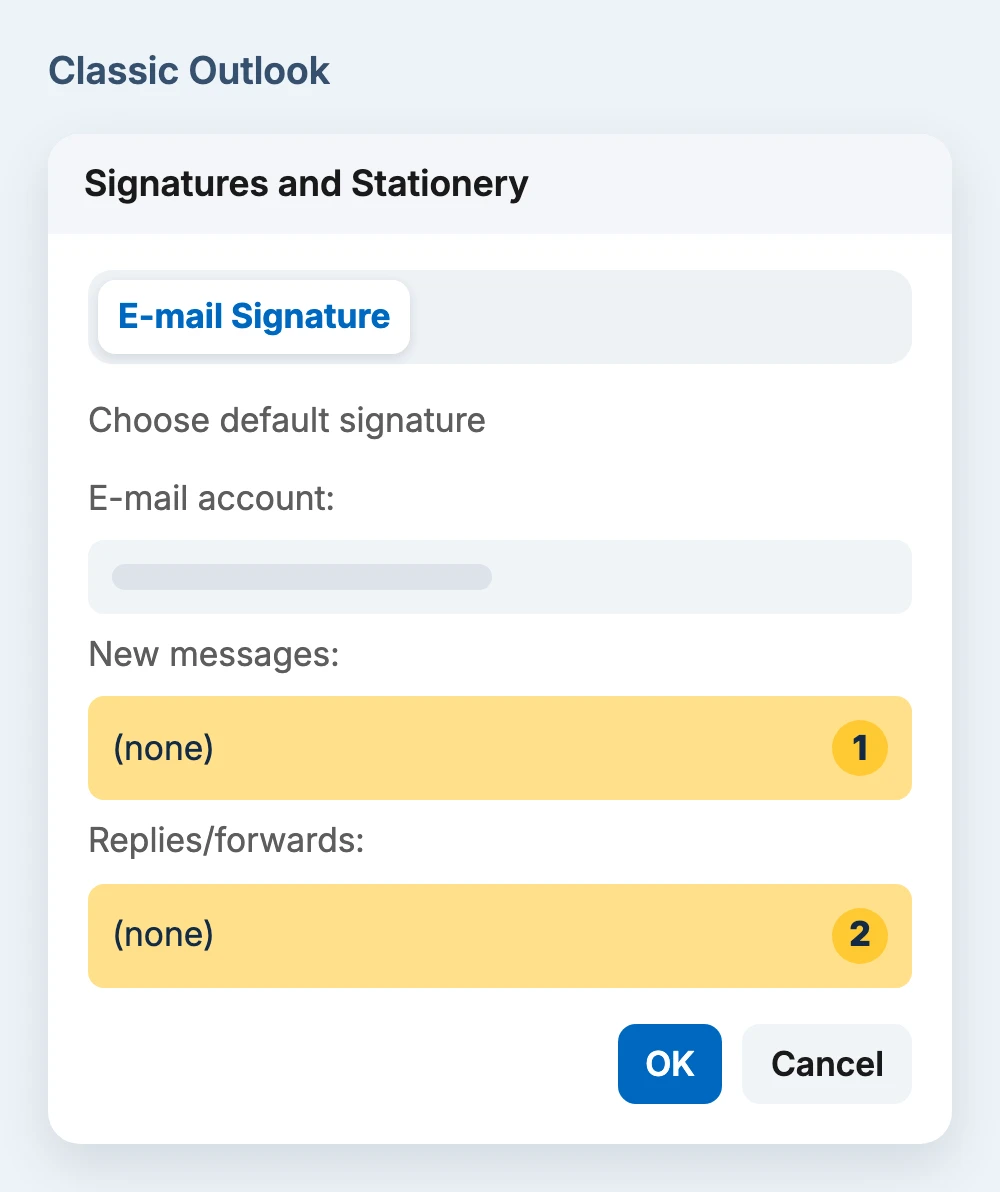
Create a new message, then separately try a reply. If the error stops with automatic signatures disabled, you can keep sending mail while you rebuild the affected signature.
Copy any contact details you need into a safe plain-text note before deleting the broken entry later. Keep the words and addresses rather than copying its suspect formatting back into the replacement.
With multiple accounts, check the signature defaults for the account that triggers the error. Mail working on your personal account doesn't test the work account's signature. It may insert a different, damaged signature.
I'd leave the automatic signature off until a fresh one works in both new mail and replies. It makes the comparison clearer than repeatedly changing the same damaged entry.
If mail can't be sent even with no signature, record whether the style error still appears. A message stuck after composition may instead need the Outlook sending checks.
3. Delete the broken signature and build a new one
Return to File > Options > Mail > Signatures. Select the affected entry under Select signature to edit, choose Delete, then choose New and give the replacement a different name.
Type the essential contact information into the editor. Start with a simple text signature so you're testing a clean replacement instead of bringing the old formatting back. Save it before assigning it to the account.
Under Choose default signature, select the appropriate account. Choose the replacement for New messages and, if you use it there, Replies/forwards. Select OK to finish.
Start a completely new email to check it. Classic Outlook doesn't automatically insert a newly created signature into the message that was already open while you created it.
Send a short message to yourself and inspect what arrives. Then reply and check that the signature appears once, in the expected place, with no style-name dialog or unwanted tag text.
Once the plain version works, restore any necessary logo or formatting in small changes. Check again after each major addition. A new failure after one addition points to the content you just added.
For the detailed account and default controls, use the Outlook signature guide. Its new Outlook, Mac and phone routes are different from the classic Windows dialog used for this repair.
If your organization supplies a centrally managed signature, ask IT to replace the damaged template. That system may overwrite your local changes and bring the problem back when it applies the template again.
4. Get the released fix without keeping an old workaround
The known issue was fixed in production on February 28, 2026. The March 10 support notice also says the fix doesn't address broken signatures, which still need to be deleted and recreated.
In classic Outlook, open File > Office Account > Update Options > Update Now. Follow the update prompts, then restart Outlook and repeat the new-message and reply checks with the replacement signature.
If Update Now isn't offered, check whether Enable Updates is available first. On a managed installation where update choices are absent, send IT the build information for an update review.
An older workaround disabled roaming signatures, the feature that keeps signatures available across supported Outlook experiences. Leave this alone if you never applied that workaround.
Ask the administrator to review DisableRoamingSignatures, the DWORD value at this location. The current notice says to delete that value to re-enable the feature.
HKEY_CURRENT_USER\Software\Microsoft\Office\16.0\Outlook\SetupDon't delete the whole Setup key. Only that single workaround value needs to go. If you're unsure how the computer was set up, let the person who changed it handle the cleanup.
When the same error remains
Send support the full error, Outlook build and results with HTML and no automatic signature. Say whether it happens with new messages, replies, opening received mail or all three.
Include a plain replacement signature that reproduces the fault without private contact information. Ask support why Outlook still can't display the signature correctly after the released fix and a fresh signature.
The Short Version
Switch classic Outlook to HTML, turn off automatic signatures to compare, then delete and recreate the damaged entry. Install current updates and have IT remove an old roaming-signature workaround only if it was used.
Checked November 27, 2026.
 If you have any business, I can build it online