A missing registry entry can remove Send to OneNote from IE8's right-click menu while leaving the toolbar button working. On a legacy OneNote 2010 PC, check the entry's DLL path and its Contexts value before reinstalling Office.
This old browser feature is separate from the OneNote printer and today's browser clipping tools. Keep the working toolbar route while you check it. Office 2010 is no longer maintained, so use these steps only for an existing installation.
In this guide
1. Check whether only the right-click command is missing
Open a page in Internet Explorer 8 and look for Send to OneNote on the toolbar or Tools menu. Try the command and check that the page reaches a notebook. A short page is easier to recognize in OneNote.
If it works, the browser can already reach OneNote. The missing right-click command narrows it down: its menu's registry entry can be missing or point to the wrong Office file. Keep using the working command until the menu is repaired.
If neither route exists, the registry change alone might not repair it. Owners in the discussion also had this problem after reinstalling. Check that the installed program is OneNote 2010 before applying its Office14 instructions.
OneNote 2007 and OneNote 2010 aren't interchangeable here. The right-click option was added in 2010, according to the discussion; an older installation can have a toolbar command without the same context-menu feature.
Printing is another route entirely. If Send to OneNote disappeared from the printer list, use the missing OneNote printer checks. Creating an Internet Explorer menu entry won't install a printer.
2. Find the installed ONBttnIE.dll before changing its path
Find ONBttnIE.dll in the existing Office installation using Windows Explorer. For Office 2010, look inside its Office14 folder. The exact drive and parent folders depend on where Office was installed.
The successful registry recipe used a shortened folder path containing PROGRA~1 and MICROS~2. Those names belong to that computer. Copying them onto yours can leave the command visible but unable to send anything.
One owner confirmed that Office installed on drive D needed a D-drive path. Another restored it by changing an outdated Office14 path to their installed Office15 folder. Use your PC's folder; these paths won't fit every installation.
Write down your DLL's full path. To point inside that file, the registry value needs res://, then the full path, then /105. That final number belongs to this command. Don't change it to match your Office version.
For example, an Office 2010 installation in the usual full folder can use this address, but only if the file really exists there:
res://C:\Program Files\Microsoft Office\Office14\ONBttnIE.dll/105If yours is missing, avoid sites offering individual replacement DLLs. Stop at that point and recover the component through your licensed Office installation media or the person maintaining the legacy PC.
3. Restore the menu key and correct Contexts
Close Internet Explorer. On Windows XP, select Start > Run, enter regedit, and press Enter. On Windows 7, type regedit into the Start menu search and open Registry Editor.
Expand the folders to this location:
HKEY_CURRENT_USER\Software\Microsoft\Internet Explorer\MenuExtBefore editing, select MenuExt, choose File > Export, and save the selected branch. Keep that backup so you can restore your menu settings if the change causes problems.
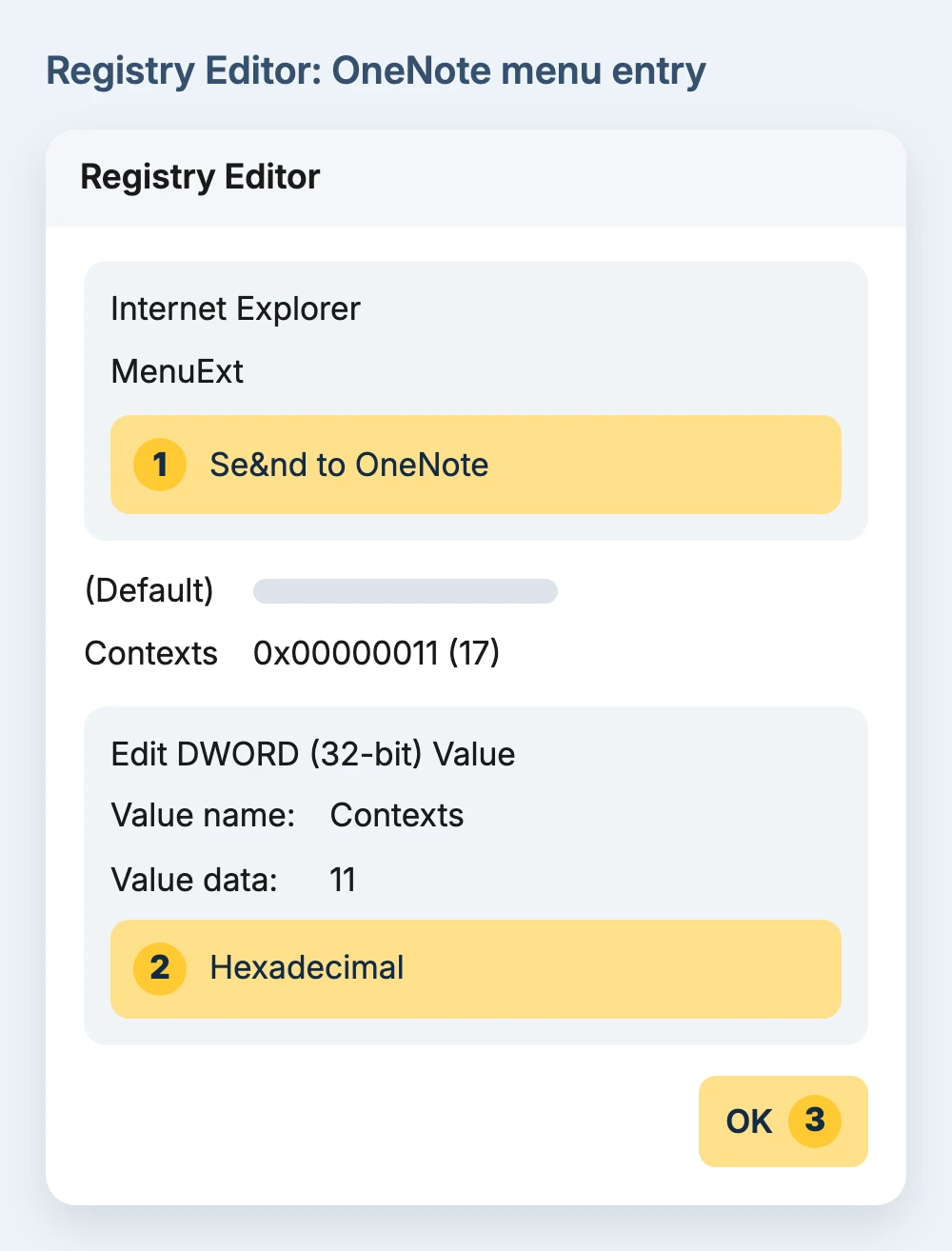
Under MenuExt, select Se&nd to OneNote. If it doesn't exist, right-click MenuExt, choose New > Key, and name the new key Se&nd to OneNote. The ampersand belongs in that key name.
In the right pane, double-click (Default). Enter the resource address using the DLL location you found, then select OK. Edit the existing default value; don't create a second string literally named Default.
Next, look for Contexts. If it's missing, right-click the right pane, select New > DWORD (32-bit) Value, and name it Contexts. Double-click it, select Hexadecimal, enter 11, and select OK.
The name ends in an s. The original recipe switches between Contexts and Context, but a later reply checks the registry and corrects it to Contexts. Keep the DWORD type even on a 64-bit Windows installation.
The original owner's discussion confirms that the registry solution restored the command. It also contains failures, so check both the menu and the actual transfer next.
4. Restart and test the command on an ordinary page
Exit Registry Editor and restart the computer, as the owner who fixed it did. Reopen IE8, open a normal page, and right-click the page itself. Look for Send to OneNote, then use it and inspect the resulting note.
A visible command that does nothing needs a different check. Recheck that the default value points to an existing DLL, with res:// at the start and /105 at the end. An Office update or reinstall can change the installed folder.
If the entry still doesn't appear, compare the key name, Contexts spelling, and hexadecimal selection with the values in section 3. Don't add multiple similar keys or change unrelated Internet Explorer settings to see what happens.
I'd keep the toolbar workaround if it still sends successfully. The asker had already tried resetting IE and repairing Office without success, so repeating those repairs isn't a useful next move for that same narrow symptom.
For an Outlook command that fails to send messages, the Outlook-to-OneNote add-in repairs cover a separate integration. An IE menu registration doesn't control Outlook's button.
When the legacy integration still won't work
Give the PC's maintainer your Office version, DLL location, and whether sending from the toolbar works. Ask them to compare the menu registration with your Office package, rather than importing a registry file from a different computer.
Microsoft's Office 2010 lifecycle notice says support ended October 13, 2020, and its website no longer supplies the installer. Ask the maintainer for a supported browser and Office version for your regular web work.
The Short Version
Keep the working toolbar route. For the IE8 right-click command, restore Se&nd to OneNote under MenuExt, point its default value to your installed ONBttnIE.dll resource, and use Contexts with hexadecimal 11. Restart and test sending.
Checked November 27, 2026.
 If you have any business, I can build it online