

Send to OneNote may have a newer printer name: OneNote (Desktop) or OneNote (Desktop) - Protected. Check the print dialog for both. On supported Windows 11 versions, Windows protected print mode requires the Protected printer.
If neither appears, check your OneNote version and processor type before reinstalling. An older ARM PC can't use the traditional desktop printer, while a current supported setup can use the newer Protected printer.
In this guide
1. Look for the current OneNote printer names
Open a short document in Word or another app and choose File > Print. Expand the printer list and look for both current OneNote names. The older label Send to OneNote 2016 isn't the only name to search for.
Choose OneNote (Desktop) or OneNote (Desktop) - Protected, then select Print. OneNote may open behind the source app. Switch to it and look for the window asking where to put the printout.
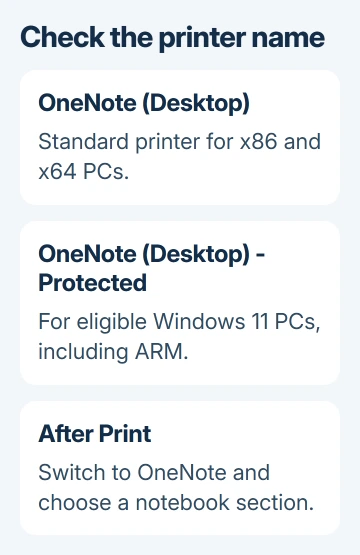
Select the notebook and section where you want the document. The printed pages are added as images on a OneNote page. Check that the expected page arrived before you send a long document.
This is a virtual printer, so it doesn't need a cable or Wi-Fi pairing. It sends printable content into OneNote. Your physical printer can work perfectly while this separate OneNote entry is absent.
If the entry appears in Word but not another app, restart the app missing the entry and open its print dialog again. If both apps lack it, continue with the Windows and OneNote checks.
Microsoft's OneNote printing instructions list the current names and installation requirements. Check those requirements if your printer list doesn't match an old screenshot. A different name doesn't mean the printer is missing.
2. Check Windows protected print mode and your processor
On Windows 11, open Settings > Bluetooth & devices > Printers & scanners and check whether Windows protected print mode is enabled. That mode removes printers that don't use IPP, the supported system for communicating with printers.
The traditional OneNote (Desktop) printer is one of the entries removed when that mode is enabled. Use OneNote (Desktop) - Protected instead. It was introduced to work with Windows protected print mode.
I'd check for that replacement before turning off a protection setting. Losing the old entry can be an expected result of the mode, rather than damage to your OneNote installation.
Next, open Settings > System > About and read System type. An ARM-based processor changes which printer is supported. The standard OneNote desktop printer is available on x86 and x64 devices, not ARM.
The Protected printer supports x86, x64 and ARM. Its default installation requires OneNote version 2410 or later and Windows 11 build 26100 or later. These requirements also cover eligible retail Office editions.
Check OneNote through File > Account > About OneNote. To check Windows, press Windows + R, enter winver, and read the version and OS build. Don't confuse the OneNote version with the Windows build number.
On a Surface Pro X running Windows 10, the Protected printer isn't available. If you can't upgrade, attach the document as described in section 5. Eligible Windows 11 systems have the newer ARM printing route.
3. Allow the Protected printer to install
If your Windows and OneNote versions meet those requirements but the Protected entry is missing, check where Windows allows apps to install from. This step applies to the newer printer; it doesn't add support to an older Windows version.
For a personal PC, open Settings > Apps > Advanced app settings > Choose where to get apps. Select Anywhere, then close and reopen OneNote. Check the printer list again after the app restarts.
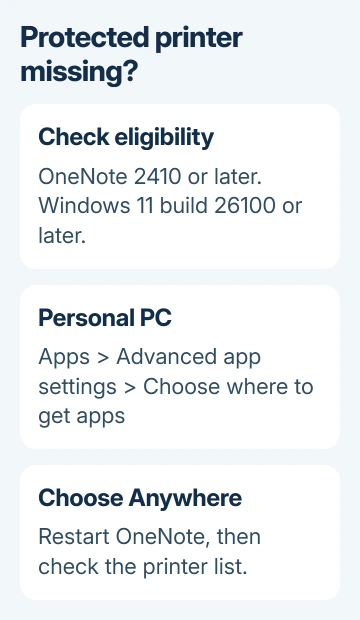
If the control is absent or managed on a work computer, ask IT to check the printer's installation policies. Don't apply old forum registry edits to get around company restrictions.
The relevant policy names are AllowAllTrustedApps and BlockNonAdminUserInstall. The installation requires Enabled for the first and Disabled for the second. Give IT those names with your OneNote and Windows versions.
After the setting or policy is corrected, reopen OneNote and try printing one page. The printer name is only part of the check. OneNote should ask where to put the printout, then add the page to your chosen notebook.
If your versions are supported but the printer is still missing, check the installation next. If it appears but doesn't deliver a page, tell support that the printer appears but page delivery fails.
4. Restore a printer removed from the installation
The standard desktop printer normally installs with the Windows OneNote app. The Protected printer installs by default on eligible newer versions. If you removed an entry, reinstalling OneNote is the documented way to restore it.
Before uninstalling, check notebook sync and save a copy of recent changes that haven't synced. In desktop OneNote, File > Info > View Sync Status shows the notebook status. Compare important recent pages with the online notebook.
Use the current OneNote installer or your organization's approved Microsoft 365 installer. Check your installed Office edition and whether it's the x86, x64 or ARM version. On an organization-owned PC, leave this repair to its IT team.
Avoid reinstalling OneNote for Windows 10 as a workaround. That separate app is retired and no longer supports creating, editing or syncing notes. Restoring its old printer isn't a useful long-term repair.
The Windows OneNote guide explains how to recognize the current desktop app and open your cloud notebooks. After reinstalling, reopen the existing notebook rather than creating a replacement with the same name.
When the printer returns, try the short document again. If the printed page arrives but later edits don't reach another device, the remaining issue is notebook sync rather than printer installation.
5. Use a file insertion route when printing isn't available
If your PC can't use a supported virtual printer, you can still keep a document with your notes. In current desktop OneNote, choose Insert > File Attachment and select the saved document. This adds a copy of the file as an attachment.
An attachment isn't a set of printed page images. If you need the pages visible in the notebook, check Insert > File Printout in your installation and try it with a supported document. Keep the source until the inserted pages look right.
An email-to-OneNote button is another separate feature. If that's what's missing, use the Outlook OneNote add-in steps rather than changing Windows printers.
For a continuing printer failure, send your Windows build, OneNote version, system type and protected print mode setting to Microsoft Support or IT. Ask them to check installation of the appropriate OneNote virtual printer.
The Short Version
Find today's OneNote printer names in the print dialog. Protected print mode and ARM PCs need the Protected route on eligible versions. Check installation settings before reinstalling, and preserve notes that haven't synced.
Checked November 22, 2026.
 If you have any business, I can build it online





