A Mac stuck at login may be stalled by startup software. Restart and try safe mode when the window freezes or a spinner follows an accepted password. A shaking password box means rejection, which needs a keyboard or password check.
In this guide
1. Match the freeze before forcing a shutdown
Click the password box and type while watching for dots. A box that shakes after you enter the password is still responding. Check the selected keyboard layout and whether Caps Lock is active; login hasn't frozen.
The Mac correct-password rejection guide handles that case. Resetting a password won't fix a spinner that appears after the Mac has already accepted it.
A second login prompt can also be normal with FileVault or safe mode. Enter the account password again if the window responds. Being asked twice doesn't mean login is stuck. What matters is whether you eventually reach the desktop.
If startup still shows progress beneath the Apple logo during a macOS installation, allow the installation to continue. The startup progress guidance distinguishes that screen from a login window that has stopped responding.
2. Restart with unnecessary accessories disconnected
Use Restart on the login screen if it responds. For a completely frozen Mac, hold power continuously, releasing when it switches off (up to 10 seconds). A MacBook's Touch ID control serves as its power button too.
Unsaved changes are lost during forced shutdown. Reserve it for an unresponsive Mac. Then disconnect extra storage, printers and docks. Keep the charger and any keyboard or mouse you need to sign in connected.
Turn the Mac on and try again. If the desktop opens, add each accessory back separately. If connecting a particular device brings the freeze back, that points to its cable, dock or device software for further checking.
If the Mac still stops after the password, start it in safe mode. Apple says safe mode checks startup storage and prevents some software from loading.
3. Start safe mode using your Mac's processor
The safe-mode shortcut differs between Apple silicon and Intel hardware. M-series Macs use the first route; Intel uses the second. Holding Shift at power-on is the Intel procedure, not the Apple silicon procedure.
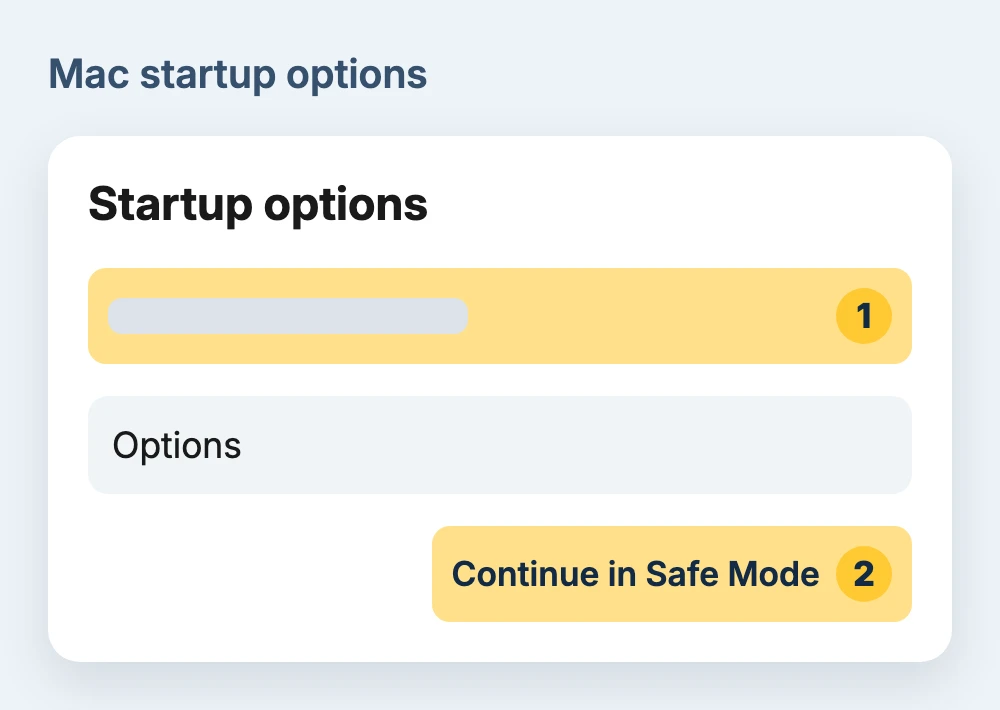
For Apple silicon:
- Shut down the Mac completely.
- Continue holding power as the Mac starts until it displays startup options.
- Select the startup volume.
- Hold Shift, then click Continue in Safe Mode.
- Log in when asked.
For Intel:
- Start the Intel Mac, or restart it if it's running.
- Immediately hold Shift until the login window appears.
- Release Shift and log in.
- Log in again if another prompt appears.
Look for Safe Boot in the menu bar. If you reach the desktop and want to confirm it, hold Option while opening Apple menu > System Information. Select Software and read Boot Mode; it should say Safe.
Reaching the desktop in safe mode means your Mac can log in with fewer programs running at startup. Some graphics, audio and connected-device features behave differently there, so concentrate on whether login finishes.
4. Remove the login item that brings the freeze back
First restart normally. If the freeze has gone, use the Mac normally and check the next startup. Safe mode also clears some caches, so reaching it once doesn't automatically identify an app as the cause.
If normal startup freezes again but safe mode opens, return to safe mode. On current macOS versions, open System Settings > General > Login Items & Extensions. Older versions may call the page Login Items.
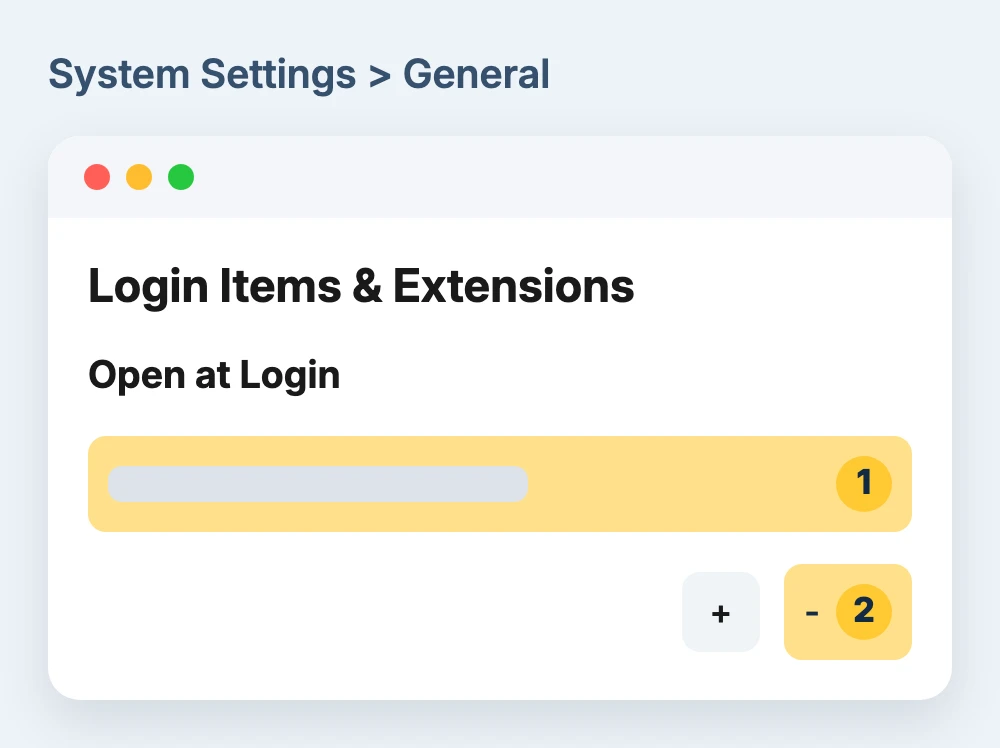
Make a list of the entries under Open at Login, then select and remove those entries with the remove button. This changes what starts at login; it doesn't uninstall the apps. Restart normally and try signing in.
If that works, add the entries back one at a time, restarting after each addition. Remove the last entry when the freeze returns. The Mac slow-startup guide explains the related startup controls after desktop access is restored.
I'd add the items back this way before installing a cleanup app. It tells you which startup item triggers the failure and leaves the other apps available when you need them.
5. Compare another account if the desktop is reachable
If another account already appears on the login screen, try it. A second account that reaches its desktop while yours freezes points to software or settings in your account.
When safe mode lets you into an administrator account, you can add a new test account in System Settings > Users & Groups > Add User. Restart and sign in to that account without adding your usual startup apps.
Tell support if the test account works, and keep your original account with its files and settings. Support can compare the accounts while checking the startup software in the one that freezes.
6. Use Recovery when safe mode cannot finish
If both normal and safe startup fail, move to macOS Recovery. On Apple silicon, shut down, hold power for startup options, then choose Options > Continue. On Intel, start the Mac while holding Command-R.
Back up accessible files before disk repair. Open Disk Utility > Continue, then View > Show All Devices. Start First Aid at the last volume, then work up through the other volumes, their container and the physical device.
Ask for service advice if the disk can't be repaired or doesn't appear. If repair finishes but login still fails, Recovery offers Reinstall macOS. Reinstall onto the existing startup disk without choosing Erase.
Reinstalling macOS normally preserves personal files, but a current backup remains important. Contact Apple Support about the login freeze if Recovery won't open, the disk isn't detected, or the reinstall doesn't restore access.
Give support the model, last screen reached, safe-mode result and any First Aid message. Ask them to check the startup disk and why login won't finish. Discuss recovering your files before approving an erase.
The Short Version
Check whether login is frozen or rejects the password. For a freeze, restart and try safe mode, then check login items if it works. Recovery provides disk repair and macOS reinstallation when startup still fails.
Checked November 27, 2026.
 If you have any business, I can build it online