Slack alerts can be paused inside the app even while messages keep arriving, and macOS can block the banners separately. Resume paused notifications first, then allow Slack in the Mac's Notifications settings.
A missing banner, a silent banner and a Dock badge that won't clear aren't the same failure. Start with the symptom you're seeing. Changing the sound won't help if Slack isn't set to alert you about those messages.
In this guide
1. Resume alerts and check what Slack should notify you about
Open Slack and click your profile picture in the sidebar. If notifications are paused, resume them. A snooze indicator beside your name makes this the first setting to check.
Open Preferences > Notifications from that profile menu. Under How to notify you, select Desktop notifications. Under What to notify you about, choose the messages you want to trigger them.
The current choices include Everything and Mentions and direct messages. With the latter selected, ordinary channel conversation can arrive without producing the alert you expected.
Check the notification schedule too. Outside its selected hours and days, Slack pauses notifications. If Slack goes quiet at the same time each evening, it may be following that schedule exactly.
Use the notification preferences to adjust the schedule to your working hours. Test with a fresh direct message after the change instead of expecting an old message to generate a new banner.
If one channel is the exception, check its own notification preference. That conversation can have its own setting, even when you've chosen something different for the whole workspace.
2. Allow Slack banners in macOS
On recent macOS versions, open Apple menu > System Settings > Notifications, then select Slack. Turn on Allow notifications and choose an alert style that appears on the desktop.
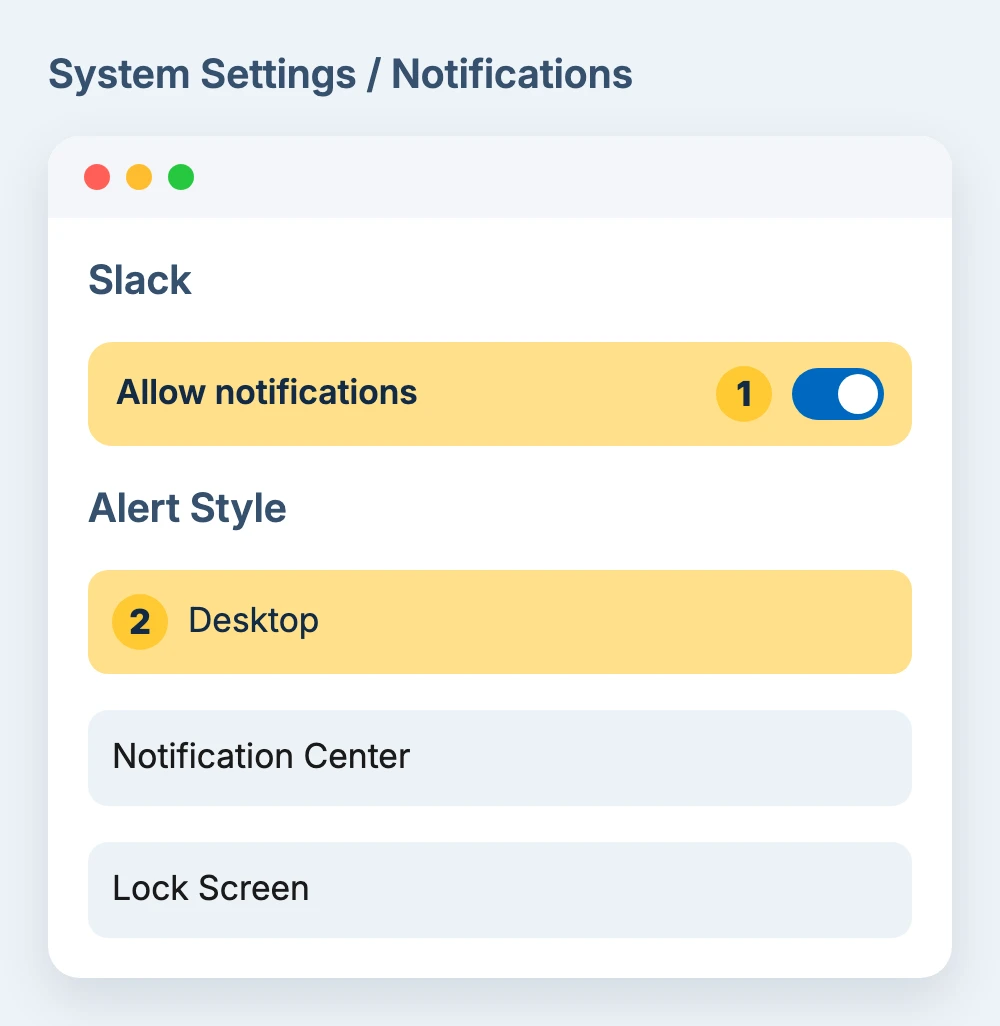
Older macOS versions call the app System Preferences. Open Notifications, select Slack and enable its notifications there. Older alert-style labels include Banners and Alerts.
The current settings can show Desktop, Notification Center and Lock Screen, with Temporary or Persistent styles. Choose Desktop when the missing part is a pop-up while you're working.
Those choices can explain why an alert appears in Notification Center but doesn't pop up on your desktop. Apple's Notifications settings reference explains the locations and styles.
Send another direct message after changing the setting. If the banner now appears, macOS was hiding the banner even though Slack could receive the message.
If Slack is missing from the app list, launch the desktop app and try its example notification in step 5. If it remains absent, include that exact result in the support report rather than changing permissions for a different browser.
3. Check Focus and display-sharing rules
Open Control Center in the menu bar and check Focus or Do Not Disturb, depending on macOS. Turn the active mode off for one fresh-message comparison.
If alerts return, edit that Focus to allow the interruptions you need, or leave it off when you're waiting for Slack. A Focus is meant to silence interruptions; it doesn't stop the messages from reaching the workspace.
For alerts that disappear only during a presentation, screen share or mirrored display, return to System Settings > Notifications. Check the setting for alerts during display sharing.
Allow them there if you want them during sharing. That can put message previews on a shared display, so set the preview visibility to suit what the audience should see.
Compare once with sharing stopped. If banners work then, you've narrowed the problem to the sharing rule rather than an account that can't receive notifications at all.
4. Restore sound when banners already appear
Open System Settings > Notifications > Slack and enable Play sound for notification, or the similarly named sound switch on your version. On older macOS, use System Preferences > Notifications > Slack.
Next open the Mac's Sound settings. Check where alerts or sound effects play and how loud they're set. The sound can go to a monitor, dock or headset even when you expect to hear it through the Mac's speakers.
Disconnect an external monitor for one comparison if the sound problem began with it connected. Slack's troubleshooting instructions specifically call out external monitors as a possible cause of notification sound trouble.
I'd check the output before reinstalling Slack. If the banner appears but its sound goes somewhere else, change the audio output before trying a fresh copy of the app.
If other Mac alerts are silent too, treat it as a system sound problem. If only Slack remains silent after its sound switch is enabled, move to the example notification and report that narrower result.
5. Send an example notification and distinguish a stuck badge
In Slack, click the profile picture and open Preferences. Find Sounds & appearance in the notification preferences and click Show an example.
Watch for the banner and listen separately. Tell support whether both are missing, only sound is missing or the example works while real messages don't.
Support can then check the part that failed: displaying banners, choosing which messages trigger an alert or playing the sound.
A badge for messages you've already read is a separate case. Open the affected workspace and press Shift+Esc to mark everything as read. Use this only when you're ready to mark all unread messages in that workspace as read.
If the Dock badge clears, it was still showing messages you'd read, rather than failing to alert you to new ones. If it stays stuck, report that result without treating it as another missing-banner test.
If alerts from several apps are missing, use the Mac notification checks to review the shared system controls rather than treating each app as a separate failure.
6. Send support the delivery results
On Mac, open Slack's Help > Troubleshooting > Report Issue menu. Describe the missing alert and send the message through that form; the app attaches logs for the support team.
Include the macOS and Slack versions, whether the example worked, the affected workspace and whether Focus or display sharing changes the result. Don't post private message contents in a public discussion.
For a Mac that becomes quiet on a schedule, the Mac notification silencing settings show the controls to review if an earlier quiet-hours setup is still active.
The Short Version
Resume Slack notifications and check the schedule. Allow Slack in macOS Notifications, compare with Focus off and check the audio output for silent banners. Send an example and report what still fails.
Checked November 27, 2026.
 If you have any business, I can build it online