OneNote error E000006C (cig68) calls for a refresh: select Refresh Now, or the yellow refresh bar if editing still works. Without that option, update OneNote first. Save notes still missing from the cloud before trying deeper repairs.
A refresh that keeps restarting OneNote needs another route. Owners copied notes into a new notebook, sometimes splitting a large PDF printout into smaller pages. Start with the current refresh repair, then recover what still won't sync.
In this guide
1. Protect the notes that exist only on this device
Keep the device with your latest edits available. Saved offline means the shared notebook may not contain those changes yet. Another computer can open the same notebook name and still show an older version of your work.
Before account resets or app removal, save unsynced notes somewhere else too. Copy text into a document, save important attachments and keep handwritten pages in a readable form. Check that the copies open outside the affected notebook.
Stay signed in and keep the app's local data while this device holds the only copy. Microsoft's sync guidance warns that signing out or reinstalling during sync trouble can lose data. A cache folder isn't a substitute for a checked backup.
For a browser comparison, open this notebook's OneDrive or SharePoint link in your account. Look for the newest changed page, not just the notebook title. Sign in with your account to view that private notebook.
The retired Store app, OneNote for Windows 10, became read-only after October 14, 2025. Keep its local data while recovering missing changes. The desktop offline guide explains the current app and migration checks.
2. Use the refresh control for the message on screen
A read-only notebook can show a message saying that it can't be edited because it isn't syncing, followed by Refresh Now. Select it and let the refresh complete, then try editing again.
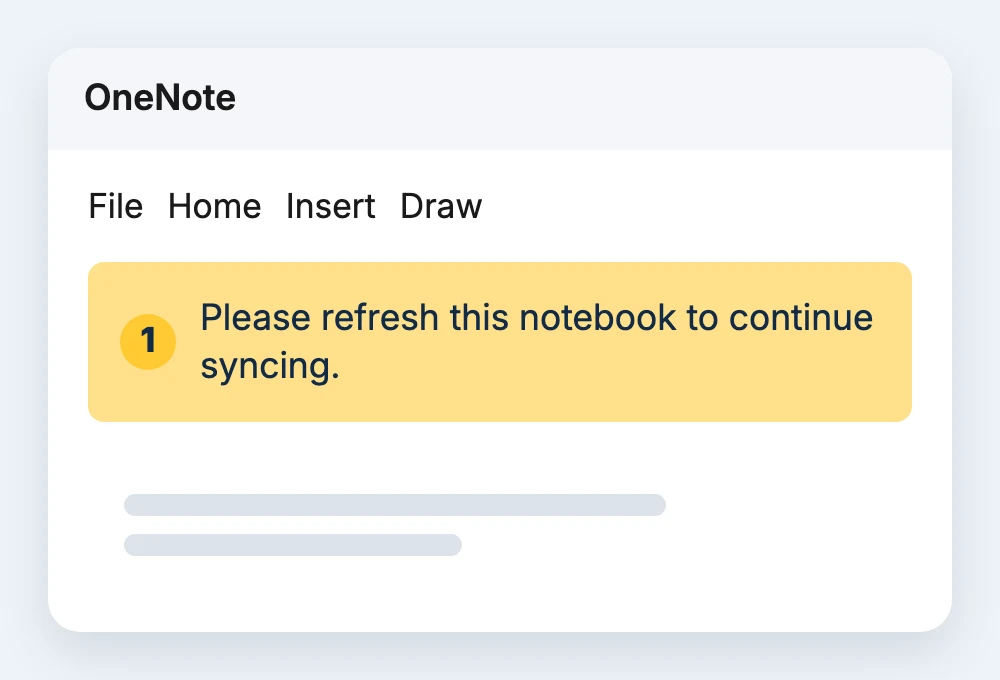
An editable notebook can instead say Please refresh this notebook to continue syncing. Select its yellow information bar to refresh. It's the same refresh repair with a different message. Changing accounts isn't part of this repair.
For E000006C / cig68 without a refresh prompt, update OneNote. In desktop Office, check File > Account > Update Options > Update Now when offered. For a managed installation, IT can supply the approved current build.
After the update, use the refresh message when it appears. The E000006C sync instructions distinguish these three cases. Don't keep searching for a Refresh Now button in a build that hasn't shown it yet.
Once the refresh finishes, check whether the missing edit now appears in the shared copy. A notebook that opens again but still shows the old page elsewhere hasn't completed the repair you need.
If OneNote keeps closing and reopening each time you refresh, stop trying the same refresh. That loop was part of the original owner's problem. Continue with the section or page that remains unsynced.
3. Copy the failing section into a clean section
In desktop OneNote, choose File > Info > View Sync Status and read which notebook or section reports the error. If other sections finish normally, work on the failing section rather than changing everything.
Add a fresh section to the notebook. For each affected page, open Move or Copy and select Copy to put it in that new section. Keep the original pages until you've confirmed the new copies arrived online.
Choose a name for the new section that you can easily recognize on the second device. Start a sync and open one of the copied pages on that device. Check recent text and ink as well as the page title.
If only one page still fails, try copying its content into a fresh page instead of copying the whole section again. The page recovery steps for 0xE0001464 describe that narrower rescue for a different error code.
If the clean section also refuses to sync, make a new cloud notebook and add a short test page first. Confirm that the test appears on another device before putting your important material into that destination.
4. Split a large printout when the same page keeps failing
One owner with E000006C had inserted a large PDF into one page, then added highlights and handwriting and rearranged parts of it while offline. The other pages synced; that printout page with all those edits didn't.
They created a new notebook while connected and used the lasso tool to copy portions of the printout into three smaller pages. They then copied the other working sections and waited for the replacement notebook to sync successfully.
Use the same idea when your failure follows one large printout. Create a few new pages in the notebook that syncs and copy manageable portions into each. Keep the page order clear so the recovered PDF material still makes sense.
Check the copied handwriting and highlights at normal reading size. Copying the image without those marks won't recover all your work. Confirm the material on another device before removing anything from the original page.
The report doesn't give a PDF size or page count that causes this error on every device. Three pages worked for that owner; it isn't a required number for every notebook. Split the content that won't sync on your device into smaller parts.
Another commenter later reported the same sync problem returning in replacement notebooks. Use the copied notebook to recover your work, then keep checking that it syncs. The same fault can return in a new notebook.
Escalate a recurring error with the saved content intact
If clean pages still fail, send OneNote support the exact E000006C / cig68 message, app version, account type and notebook location. Say whether refresh keeps restarting the app and whether a plain test page in a new notebook syncs.
For a school or work SharePoint notebook, have your administrator check that notebook's access and the organization's Microsoft 365 service health. Mention whether colleagues can open the shared copy and which pages remain local only.
I'd keep the working recovery copy separate while support checks the original. An empty desktop Backup folder doesn't mean the old Store app has no local notes, and searching it shouldn't lead to deleting the remaining app data.
The Short Version
Save offline-only content, then use the refresh option matching your message. Update if no prompt appears. For a persistent loop, copy the failing material into a notebook that syncs and split a large printout when needed.
Checked November 27, 2026.
 If you have any business, I can build it online