Night mode is usually behind an iPhone's slow shutter speed in dim light. Switch it off for a quicker capture, or hold the phone steady through its countdown for a brighter night photo.
The timer delays a shot before capture starts; Night mode takes time during capture. Taking several photos quickly and choosing a long exposure on purpose need different controls.
In this guide
1. Shorten a Night mode capture
Open Camera in Photo mode and look for the yellow Night mode control. A time beside it means the camera is allowing a longer capture in the dark. That extra capture time can brighten the scene, but movement can spoil the picture.
Switch Night mode off using its yellow control, then take the same picture again. If the long capture disappears, Night mode explains the wait; it wasn't the phone ignoring your press of the shutter button.
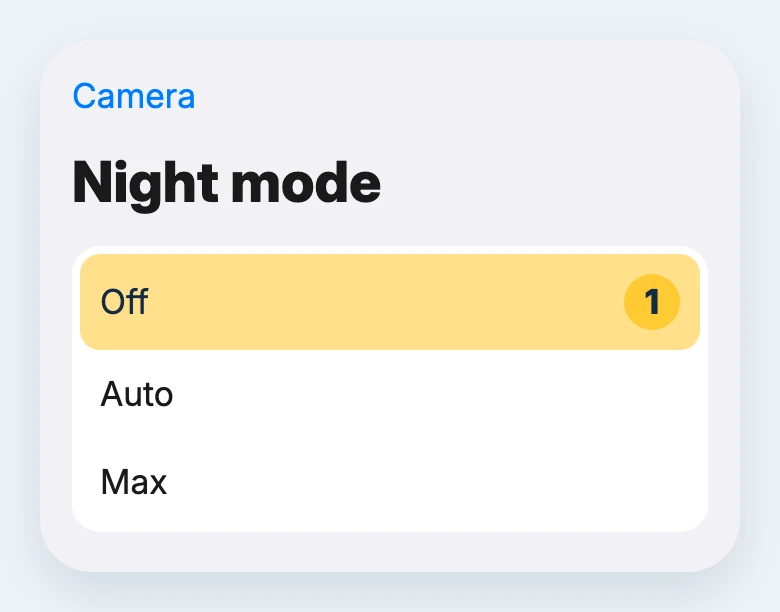
On the current Camera layout, open Camera Controls, then Night Mode to choose the available exposure options. Older layouts open the extra controls using the viewfinder's upper control. Choose a shorter available time instead of Max.
Apple's Night mode instructions explain that Max extends capture time. It is useful when the phone and subject can stay still, rather than when a child or pet is moving through the frame.
Watch the countdown while taking the picture and keep the phone steady until it finishes. Put the phone on a stable surface or tripod for a still scene. A steady phone reduces camera movement, though it can't stop the subject moving.
Turning Night mode off can make the result darker. Add room lighting, move toward available light or take the picture in a brighter place if speed matters more than a bright night scene. Compare the saved photos, not only the live preview.
2. Keep Night mode from returning automatically
If you prefer Night mode off for the next session, open Settings > Camera > Preserve Settings. Enable Night Mode on a supported model. Then return to Camera and turn Night mode off there.
The Preserve Settings switch remembers your last choice; it doesn't turn Night mode on. Use it when Night mode keeps returning after you've switched it off in Camera.
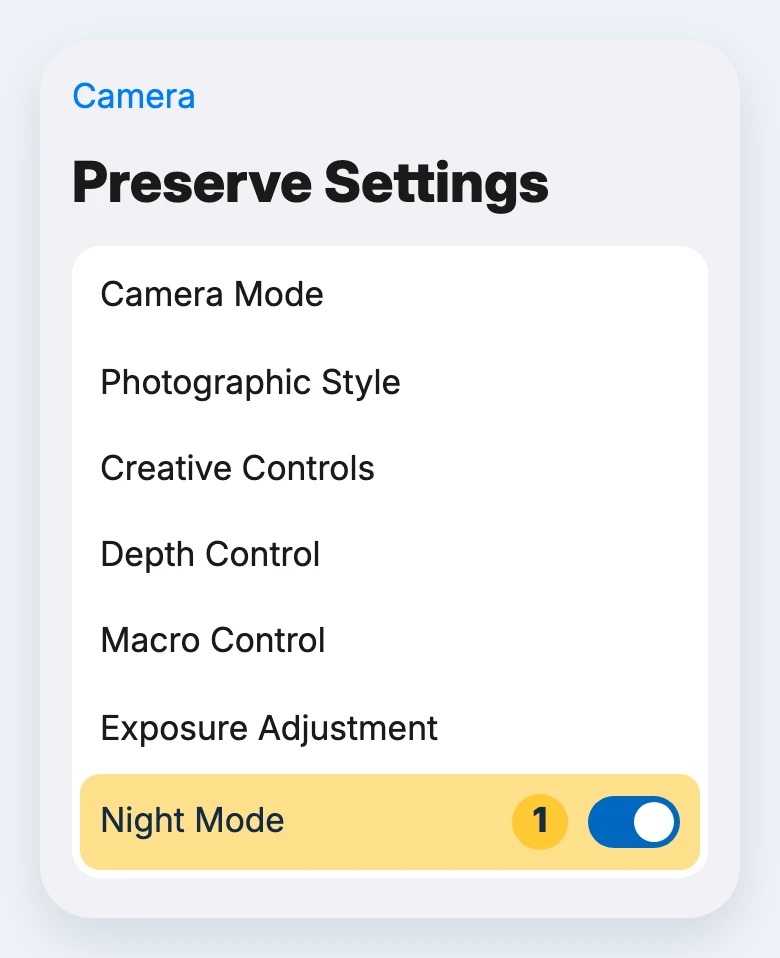
Close and reopen Camera in similar dim lighting to check the saved choice. If Night mode stays off, the preference is working.
If the control isn't available, check which camera features your model supports. That menu isn't available on every iPhone.
For a delay before capture starts, check Camera Controls > Timer. Turn the timer off when you don't want a countdown before the shot. A self-timer waits before the exposure; Night mode takes time while capturing the image.
Don't change every Camera setting together. Changing only the control responsible for the delay preserves the settings you like, such as your chosen camera mode or photographic style.
3. Use the right option for moving subjects
For several quick photos, use Burst. In the current Camera app, drag the shutter button left and keep holding it to capture a series. Lift your finger when the moment is over, then review the burst and keep the frames you want.
Another route is Settings > Camera > Use Volume Up for Burst. With that enabled, holding Volume Up takes a burst on supported setups. It gives you a physical control when dragging the shutter button is awkward.
For repeated individual shots, check Settings > Camera > Prioritize Faster Shooting. This changes image processing so the camera can take more photos when you tap the shutter rapidly.
It is normally enabled; turn it on if you previously disabled it.
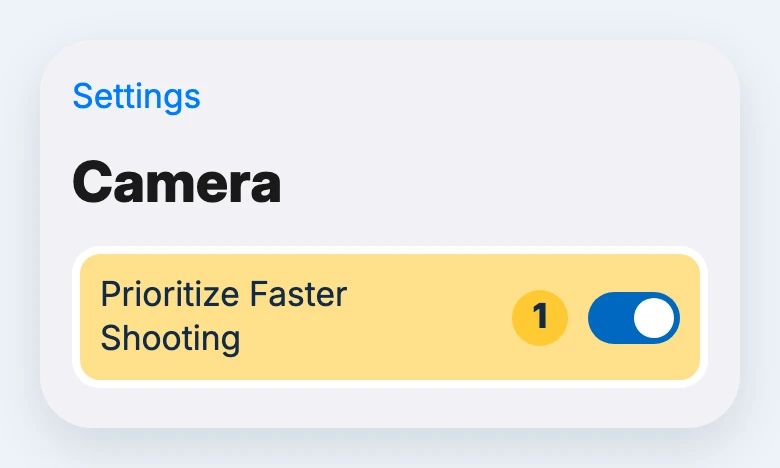
That setting helps when you're taking repeated shots. It doesn't set a particular shutter speed, and you still need enough light. A burst taken in a dark room can still contain blurred frames.
I'd try a brighter position before changing photo formats or installing another camera app. For a moving subject, better light and the right capture mode help more than repeatedly tapping the shutter during a slow night capture.
If your problem is specifically a flash that won't fire, use the iPhone flash guide. Night mode and flash interact, so a dark photo doesn't automatically mean the flash hardware has failed.
4. Choose a slow shutter effect intentionally
A long capture can be the goal for moving water or light trails. Night mode brightens a dark scene, while Live Photo > Long Exposure creates an effect from a Live Photo. They aren't interchangeable camera settings.
To use the Live Photo effect, first take a picture with Live Photos enabled. Open it in Photos, tap the Live control near the top and choose Long Exposure. Keep the phone steady when taking the original picture.
This applies an effect after the Live Photo has been captured. It isn't a setting for a precise exposure duration before the shot. If the picture wasn't taken as a Live Photo, you won't have that effect in its Live menu.
Turning Live Photos on also turns Night mode off for that capture. Pick the capture method for your scene instead of expecting both features to run together. The Live Photo guide explains how its remembered setting works.
Set a shutter speed on iPhone 18 Pro
For actual manual control on iPhone 18 Pro models, open Camera Controls > Shutter Speed and drag the slider. The current advanced-camera guide lists this control for those models. Don't expect the same manual tool on every older iPhone.
The exposure brightness slider beside the focus area adjusts how bright the picture looks. To choose the shutter speed directly, use the labeled Shutter Speed tool instead.
5. Check a camera that remains slow in good light
Take a normal Photo-mode picture in daylight with Night mode and the timer off. If capture still stalls, restart the iPhone and check Settings > General > Software Update. Back up your personal data before starting the iOS installation.
Take off camera-blocking accessories, including cases that put a magnet close to the lenses. Use a microfiber cloth to clean smeared camera lenses. Try a front-camera photo and a rear-camera photo, checking whether both fail.
Note whether slow captures happen with only one camera or in only one app. If the built-in Camera app still freezes or produces poor pictures in good light after the supported checks, use Apple Support's camera service route.
Describe the model, iOS version, lighting and whether a countdown appears. Ask for camera troubleshooting or a service assessment, rather than simply reporting a slow phone.
Those details help support decide which camera checks to try before erasing your phone.
The Short Version
Turn off or shorten Night mode for a long dim-light capture, and preserve that choice if needed. Use Burst or Prioritize Faster Shooting for repeated shots.
Live Photo Long Exposure is an effect; manual Shutter Speed is a separate control on supported iPhone 18 Pro models.
Checked November 27, 2026.
 If you have any business, I can build it online