A video not playing on iPhone can mean a web player won't load, an imported file uses an unsupported format, or Photos can't retrieve an iCloud original. Start with the fix for the place where playback stops.
For a web video that keeps buffering, try another connection first. For a single downloaded file that won't open, check the file and its playback app. Don't erase the phone to repair one clip.
In this guide
1. Start with the place where playback fails
Open another video in the same app, then try a video in a different app. Watch whether playback never starts, stops while loading, or plays with no sound. Each result needs a different fix.
A fresh short recording made with the iPhone camera can help you compare Photos playback with the failing file. If that recording plays while one imported clip doesn't, focus on that clip's download or format rather than the display.
If a clip in Photos displays a message about loading a higher-quality version, follow the Unable to Load Video repair. That route checks iCloud originals, storage, and photo synchronization.
For a website, continue with the connection and Safari checks. For an attachment or a file in Files, go to the format section. When only a streaming app fails, use the app repair steps after the web checks.
2. Get a web player loading over a working connection
Open the same video using another Wi-Fi network or cellular data. A page's title and preview image can load even when the actual movie can't, so press Play again after the connection changes.
If cellular plays the video but your usual Wi-Fi fails, check that network's connection or content filtering instead of converting the clip. On office or school Wi-Fi, ask the administrator whether the service is permitted.
Check your VPN too. Apple's Safari troubleshooting instructions note that some websites or apps may block content when a VPN is enabled. Temporarily disconnect your own VPN and retry, then restore your usual setting afterward.
When only one website fails, compare another video on that same site. One unavailable or removed upload needs the publisher's help; a whole site that won't play may have a player or account problem. Note any actual message it displays.
If the video plays without sound, check the player's mute control. Adjust the iPhone volume during the running clip, so the change applies to playback. A page without audio won't tell you whether playback volume is right.
3. Check JavaScript and Safari's stored website data
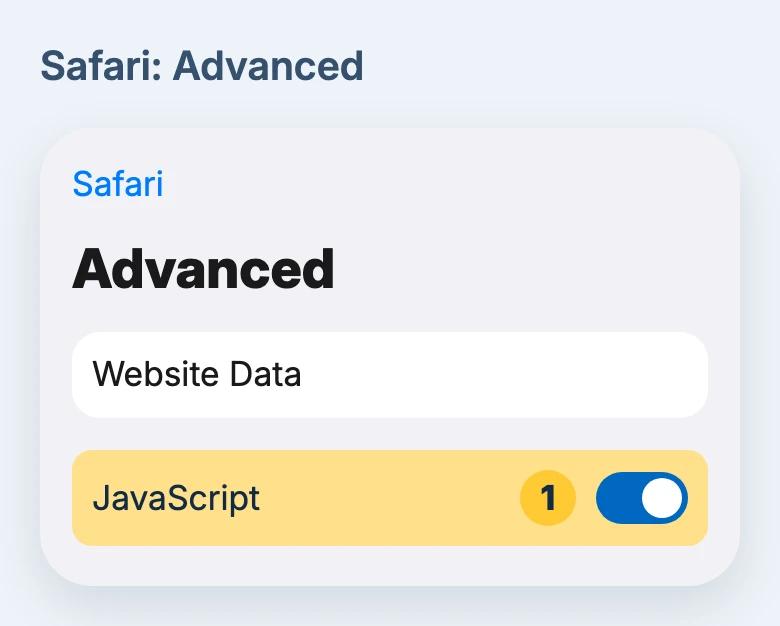
For Safari, open Settings > Apps > Safari > Advanced and turn on JavaScript if it is off. On iOS versions before Apps grouped the settings, begin at Settings > Safari > Advanced.
Return to the page, reload it, and press Play. JavaScript lets websites run interactive code, including many video players. A setting that blocks that code can leave a play button visible without a working player behind it.
Next, restart the iPhone. For Face ID models, press Side together with one volume button; let go when the power slider appears. Home-button iPhone 6, 7, 8, and later SE models need only the side button to open that slider.
Use the top button on a first-generation SE, iPhone 5s, or earlier model. Move the slider and let shutdown finish. Press the appropriate side or top power button to start again; recovery mode isn't needed for this restart.
Safari's later repair is Settings > Apps > Safari > Clear History and Website Data, followed by Clear History. It clears browsing records and stored site data. Keep login details ready because sites can require another sign-in.
If one site remains broken, temporarily compare it with Private Relay off in iCloud settings. Restore the setting afterward. Give that site's operator the video URL and actual error if playback still fails there alone.
4. Open downloaded videos with compatible software
Wait for a Files video or attachment to finish downloading. If the transferred copy seems incomplete, ask whoever sent it to resend the video. Ask whether their original plays, since their copy may need replacing too.
A filename ending in .mkv, .avi, or another less familiar extension may need a compatible player. The extension identifies the file type; changing its letters to .mp4 doesn't convert the video stored inside it.
Update the phone and playback app. If the complete file still won't play, use a player compatible with its format. The media compatibility guidance explains why app support matters.
Convert a working HEVC clip (a newer video format) on a Mac using QuickTime Player's File > Export As. Choose Greater Compatibility (H.264), or clear the HEVC checkbox where that replaces the menu.
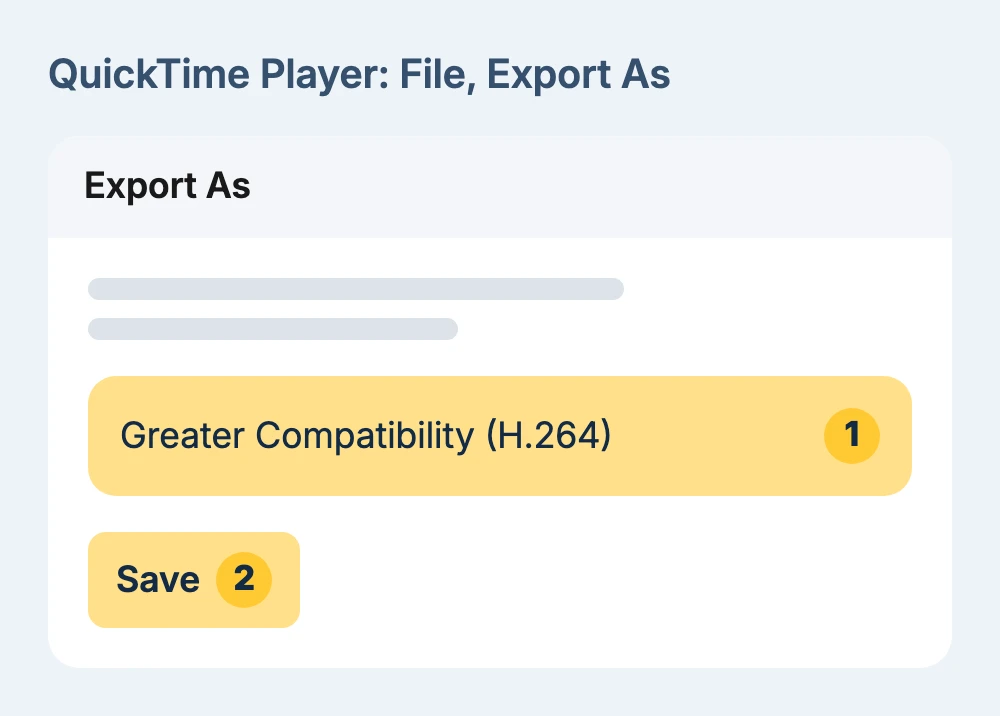
H.264 is a widely supported video format. If someone else has the clip, ask them to send that exported copy. Keep the original too. This is a conversion of the existing clip; changing the iPhone Camera format only affects future recordings.
For future recordings, supported iPhones offer Settings > Camera > Formats > Most Compatible, which records H.264 video. Use the iPhone editing guide when the clip needs trimming or editing after it plays successfully.
5. Repair a streaming app that fails on its own
For a Face ID model, drag upward starting at the lower screen edge, then pause halfway to display app previews. Home-button models use a double-click of Home. Swipe up on the failing app's preview to close it, then reopen it.
Update the app in the App Store. If no app update is available, check Settings > General > Software Update for a compatible iOS update. Retry the same title so the comparison stays useful.
Leave reinstalling until later because stored app data and offline downloads can disappear. Have your login ready and check how to restore purchases first. Keep any local-only video outside the app before removing it.
If only one app fails, open its support link in the App Store. Give the developer the video title, error, iOS version, and connections you've tried. If several apps fail, contact Apple Support.
The Short Version
Use Safari and connection repairs for web players, compatible software for downloaded clips, and iCloud-original checks for Photos errors. If a single streaming app fails, update it and use its developer's support route.
Checked November 27, 2026.
 If you have any business, I can build it online