Unable to Load Photo on an iPhone often means Photos can't retrieve the full-size image from iCloud, even though its small preview is still visible. Connect to working Wi-Fi, plug the phone into power, and check the library's sync message.
Check whether you're dealing with one photo that won't open or a library that has stopped syncing.
In this guide
1. Compare the failed photo with a new picture
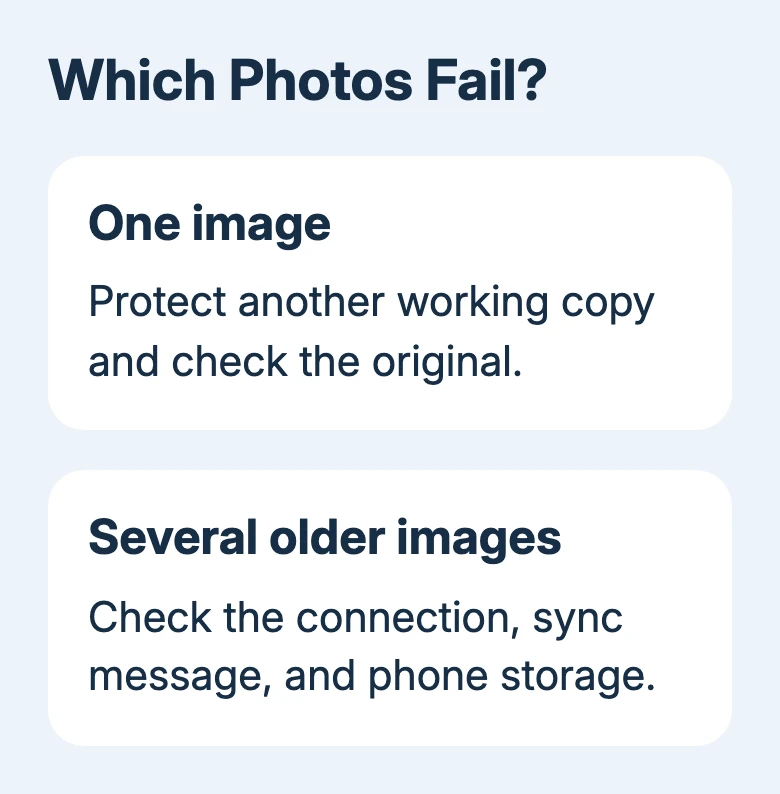
Open another older photo, then take a new picture and open it in Photos. Try opening the problem image fully rather than judging its thumbnail. Note whether only that item fails or several older images won't load.
A new photo that opens while older optimized photos fail suggests the phone is having trouble downloading the originals. If just one image fails across devices, protect any other copy before changing the library.
Repeating a network reset won't recreate a missing original.
Check Settings > your name > iCloud > Photos > Sync this iPhone. If sync is off, skip the cloud-sync repairs: keep any imported source file, then use the restart and update checks in section 5.
With Optimize iPhone Storage, the phone can keep smaller copies while full-resolution photos remain in iCloud. A visible preview therefore doesn't mean the whole image is stored locally and ready to edit or share offline.
Apple's photo storage explanation describes that split between local space-saving copies and cloud originals.
Reconnect to the internet and try the same photo again before changing the storage mode for the entire library.
If the trouble is limited to a movie, the Unable to Load Video guide covers that case.
For a still photo that won't download, check the library message and your phone's free storage next.
2. Read why Photos has paused
On iOS 26 or later, open Photos > Collections, then open the profile control near the top corner. On iOS 18, open the profile control directly in Photos. Look at the library status near your name and photo count.
For iOS 17 and older, the status sits at the end of Library > All Photos.
The message tells you what needs attention. A low battery needs charging. A heat-related pause needs time for the phone to cool. Leave it on power and working Wi-Fi so syncing can continue without interruption.
Low Data Mode or Low Power Mode can pause syncing to conserve data or battery. Turn off the mode Photos names if you want to resume now.
For Wi-Fi's Low Data Mode, open Settings > Wi-Fi, touch the connected network's information button, then switch the mode off.
For Low Power Mode, an iPhone 15 or newer uses Settings > Battery > Power Mode. An iPhone 14 or older keeps that switch directly in Settings > Battery.
Optimizing Battery Power, Optimizing System Performance, and Poor Network Connection can also pause the library. Wait for that condition to clear, or tap Sync Now if it appears.
Don't turn iCloud Photos off to try to restart it. That can restart the syncing process and complicate the situation while you're trying to retrieve the original.
The paused iCloud Photos guide explains those messages in more detail.
Leave a large library connected overnight after fixing the problem named in the message. Check whether its status and photo count change, to see whether photos are still transferring.
3. Check local storage and iCloud space separately
Open Settings > General > iPhone Storage. Let the category bar and app list load. If the phone is full, use the recommendations or remove downloads and apps you can replace, then try loading the image again.
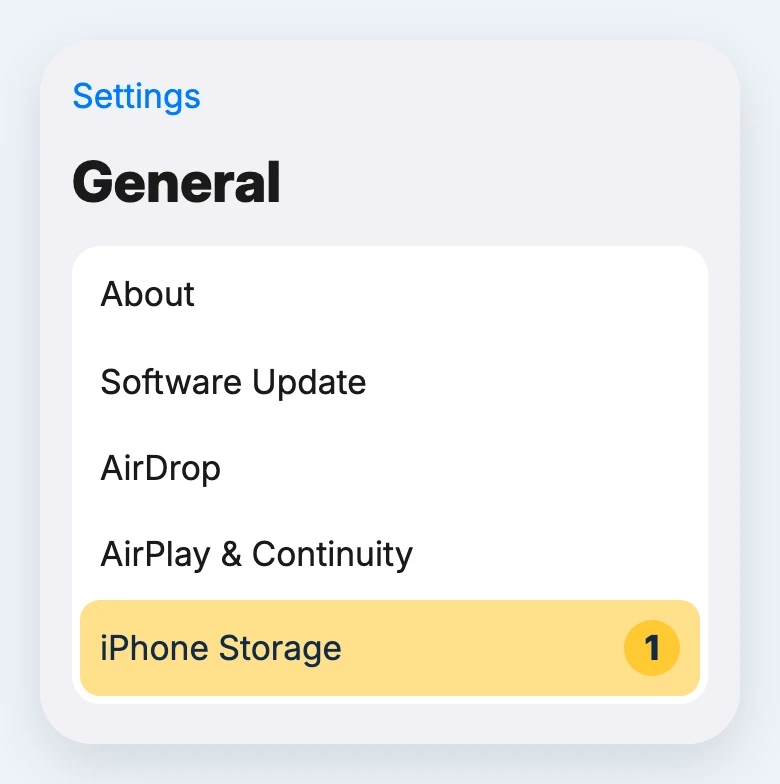
The iPhone needs room for downloaded originals and apps to work normally.
There isn't one published spare-space figure that fixes every photo library, so use the download's size and the storage screen to judge whether it will fit.
Then open Settings > your name > iCloud and check the separate cloud-storage total. If the Photos status says iCloud storage is full, reduce that usage safely or increase the plan so syncing can resume.
A larger iCloud plan leaves the phone's physical capacity unchanged. Deleting an app from your phone doesn't give you more iCloud space either. Free up space in the place the message names.
Avoid deleting the failed photo to test whether freeing space helps. With iCloud Photos on, deleting an image can delete it from the rest of the library too. Free space with replaceable files that aren't photos, keeping this picture safe.
4. Keep originals locally when the phone has room
For photos you need without an internet connection, Download and Keep Originals is the relevant storage choice. It asks the phone to keep full-resolution files locally instead of relying on optimized copies alone.
Open Settings > your name > iCloud > Photos. On iOS 27 or later, tap iPhone Storage to reach the storage choices. Earlier iOS versions show those choices on the Photos settings page. Choose Download and Keep Originals.
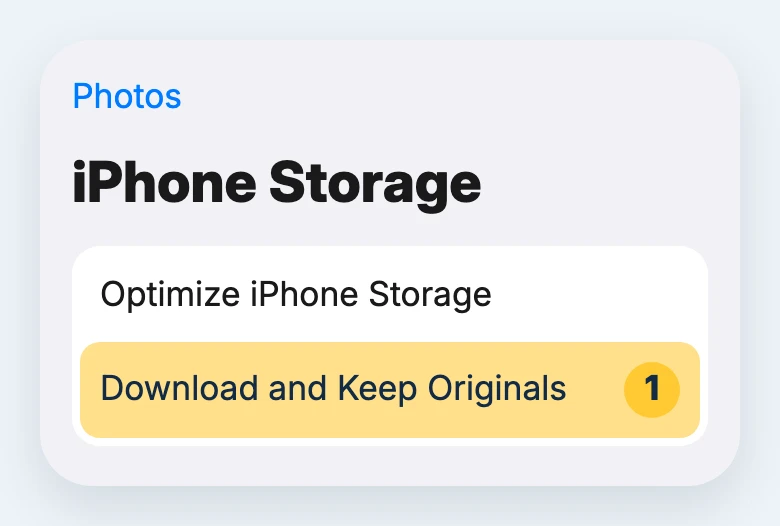
Make this change only when the phone has room for the full-size photos you want stored locally. A large cloud library may be bigger than the phone's capacity.
In that case, leave optimization enabled and retrieve the particular photos you need while online.
Allow the download to finish on Wi-Fi and power, then reopen the affected image and retry your edit or share attempt. Selecting the setting doesn't mean every file has already arrived.
I'd check a few important older images before relying on the phone offline. A clear preview is useful, but successfully opening and using the full photo is the practical check that its original is available.
5. Protect another copy if one photo still fails
If another device has a working full-resolution copy, save a separate copy from it before changing anything else. Check that the saved file opens. Don't delete the library photo while it's your only way to recover the image.
Restart the phone if several images remain stuck despite a normal sync status. On an iPhone Duo or a Face ID iPhone, hold Side with Volume Up or Volume Down to display the power slider.
A Home-button iPhone uses Side alone, or Top on the original SE and older models.
Slide the power control, wait 30 seconds, then hold the same Side or Top key until the logo appears. Install any offered update through Settings > General > Software Update, then retry the image when Photos finishes processing.
If one image fails everywhere and you have no separate copy of the original, changing a setting can't guarantee recovery. Give Apple Support the full load-error message and library status, noting whether downloads work for other images.
Ask for help retrieving an iCloud Photos original, and say whether it ever opens on another device. For a recently imported photo, keep the source card, computer file, or original sender's copy until recovery is finished.
The Short Version
Reconnect to Wi-Fi and follow the Photos sync message first. Check phone storage separately from iCloud storage.
Download originals only when the phone has enough room, and protect another working copy before attempting recovery of a single failed photo.
Checked November 27, 2026.
 If you have any business, I can build it online