The Mac error zsh: command not found: systemctl usually comes from following Linux instructions. macOS uses launchd for background services. Use the app's Mac steps, or brew services for software installed through Homebrew.
Adding sudo or changing from zsh to bash won't supply Linux's service manager. First check whether you're meant to run the command on the Mac itself or inside a Linux server, virtual machine or container.
In this guide
1. Check which computer should run the command
Read the instruction immediately before the failing line. A guide that uses apt, yum, dnf or a .service unit is describing a Linux setup. Its service commands aren't a Mac installation procedure.
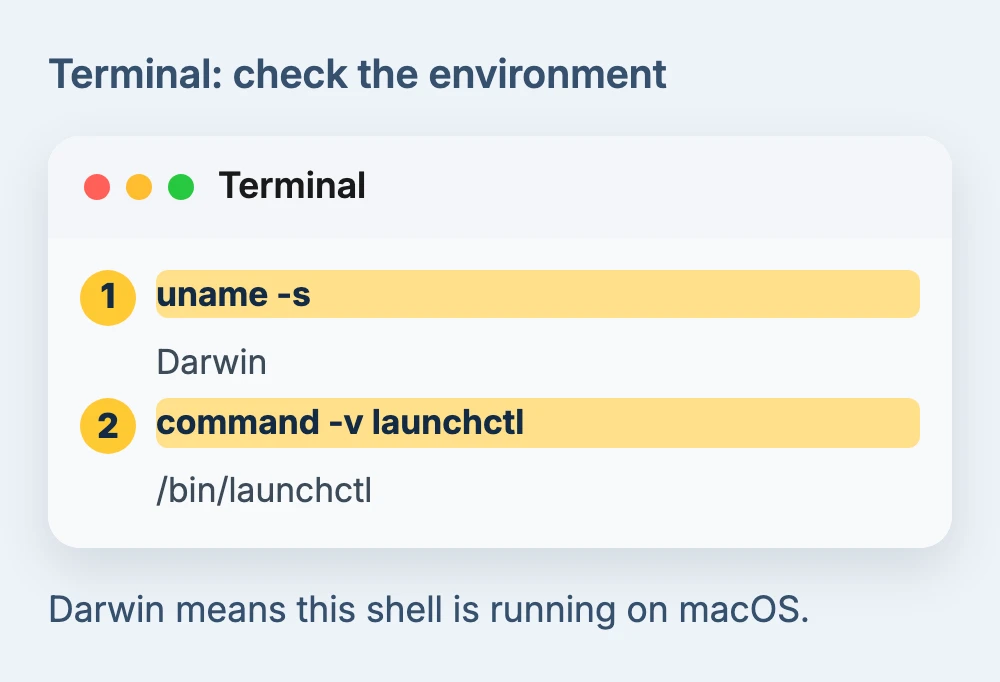
In the same Terminal session, run:
uname -sA result of Darwin identifies the Mac operating system. Linux identifies a Linux environment. That tells you where your commands are running, even when the Terminal window is on your Mac.
If the instructions are for a remote server, connect to that server using its normal SSH connection before running its service commands. A command typed in a fresh local Terminal window still runs on the Mac.
A Linux container can lack a running systemd manager too. A systemd-not-booted message means the command ran but couldn't reach systemd, Linux's service manager. Follow the container's own startup instructions for that case.
If the target really is macOS, use the next section that matches how you installed the software. Intel and Apple silicon Macs both use launchd; changing processor architecture won't make systemctl the native command.
2. Use brew services for Homebrew-managed software
For a database or server installed with Homebrew, start with this read-only check:
brew services listThe result lists services managed for your current user. Look for the exact installed formula name. A name such as postgresql@17 identifies a specific PostgreSQL version. Use it rather than the name of another version you have installed.
Use that exact name in the service command. For example, only if the installed formula you intend to run is postgresql@17:
brew services start postgresql@17That command starts the service now and registers it to start at login. To run it now without registering it for later logins, use brew services run followed by the installed formula name instead.
Check brew services list again. If the entry reports an error, read its details with brew services info followed by the same formula name. If the service starts but your app still can't connect, check that connection problem next.
The Homebrew command reference separates start, run, stop and restart. Choose the action you actually need. Restart stops and starts the service and registers it for later launches.
Don't add sudo just because an ordinary command failed. With Homebrew services, sudo makes it a service that starts when the Mac boots, instead of one that starts when you log in. It also changes the account running it.
If brew itself isn't found, check that you actually installed the software through Homebrew before trying to fix that command. Installing Homebrew won't make it manage software you installed with the maker's own installer.
3. Use launchctl for an app's native Mac service
For software installed by its own Mac installer, use its documented launchctl command or its own start and stop controls. Apple recommends launchctl for managing these jobs in its launchd instructions.
A daemon is a background process, often running for the whole computer. An agent works in a user's session. You need to know which kind the app uses so you can manage it in the right session.
Check that the Mac's tool is available:
command -v launchctl
man launchctl
The first command should identify the system command. The second opens its manual for the macOS version installed on that computer. Press q to leave the manual when you're finished reading it.
Don't translate systemctl restart something by swapping only the first word. launchctl needs a Mac job label (its name) and domain (its system or user session). A Linux unit name isn't automatically a valid Mac job label.
For an app-specific example, the Microsoft AutoUpdate background-agent checks explain what disabling that particular helper changes. Those commands shouldn't be reused for an unrelated app.
I'd use the software maker's service command before writing a new launch job. An existing installer may already have the right account, permissions and configuration, and a second job can make the behavior harder to understand.
4. Find the installed job without changing system files
Check the service configuration supplied by the app. Mac services use settings files ending in .plist. Where the file lives tells you whether the job belongs to one logged-in user or the whole computer.
Your own third-party agents can be in ~/Library/LaunchAgents. Third-party jobs for the computer can be in /Library/LaunchAgents or /Library/LaunchDaemons. The folders inside /System/Library contain Apple's supplied jobs.
Use those locations to identify the app's configuration, then compare it with the maker's instructions. Leave system files intact. Removing a job file isn't the equivalent of a temporary service restart.
A missing app-supplied job needs the maker's Mac installation or repair steps. An existing job with an error needs that error checked. Copying a Linux .service file into a Mac folder won't fix either problem.
If the issue is actually a missing editor launcher, the VS Code command checks cover installing its Mac command in PATH. That's a different repair from choosing the right service manager.
When the Mac command still fails
Contact the software maker's support or its project issue tracker with your macOS version, installation method and exact command. Include whether the shell reports command not found, permission denied or an error after the service starts.
For a work-managed Mac, ask IT which account owns the service and whether they deploy its background job. Those details determine the correct command and permissions. Keep passwords and private connection strings out of the report.
The Short Version
Run Linux commands in the intended Linux environment. On Mac, use brew services for Homebrew software or the maker's launchctl steps for native jobs. sudo and another shell won't supply the Linux service manager.
Checked November 27, 2026.
 If you have any business, I can build it online