A black screen with a moving cursor can mean the Mac hasn't finished loading its desktop. Restart first, then try safe mode if the screen turns black after login. A Mac that never reaches login needs Recovery instead.
A black desktop with working menus needs different handling from a desktop that never appears. Note when the screen goes dark: before the login window, after entering your password, or only when an external display is connected.
In this guide
1. Restart once and remove nonessential accessories
Use Apple menu > Restart if it responds. Otherwise, press power continuously, releasing it when the Mac shuts off or after 10 seconds. On a Touch ID MacBook, push that button firmly rather than resting a finger on it.
Forcing shutdown discards anything an app hasn't saved. Use it only when the black screen won't respond.
Unplug nonessential USB and Thunderbolt accessories, including docks. Leave a laptop charging. On a desktop Mac, keep power, keyboard, mouse, and the needed display connected. Start it and watch for the login window.
If the picture returns without the dock, reconnect each accessory separately after startup. Watch for the connection that brings the problem back. It doesn't mean the Mac's internal display needs replacement.
For a Mac without any power response, use the MacBook power checks instead. A moving cursor means the Mac has powered on; a Mac with no power response needs different checks.
2. Match a black desktop to the right problem
On a laptop, try its built-in display without an external monitor. On a desktop Mac, check the monitor input and cable. If you can see the cursor, that screen is receiving a picture, but your windows could be on another display.
If the menu bar and apps work and only the wallpaper is black, use the black wallpaper checks. That fault doesn't call for reinstalling macOS just because the background looks wrong.
A blank screen during macOS installation can last for minutes, and the Mac can restart several times. Leave an active installation to finish. These repair steps apply to a Mac stuck at ordinary startup or login.
For a desktop that vanishes after entering the password, try safe mode. If restarting never brings up login, use Recovery. Both routes differ between Intel and Apple silicon models.
3. Use safe mode for a screen that turns black after login
Safe mode checks the startup disk and stops some software from opening automatically. Apple says its safe mode instructions use different methods for the two Mac types.
For Apple silicon, shut down. Keep power pressed until you see the startup options, then let go. Select the startup disk, hold Shift and select Continue in Safe Mode. Log in when asked; you may be asked to log in twice.
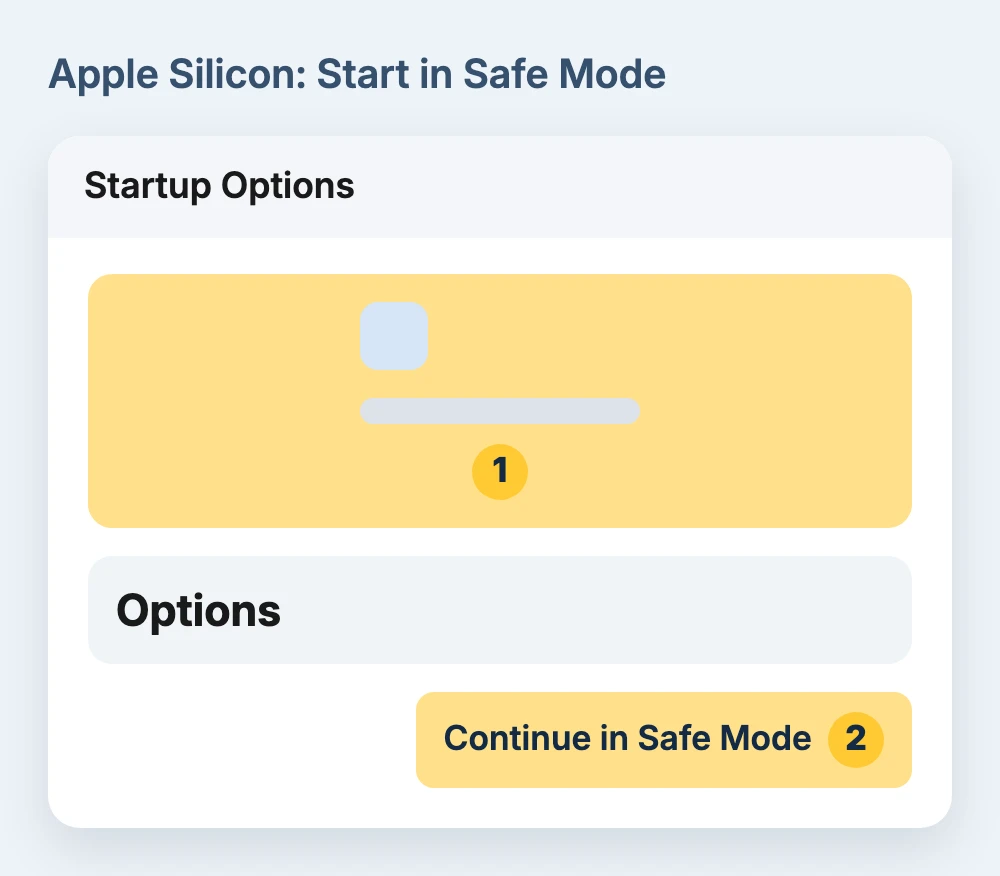
For an Intel Mac, turn it on or restart, then immediately hold Shift until the login window appears. Release Shift and log in. On Intel, a firmware password blocks safe mode until that password restriction is removed.
You may see Safe Boot in the login window. If you can use the desktop, update macOS and the installed apps. Then restart normally and check whether the black screen returns before reopening your usual apps.
If it returns only in ordinary startup, check System Settings > General > Login Items & Extensions on recent macOS versions. Older releases may label the page Login Items, or put it in Users & Groups in System Preferences.
Remove an unwanted login item from the open-at-login list, restart, and compare. Note each change so you can undo it if needed. If another existing user account opens normally, check the software and settings in your usual account.
If the screen stays black in safe mode too, move to Recovery. Safe mode can make graphics slower and change their appearance. The desktop still needs to load.
4. Open Recovery and repair the startup disk
For Apple silicon, turn off the Mac, hold power while the startup options load, then choose Options > Continue. For an Intel Mac, press power, then immediately hold Command+R until an Apple logo or other startup image appears.
Recovery may ask for an administrator's login password. In the utilities window, select Disk Utility > Continue. You can use these repair tools even when the ordinary desktop won't load.
If you can reach important files in safe mode and don't have a backup, copy them before disk repair. If the drive is failing and those are your only copies, ask about recovering your files before taking steps that could erase them.
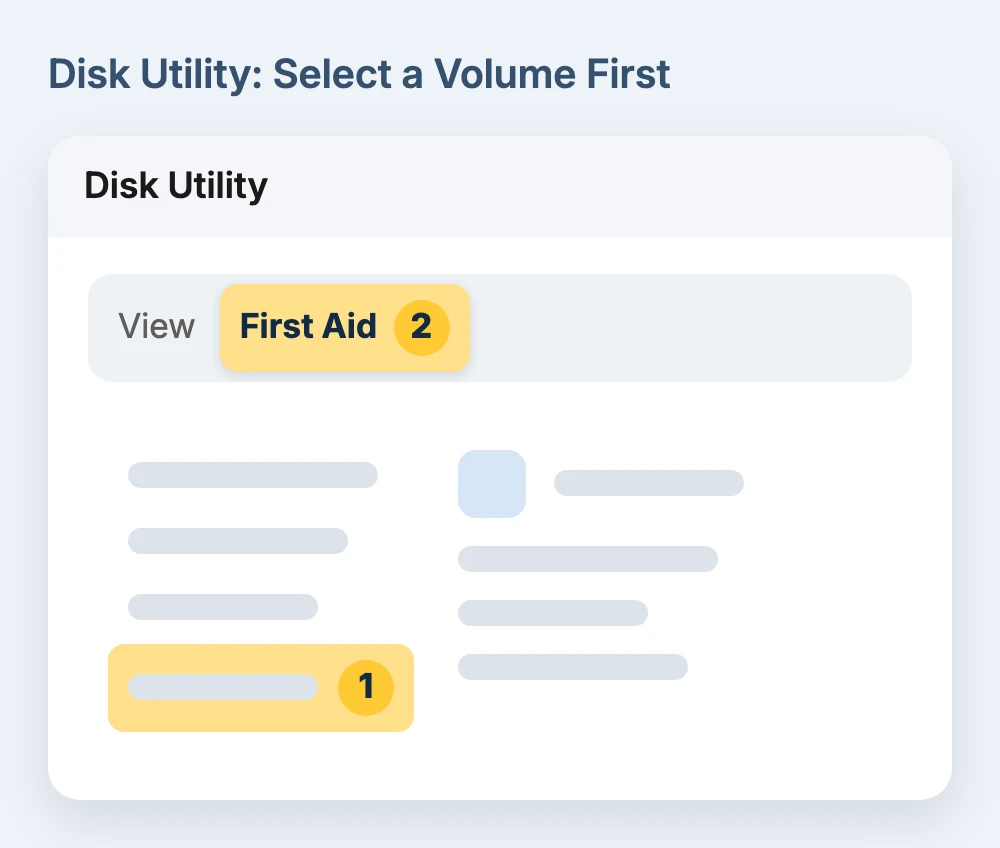
Choose View > Show All Devices if available. Begin with the final volume listed under the startup device. Check volumes and volume groups first, then containers, then the physical device. The names and number of entries vary by Mac.
Select each item, click First Aid, then Run. Enter your administrator password to unlock a volume when prompted. If First Aid is unavailable for an item, skip it as instructed and continue through the list.
Quit Disk Utility and restart after the checks. A missing drive or failed First Aid repair needs a repair service; note any error to share with them. Discuss recovering needed files before approving an erase.
5. Reinstall macOS or ask for startup service
If disk repair finishes but startup stays blank, return to Recovery. Select Reinstall macOS, click Continue, and follow the installer. Reinstallation keeps apps and personal data; keep your backup available during repair.
If the choices are Macintosh HD and its Data volume, install on Macintosh HD. Keep the laptop powered and its lid open while installation finishes.
If Recovery won't open, Apple silicon and T2 Intel models may need their firmware (built-in startup software) revived or restored. Request startup service from Apple Support, explaining that Recovery won't open.
Ask about reviving before restoring when your files matter, because a firmware restore erases the Mac. Give the model, where startup stops, whether the cursor moves, and whether you could use any window in safe mode or Recovery.
The Short Version
Restart without extra accessories. Try safe mode for a desktop that fails after login, or Recovery for blank startup. Run First Aid before reinstalling macOS. Ask for service if Recovery or the startup disk can't be reached.
Checked November 27, 2026.
 If you have any business, I can build it online