Steam not opening on a Mac can come from a stalled client, unsupported macOS, or damaged local files. Quit Steam completely and restart the Mac first. On Big Sur, check compatibility before reinstalling.
If Steam opens normally but one game won't launch, that's a different problem. These checks fix the Steam app itself. Changing a game's files won't help if Steam can't even open its own window.
In this guide
1. Close the stalled Steam app and restart macOS
If Steam is the active app, choose Steam > Quit Steam. Open the app again from Applications, rather than repeatedly clicking a Dock icon while the previous attempt may still be running.
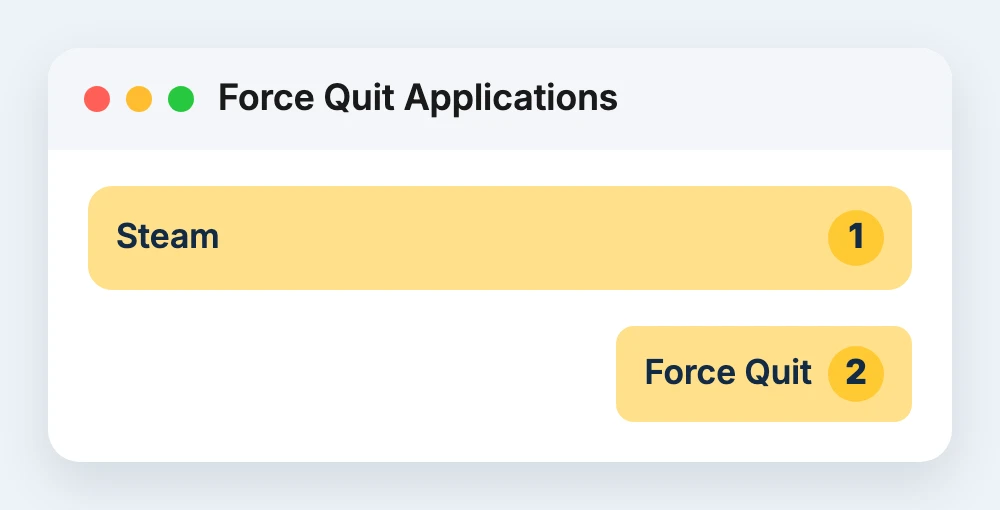
If it won't quit, press Option-Command-Esc, select Steam, and click Force Quit. Confirm if asked. Apple says this force-quit control closes a stuck application.
Save work in other apps, then choose Apple menu > Restart. Once the Mac is back, launch Steam once and watch what happens: no window, an updating window, a login screen, or an immediate crash.
Use what happens next to choose a fix. A login or update window means part of Steam is running, even if the library hasn't appeared. An icon disappearing from the Dock points to a launch failure; an unmoving download points to the updater.
If Steam opens and stays open after restarting, stop here. If the same failure returns at every launch, check the operating system before changing the installation.
2. Check whether this Mac still meets Steam's requirements
From the Apple menu, choose About This Mac. Note the macOS release listed there. Don't use the age of the Steam icon or the purchase date of a game as a compatibility check.
Support for macOS 11 Big Sur ended on October 15, 2025. Steam's support notice says the app no longer runs on Big Sur after that date. Reinstalling the same client doesn't add the macOS features it needs.
The notice lists macOS 12 or later as the requirement after Big Sur. Check the current installer requirements too before upgrading an older Mac; requirements can change again.
On macOS Ventura or later, check System Settings > General > Software Update. On Monterey or earlier, use System Preferences > Software Update. Install a supported update offered for your Mac, with a backup first.
If the Mac can't upgrade to a currently supported version, use a compatible computer for Steam. Deleting files won't make an unsupported version of macOS compatible.
The user Library path in section 4 works for both processor types, Intel and Apple silicon. Which games they can run can still differ. A repaired Steam library doesn't make every Windows-only or older Mac game compatible.
3. Get a stalled updater or sign-in moving
If Steam shows an updater or login window, check whether the Mac can load an ordinary webpage. A browser that also can't connect points to a connection problem rather than just Steam's local files.
Try another trusted internet connection if available. If Steam gets past the same launch stage there, check the original network's filters, proxy settings, or security software before doing a full reinstall.
Restart your own router if other devices also have connection trouble. On a work, school, or managed network, ask its administrator whether Steam connections are allowed rather than changing their router settings.
Check any VPN or network filter added just before the failure. Use that app's own controls for a brief comparison, then restore the protection. Don't uninstall unrelated security software just because Steam is slow to open.
If only one network fails, tell its administrator that Steam reaches the update or login stage on another connection. That tells them the client works elsewhere and shows them where Steam stops on that network.
For a separate Windows PC with this launch problem, use the Windows Steam client repair. Its compatibility settings and Windows folders don't apply to this Mac.
4. Reinstall the app while keeping your game data
The Mac reinstall procedure treats the app and its data folder separately. Dragging only the application to Trash doesn't remove all its supporting files.
Before removing anything, make sure your Steam login and Steam Guard are working, then back up local game saves. Some games store saves outside the Steam folder, so keeping downloaded games alone isn't a complete save backup.
Quit Steam, open Applications, and move Steam to Trash. In Finder, choose Go, hold Option, and select Library when it appears. Open Application Support > Steam in that user's Library.
To keep your game data, leave the SteamApps folder in place and remove the other files and folders inside Steam. Its name may appear with different capitalization. Read the folder name carefully before selecting anything.
The folder you need is Library/Application Support/Steam inside your user folder, not a system Library or an unrelated folder found by searching the entire disk. If you're unsure which folder is open, stop and check the path.
Get the current Mac installer from the official Steam download page. If the main Install Steam button offers Windows, choose the Apple platform icon under Also available on.
Install Steam in Applications and open it. Let the client update, then use your usual Steam account to sign in.

Check whether the library loads and the installed games are recognized. A game still may need its own update. If Steam now opens but one game fails, move to that game's support page instead of repeating the client cleanup.
5. Check interference and report the exact launch failure
Disconnect nonessential controllers and other external input devices, then try opening Steam. Leave the keyboard, mouse, and storage needed for the Mac in place. An accessory's software can affect startup without the whole Mac crashing.
If this changes the result, add back each device separately, checking its supporting software with the maker. Don't remove drivers at random. If Steam still won't open, tell support that disconnecting accessories made no difference.
If the client still closes immediately, contact Steam Support with the Mac model, Intel or Apple silicon, macOS version, and where Steam stops opening. Include the error and what changed after reinstalling or trying another network.
If macOS shows a permission-to-open error, keep that exact wording for support. If several apps also freeze, describe the broader problem to Apple Support.
The Short Version
Restart Steam and the Mac, check macOS support, and compare networks if updating stalls. Use the Mac reinstall procedure while preserving SteamApps and backing up saves. Report persistent startup crashes to Steam Support.
Checked November 27, 2026.
 If you have any business, I can build it online