Yes, Samsung's software fix for the Galaxy S8 red screen added finer color adjustments. It helps correct whites that look reddish on the S8 and S8+. It won't correct every red line, flashing display or damaged panel on a Galaxy phone.
Start with the phone's software update check, then use Screen mode to adjust the full screen or its edges. A tint that returns with Blue light filter needs a different explanation: that setting intentionally changes the screen's colors.
In this guide
1. Check for the S8 update before adjusting colors
Open Settings > Software update. On the original Android 7 and Android 8 menus, tap Download updates manually. On Android 9, the control is Download and install. Carrier versions can use different update wording.
Complete any offered update using the prompts on the phone. Connect to Wi-Fi for the download. If the phone reports that its software is current, move on to the display controls rather than repeatedly checking for another update.
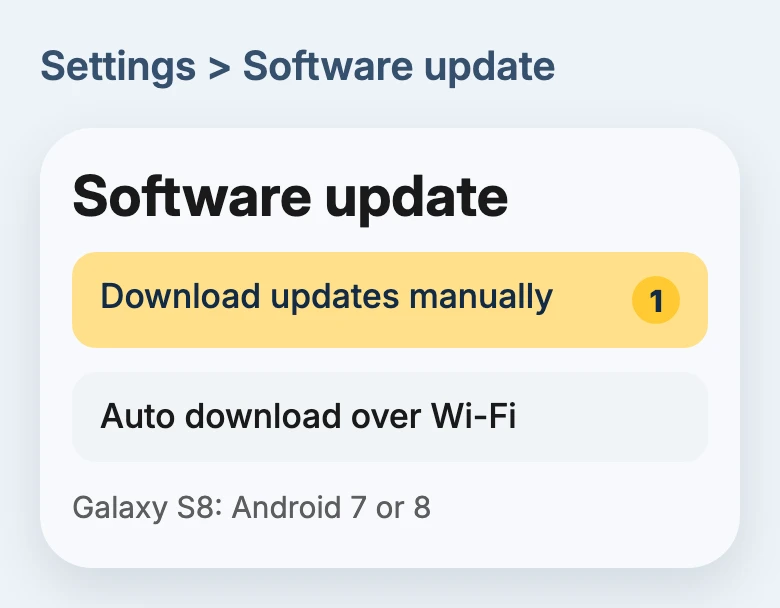
This S8 display adjustment dates back to its 2017 launch period. A support page carrying a recent update date doesn't mean a new red-screen patch has just been released for every Galaxy model.
After updating, look for the expanded full-screen balance and separate edge adjustment. Update availability varied by country and carrier, so these menus can look different on an imported phone.
I'd check the installed controls before looking for a downloadable firmware file. The phone's own update menu is the right first route; a file intended for a different model or carrier adds an avoidable problem.
2. Adjust the full-screen white balance
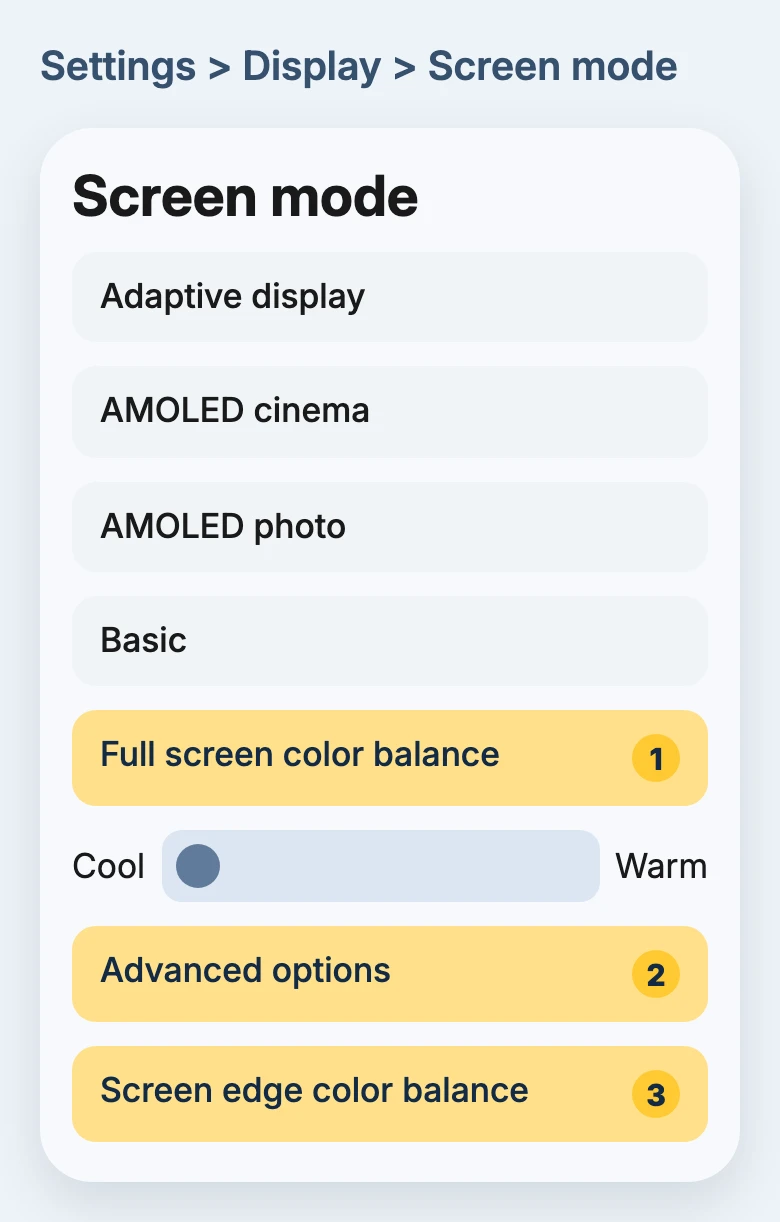
Turn off Blue light filter first, because the balance control won't apply while it's on. Then open Settings > Display > Screen mode and select Adaptive display.
On an S8 or S8+, look for Color balance or Full screen color balance, depending on the installed software. Adjust the tone toward Cool if whites look too red or warm.
Samsung's S8 color-balance instructions describe the expanded adjustment and its regional differences. Keep the phone facing you while comparing white areas.
Make a small adjustment, look at a familiar white Settings page, then decide whether it needs more. The aim is a comfortable white tone, rather than making the screen as blue as the slider allows.
Open Advanced options if the overall Cool/Warm control isn't enough. You'll see separate Red, Green and Blue controls for the full-screen balance. Lower Red gradually and compare the same screen again.
Adjust a single color, compare the white tone, then decide whether another change is needed. Moving all three controls together can replace a red cast with a green or blue one without showing which adjustment helped.
When the adjustment works, whites look less reddish across the screen. For a fixed stripe or dark patch, use the repair advice in the final section even if the surrounding white improves.
3. Use the separate adjustment for red edges
Return to Settings > Display > Screen mode and look for Screen edge color balance. Use this when the center looks acceptable after the full-screen adjustment but the edges still look too warm.
Start the edge adjustment as instructed on the phone, then let it finish without interruption. The process can take up to 10 minutes, and the phone may restart up to two times.
Do not turn it off or leave that screen during optimization. The phone may need those restarts to apply the adjustment; they don't necessarily mean it has a startup problem. Check the edge tone again when the process finishes.
A slight color shift that changes as you tilt the curved display is different from a strong cast seen straight on. Compare it facing the screen before trying to compensate for every color seen at an angle.
If the edge control is missing, check the full-screen controls available on your particular software. Don't use instructions for a newer phone's display menu as a substitute for an S8 menu that isn't present.
4. Check why the tint comes back at night
Open Settings > Display and check Blue light filter. Turn it off temporarily and compare the same white page. A warmer page with the filter on is its intended effect: it limits blue light to give the display a warmer appearance.
The AMOLED cinema and AMOLED photo choices in Screen mode also change color appearance. Compare the display using Adaptive display before deciding that your full-screen balance adjustment failed.
The S8 guidance explains that those modes can make the screen appear more reddish than the default. If the tint appears only with a particular filter or mode, check that setting before assuming the display itself is faulty.
For a Note 8, use its screen-symptom checks, which separate missed touches, tint and damage. The S8 edge tool isn't a universal Galaxy control.
5. Get a persistent line or damaged panel assessed
Stop treating the problem as white balance if there are fixed red lines, flickering, black areas, impact damage or a strong tint that the controls can't correct. Color sliders can't mend a physically damaged panel.
While the display responds, back up anything you need to keep. Ask Samsung support or a phone repair shop to assess the display, giving the exact S8 or S8+ model and whether the tint changes with Screen mode or Blue light filter.
Request an estimate before approving a screen replacement. On an older phone, the cost and availability of a suitable panel can change whether repair makes sense for you.
If the screen also stops responding to touch, follow the Galaxy frozen-screen checks for the appropriate physical-button restart, rather than trying to adjust sliders you can't operate.
The Short Version
Use the S8 update check before adjusting Full screen color balance or the separate screen-edge setting. Compare with Blue light filter off. Persistent lines or damaged areas need a display assessment.
Checked November 27, 2026.
 If you have any business, I can build it online