DisplayPort can carry audio, but Windows must send it to the connected monitor and the monitor needs speakers or a usable audio output. Select that display in Sound settings first, then check its own volume and speaker specifications.
A monitor missing from the output list needs a connection or display-audio driver check. If the monitor is listed but stays silent, check where the sound is being sent. These are different faults even when the picture works normally.
In this guide
1. Select the DisplayPort screen as the sound output
On Windows 11, open Start > Settings > System > Sound. Under Output, choose the monitor that receives the DisplayPort cable. Raise the volume gradually and play a familiar audio clip.
On Windows 10, open Start > Settings > System > Sound, then select the display under Choose your output device. Check that Windows hasn't kept laptop speakers, a USB headset or a different display selected.
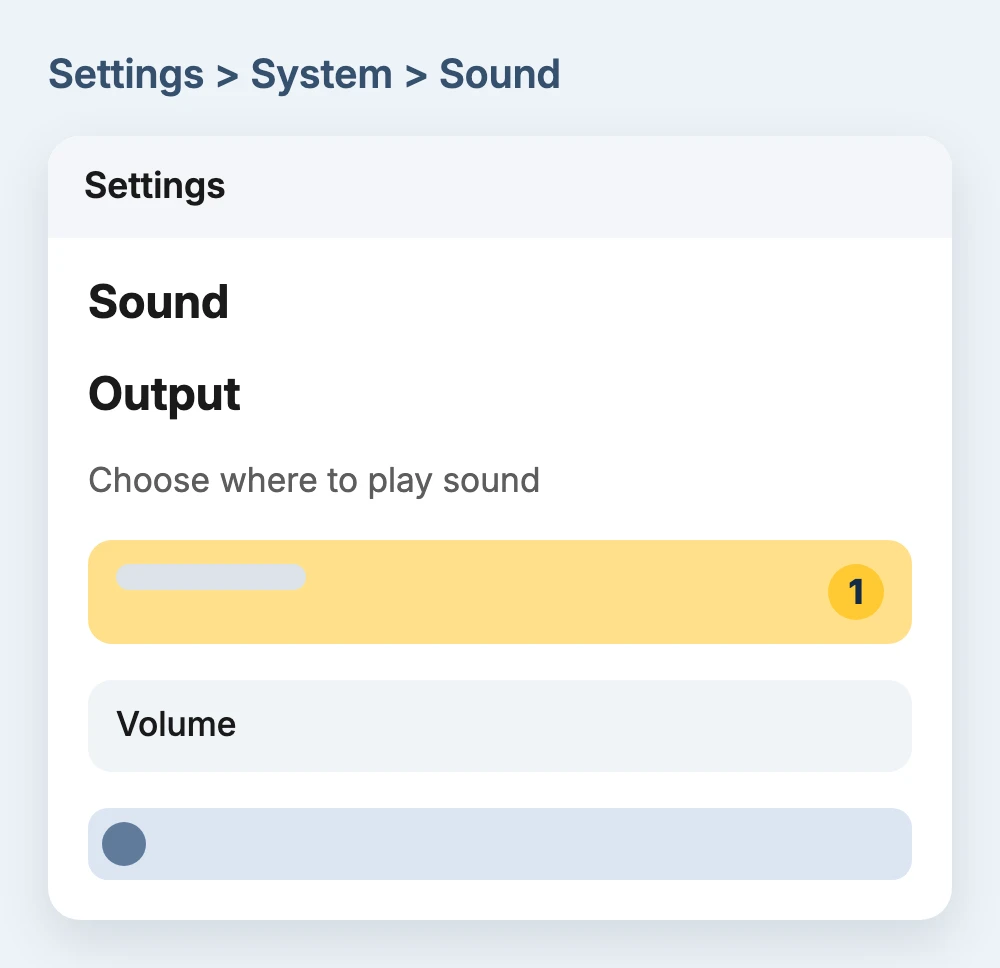
Microsoft's sound troubleshooting steps start with the output selection and warn about monitors without speakers. A working picture doesn't confirm that Windows selected that screen for audio.
The device can carry the monitor's model name rather than the word DisplayPort. If you're unsure which entry it is, compare the list before and after reconnecting that display, once any work on the monitor is saved.
If selecting it restores sound, the cable was carrying audio and the previous output choice was the problem. If the screen isn't listed at all, note that before moving on to the connection and driver checks.
2. Confirm where the monitor can actually play sound
Check the monitor's exact model specifications for built-in speakers or an audio output. Some displays appear as audio devices in Windows even though they have no speakers. Selecting one can't create sound from the panel itself.
A headphone or line-out socket is a separate possibility. Connect compatible headphones or powered speakers if the monitor's manual supports that output. A microphone input or audio input socket isn't interchangeable with an output.
For a monitor with speakers, find its menu button or joystick and open the on-screen controls. Check its volume and mute setting. If it offers an audio-source choice, select the digital input associated with the DisplayPort connection.
The exact menu varies by monitor, so use its manual rather than looking for a universal Audio tab. A model that accepts separate analog audio may need a different source selection from one playing audio carried by DisplayPort.
If the model has neither speakers nor a suitable audio output, select your PC speakers or headset in Windows instead. The monitor-speaker explanation covers why a silent display may remain listed as a playback choice.
I'd check the model's speaker and audio-output specifications before buying another cable. A cable replacement won't add speakers to a screen that was sold without them.
3. Make the intended device the Windows default
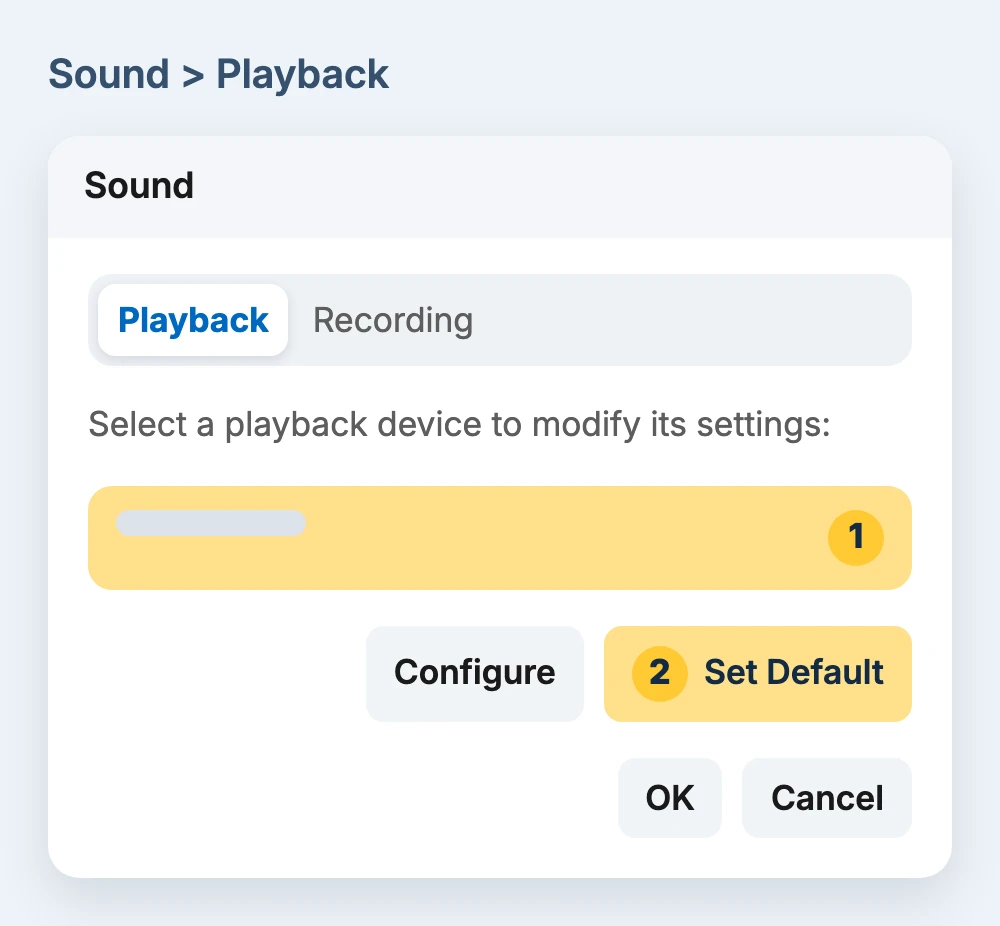
Press Windows + R, enter mmsys.cpl, and press Enter. Open Playback, select the display's audio device, and choose Set Default, then OK. The Run command works with both Windows versions.
If the display is shown as disabled, enable that device before setting it as default. Don't disable every other audio device while checking one monitor; you may still need the laptop speakers when the display is disconnected.
Test a system sound and the app you actually use. If the system sound reaches the monitor but one app stays silent, check the app's volume and its own audio-device selection and leave the working graphics driver alone.
In Windows 11, open Settings > System > Sound > Volume mixer and check the affected app's volume and output device. On Windows 10, use App volume and device preferences in Sound settings.
Restart playback after selecting the intended output. An app can retain a saved headset or interface selection despite a new Windows default.
If the app disappears from Volume mixer during that check, follow its playback session and output selection before replacing a display driver.
4. Recheck the DisplayPort connection and NVIDIA controls
For a display that isn't listed, reconnect the DisplayPort cable at both ends. If a dock or adapter is involved, compare a direct connection where possible. Try another compatible cable if the device remains absent.
If you're using an adapter, check whether it supports audio and which direction it carries the signal. A working picture doesn't tell you whether sound can pass through that adapter too.
In NVIDIA Control Panel, open Display > Set up digital audio. Check whether the connected display is listed for its connection. Apply any available selection change, then choose Open Windows Sound Settings.
Not every DisplayPort entry can be changed. NVIDIA's instructions explain that some connected DisplayPort screens simply appear in Windows Sound, with no change available on that page. An entry you can't change isn't automatically a fault.
This NVIDIA menu doesn't apply to every Intel or AMD system. Those PCs still use Windows Sound for playback selection; use the correct PC or graphics-maker driver package when their display-audio device is missing.
5. Repair the driver that carries display audio
In Device Manager, expand the Sound, video and game controllers category. Look for the display-audio device associated with the graphics hardware, which can use an Intel, AMD or NVIDIA name.
The driver for the PC's analog speakers isn't always the one that sends audio through the graphics hardware to your display. Updating Realtek repeatedly won't necessarily repair a missing DisplayPort output.
Get the appropriate graphics or display-audio package from the PC maker for a laptop, or the graphics-card maker for the installed desktop card. Follow its installation steps, restart if requested, then recheck the output list.
If audio stopped right after updating its driver, open that device's Properties > Driver > Roll Back Driver if that button is available. The Windows audio-driver guide covers that route.
When the display stays silent
Give the PC or graphics support team the monitor model, graphics processor (GPU), Windows version and whether the display appears in Playback. Include whether another cable or direct connection changed the result.
If audio reaches headphones plugged into the monitor but its own speakers remain silent, have its support team check the speaker controls or hardware. That points the repair team toward the display.
The Short Version
Choose the display's Windows playback entry and check its speaker hardware, mute setting and volume. A missing display output needs a connection or display-audio driver check, not just the analog speaker driver.
Checked November 27, 2026.
 If you have any business, I can build it online