No, a fully frozen Sims 4 session can't reliably save new progress. Try Save if the game menu still responds; otherwise, force quitting closes the session without saving it. Recover an earlier manual save or Autosave after reopening.
A stuck Sim is different from a frozen game. If menus still open and the world keeps running, resetting that Sim can restore play without closing the session. Check which case you're dealing with before you close the game.
In this guide
1. Try saving while the game still responds
Open the game's Options Menu and choose Save if it responds. Let the save complete before another click. A moving pointer alone doesn't mean the game can accept commands or write a save.
Check whether other game controls respond: can you pause, open a menu or select another Sim? If they do, the game may still be playable even though one character or action has stopped.
Don't repeatedly force the Mac off while trying to save. If Finder and other apps still respond, the computer is running and the problem is within the game. Start by checking the app.
If a save completes, keep that save before trying fixes. If the menu won't respond, no confirmed keyboard trick can make a fully hung game save. Next, reset the stuck Sim or close the app, depending on which controls still work.
2. Reset a stuck Sim when the rest of the game works
Use this when the game still accepts input but a Sim won't move or respond. Press Control-Shift-C together to open the cheat window. On Mac, this particular game command uses Control, not Command.
Type resetSim Firstname Lastname, replacing those words with the Sim's name, then press Enter. EA's own steps also allow resetSim * for resetting all Sims.
The all-Sims command can miss some characters and report that a Sim wasn't found. Start with the affected character's full name when possible. Check that the Sim can do an ordinary action afterward.
Resetting a Sim returns them to a playable state, but it doesn't send them home or refill their needs. It also cancels wishes and moodlets. Save once the session responds and you're ready to keep that state.
If the cheat window never opens and the game ignores other controls, this isn't simply one stuck character. Move to closing the unresponsive app rather than repeatedly entering commands it can't process.
3. Close an unresponsive game without restarting everything
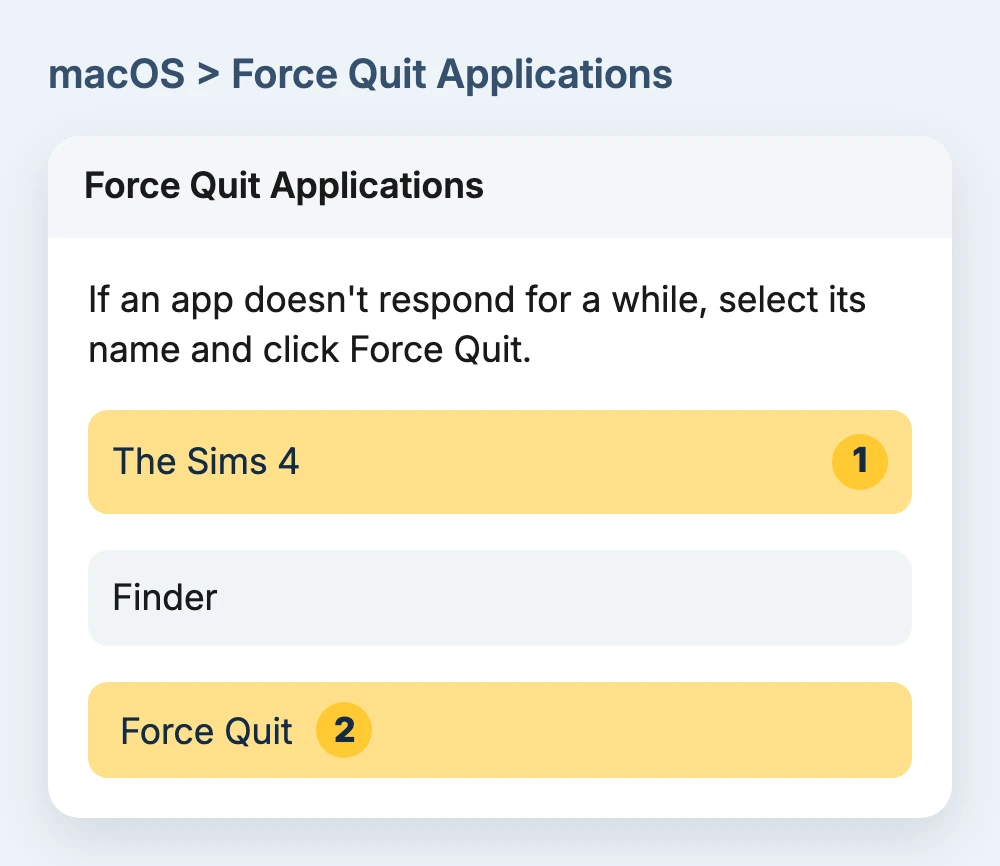
Try Command-Q first. A normal quit gives an app that still responds a chance to finish work or ask you to save. If the game remains unresponsive, press Option-Command-Esc to open Force Quit Applications.
Choose The Sims 4 in that window. Apple says to click Force Quit after selecting the unresponsive app. This ends it, so unsaved progress can be lost.
For a completely unresponsive Mac, try Apple menu > Restart. If restarting fails, keep the Mac's power button pressed until it turns off, which can take 10 seconds. Press it again to start. On a Touch ID laptop, use the Touch ID button.
Intel and Apple silicon use these same keys for Force Quit. Closing a frozen app doesn't require different startup steps for each chip. The Mac freezing checks cover a whole computer that keeps locking up.
4. Look for the newest saved progress after reopening
From the game's Main Menu, select Load Game. Check the available saves before you start playing again. Choose the manual save you want, then select Play.
Current versions also support Autosave. Find the entry with Autosave in its title and compare it with the manual save you remember. Autosave only holds progress saved before the freeze. It can't include changes the frozen game never saved.
The game has one Autosave slot. Each new Autosave replaces the previous one, and older Autosaves can't be recovered. Avoid starting unrelated play before you've checked the save you're trying to rescue.
For an earlier manual version, select its save slot, choose Recover Save using the floppy-disk icon, then choose the save point and select Play. Manual save slots keep several recent save points.
The saved-game recovery steps explain that difference. Recover Save can bring back an earlier saved version. It can't recover the unsaved minutes just before the game stopped responding.
5. Protect the game folder before checking repeated freezes
Quit the game, open Finder > Documents > Electronic Arts, and copy The Sims 4 folder. Paste the copy onto the desktop and rename it Sims 4 Backup. This keeps your saves and other game content together.
Check that the copy has finished before changing the original folder. Keep this backup separate from any new folder the game creates during troubleshooting. An empty new folder isn't a replacement for your previous saves.
For repeated trouble, follow the backup and reset procedure. Once your backup is safe, follow the steps to reset the game data. Test the game without your old content before putting it back.
A clean session that works points toward something in the previous saved games or downloaded content. If it still fails without that content, putting all the old files back won't fix what's causing the freeze.
I'd keep the untouched backup until the recovered household loads, plays and saves normally. Keep that copy in case an older save or restored content makes the session freeze again.
6. Set up saving once the session is stable
Open Options Menu > Game Options > Save Settings. Under Autosave Settings, choose when saving happens, then select Apply Changes. On Mac, Autosave can be switched off, so check how it's set on your Mac.
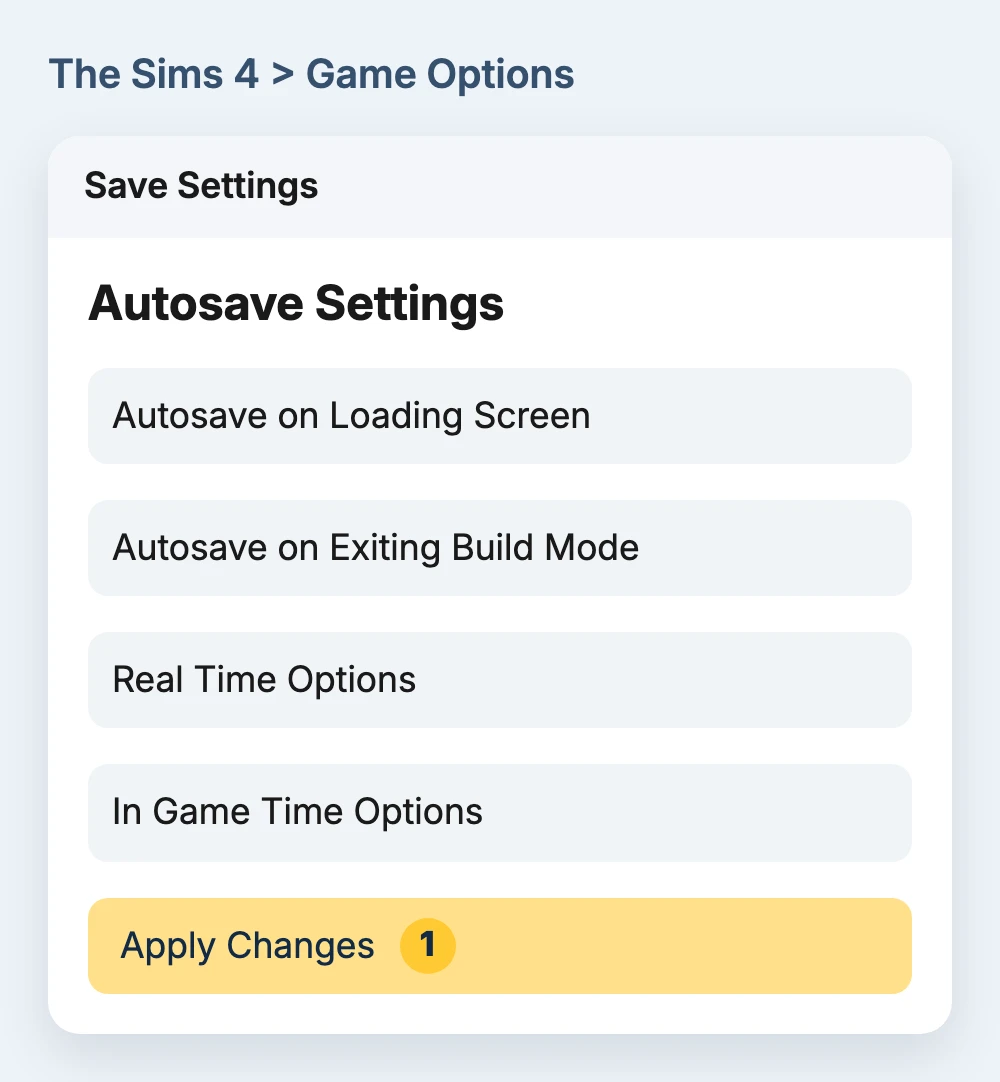
Current choices include loading-screen saves, exiting Build Mode, and timed saves. Use Save Reminders too if you want prompts to create manual saves. Those manual slots remain separate from the single Autosave slot.
If the clean game keeps freezing, contact EA Help with the Mac model, macOS and game versions, and whether it happens in one household or a new game. Include whether menus respond and whether you were using custom content.
For repeated whole-Mac restarts rather than a game hang, use the Mac crash checks and report the restart message. Those failures need checks of the Mac itself as well as the save file.
The Short Version
Save normally if menus respond, or reset a stuck Sim while the game still accepts commands. A fully hung session may lose unsaved progress. After reopening, compare Load Game's manual saves, Autosave and Recover Save before resuming play.
Checked November 27, 2026.
 If you have any business, I can build it online