A Samsung watch that isn't charging can have an incompatible charger or a poor connection to it. Use the model's supplied charger with a compatible wall adapter, then place the watch on it with both charging surfaces clean and dry.
Charging from a phone needs a separate check. Galaxy Watch7 and newer Galaxy Watch models don't support Wireless Power Sharing, so a watch resting on the back of a phone can stay empty even when both devices work normally.
In this guide
1. Match the charging accessory to the watch
Find your watch's full model name from its box, purchase record or paired phone. Galaxy Watch, Gear and Fit accessories can differ. A charger can attach magnetically without being compatible.
Use the accessory supplied with the watch first. Most recent Galaxy watches use a magnetic charging pad, while the original Galaxy Watch uses a dock. Gear S3 and Gear Sport also use a dock; Galaxy Fit models need their own cradle.
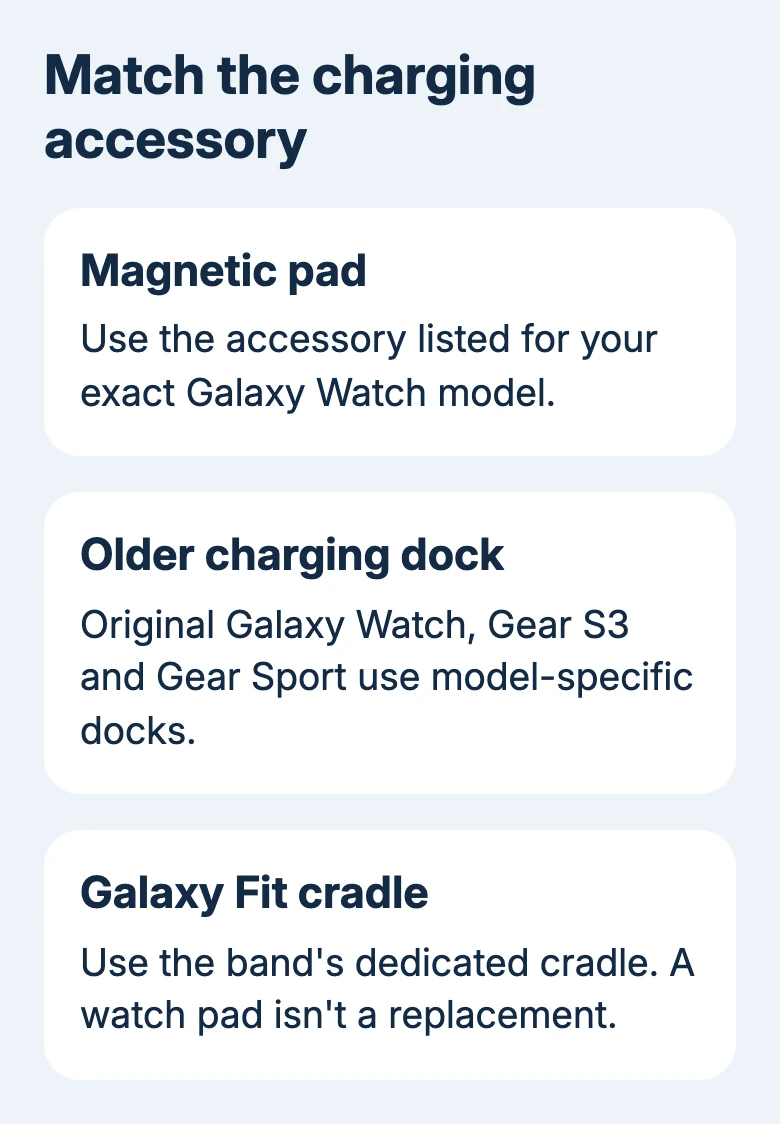
Samsung explains the accessory differences in its charger compatibility guide and watch manuals. Check that your model is listed before ordering; the connector shape doesn't identify a suitable replacement.
A replacement advertised for a different generation can be the reason charging stopped after travel or a charger swap. Return to the original accessory for a comparison. If it works, the watch battery isn't the first part to replace.
2. Seat the watch flat and remove obstructions
Lift the watch off its charger. Check the back and charging surface for sweat, dust or other material. Clean them and let both surfaces dry before placing the watch back. Keep liquid away from the charging pad.
Remove a thick protective case or accessory that gets between the watch and charger. Metal straps can also interfere with positioning. Open or arrange the strap so the watch's back actually rests against the charging surface.
With a magnetic pad, let the magnets help position the watch rather than balancing it at an angle. With an older dock, place its back against the dock's charging surface as the model's instructions show.
Look for a charging indication on the watch. For an older dock with a status LED, use its manual to interpret it. A stand, magnetic pad and multi-device charger can show charging problems differently.
If the indication starts only when you reposition the watch, keep the strap and case clear and check that it stays seated. If charging still won't start, leave the watch in that position and check the adapter and outlet next.
3. Check the adapter and wall connection
Reseat the charger's USB connector and plug its adapter into a working wall outlet. A loose cable at the adapter can leave the watch correctly positioned on a pad that has no usable power.
Try another compatible power adapter if available. Keep the charging accessory matched to the watch while doing this comparison. Compare each part separately and note which replacement brings charging back.
A computer USB port, power bank or shared charging hub can supply less power than the watch needs for normal charging. Move to the supported wall-adapter setup before deciding the watch or puck has failed.
If charging makes the watch hot, disconnect it. Resume only once it has cooled.
The adapter's power modes also affect fast charging. Check charging speed separately from a complete lack of charging. Check the watch's accessory requirements rather than choosing an adapter by wattage alone.
The charging troubleshooting page lists the dedicated accessories and adapter limits. For example, it specifies EP-OR900 for Watch5 and Watch6, and EP-OL300 for several later watch families.
Check the current entry for your full model, including Ultra or Classic where present. An accessory listed as compatible isn't necessarily the one included in every model's box, and charging speeds can differ.
4. Stop using phone power sharing on unsupported models
Galaxy Watch7, Watch Ultra and newer Galaxy Watch models don't support charging from a Galaxy phone's Wireless Power Sharing feature. Turning that phone setting on repeatedly won't make those watches compatible.
The redesigned sensor and back glass change the distance between the watch's internal charging coil and the charger. Use the dedicated watch accessory instead of treating a failed phone-to-watch connection as a damaged battery.
For an older compatible watch, check the phone's supported-device list and power-sharing requirements. Remove a phone case if it blocks contact, then align the watch and phone as their instructions describe.
If the watch charges on its normal pad but not from the phone, check the phone-charging method separately. Charging on the pad tells you the watch can take a charge with compatible hardware.
I'd carry the watch's own charger for travel. It avoids depending on a phone feature that a different watch generation may not support, and gives you a familiar setup to check if charging stops.
5. Separate a black screen from failed charging
For a fully drained watch, follow the charging and power checks: give the battery a full hour or longer on its matched charger. Press Home/Power once if no charging indication appears.
After that hour, remove it from the charger and press Home/Power to try starting it. A watch that starts needed charging; reconnect it if the battery isn't full.
For an intact watch that stays frozen, hold Home/Power + Back until Rebooting… appears. Some models may need a 30-second hold. Release both keys and wait; don't choose Power off or Restart.
If the screen is cracked or touch has stopped responding while the watch otherwise runs, the Galaxy Watch Active screen repair guide explains the hardware assessment for that model. A new charging pad won't repair broken glass.
Avoid a factory reset as the first response to absent charging. It erases watch data and can't correct a wrong pad, blocked charging surface or unpowered adapter. The Samsung watch reset guide is for a separate reset decision after backup.
If the percentage rises but quickly falls during normal use, record that for support. The watch needs its battery use checked. Explain that it charges and then drains, rather than just saying it won't charge.
6. Bring the complete charging setup for service
If the watch still won't charge through its supported accessory and a working adapter, contact a Samsung service center. Ask for the watch, charger and adapter to be checked together.
Provide the full model, when the failure started, whether another compatible adapter helped and whether the watch shows that it's charging. Mention a drop, liquid exposure or a charger change when relevant to the failure.
Take the charger and adapter with the watch. Testing only the watch can miss a cable or power-source fault that happens at home. Ask what's wrong and how much the repair will cost before agreeing to replace the battery or the entire watch.
The Short Version
Compatible charging hardware comes first, followed by clean, dry surfaces and a working wall adapter. Watch7 and later models cannot charge from phone power sharing. Ask for a service check of the whole setup if it still won't charge.
Checked November 27, 2026.
 If you have any business, I can build it online