Excel blocks typing when a file opens in Protected View, a sheet is protected, or your account has viewing access. Read the warning to see whether you need to enable editing for a trusted file, unlock the sheet, or ask for edit access.
When even a new blank workbook won't accept text, check Office activation and the Excel app itself. If new entries work but double-clicking existing text doesn't, check whether direct cell editing is enabled.
In this guide
1. Read the workbook's banner before changing settings
Look between the worksheet and the ribbon for Protected View or an editing warning. Files from the internet and other potentially unsafe locations can open in this restricted mode, which disables most editing functions.
For a file you trust, select Enable Editing in its message bar. Then select an ordinary input cell and try a short entry. If typing now works, Protected View was blocking your changes; leave the protection enabled for other files.
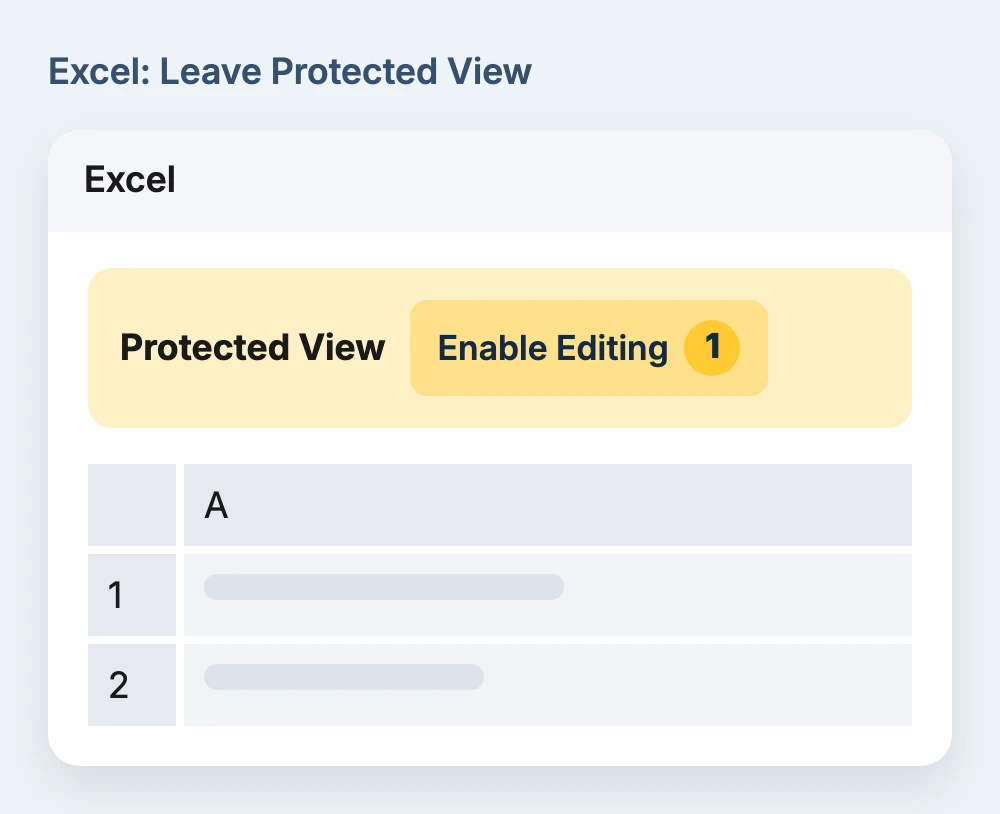
Only enable editing when you recognize and trust the file and its source. A workbook asking you to remove security protections to reveal unexpected content needs checking with its sender first.
Microsoft describes Protected View as a restricted mode that disables most editing functions. Your organization can also control whether you can leave Protected View. If the button isn't available, send the warning to your help desk.
On a Mac or in browser Excel, don't hunt for a Windows-only Protected View control when the actual message is viewing access or a license problem. Follow the warning on your screen to choose your next check.
2. Check whether only certain cells are locked
Try another cell intended for data entry in the same worksheet. If input cells work but headings or formulas won't change, the sheet may be protecting those areas on purpose. Selection alone doesn't mean a cell is editable.
Open Review and look for Unprotect Sheet. If it's offered, the sheet is protected. With the owner's permission, choose that command. Enter the sheet's password when prompted. Try the original cell again.
Ask the workbook owner for unlocked input cells or an editable version when you don't know its password. Guessing passwords or removing protection from a team template isn't a useful first fix.
On desktop Excel for Mac, use Review > Unprotect Sheet for the same check. In browser Excel, protection and editable ranges can be managed through Review > Manage Protection when available and permitted for your account.
Sheet protection and workbook structure protection differ. Being unable to add or move sheet tabs doesn't explain a blocked input cell by itself. Give the owner the affected cell address and the message Excel shows.
If the error refers to changing part of an array instead, the array editing guide explains which starting cell or full range you must edit. That message needs an array-specific change, not a general unlock.
3. Resolve viewing permissions and editing locks
A shared workbook can open successfully while allowing you only to view it. Check whether it shows Viewing instead of an editing mode. Ask the owner for edit access with the same account you're using to open the file.
Where offered, select Viewing > Request more access, then Ask to edit. Include a short note about the change you need to make. The owner decides whether to grant that access; changing Excel's local settings can't grant it yourself.
For a file locked under your own name, close every other session using that file. Give the server a few minutes to release the old lock before reopening it. A lock can remain briefly after the other session ends.
If another person holds the lock, arrange for them to finish their edits, close the workbook, and check it in if required. A read-only copy can help you inspect the workbook, but it doesn't give you permission to overwrite their original.
I'd sort out the access message before making a duplicate. Copies can let two people change separate versions without realizing it, leaving the owner to work out which figures belong in the final workbook.
4. Restore editing inside an existing cell
Select a blank cell in a spare workbook, type a short word, and press Enter. If that works but you can't place a cursor inside existing text, you're dealing with editing behavior rather than all typing being blocked.
Select an existing cell and click in the formula bar to edit its contents. On Windows, F2 is another way to start editing. Double-clicking inside the cell should also work when direct editing is enabled.
On Windows, open File > Options > Advanced. Under Editing options, check Allow editing directly in cells, then select OK. Return to the cell and double-click the text to check whether the insertion point appears.
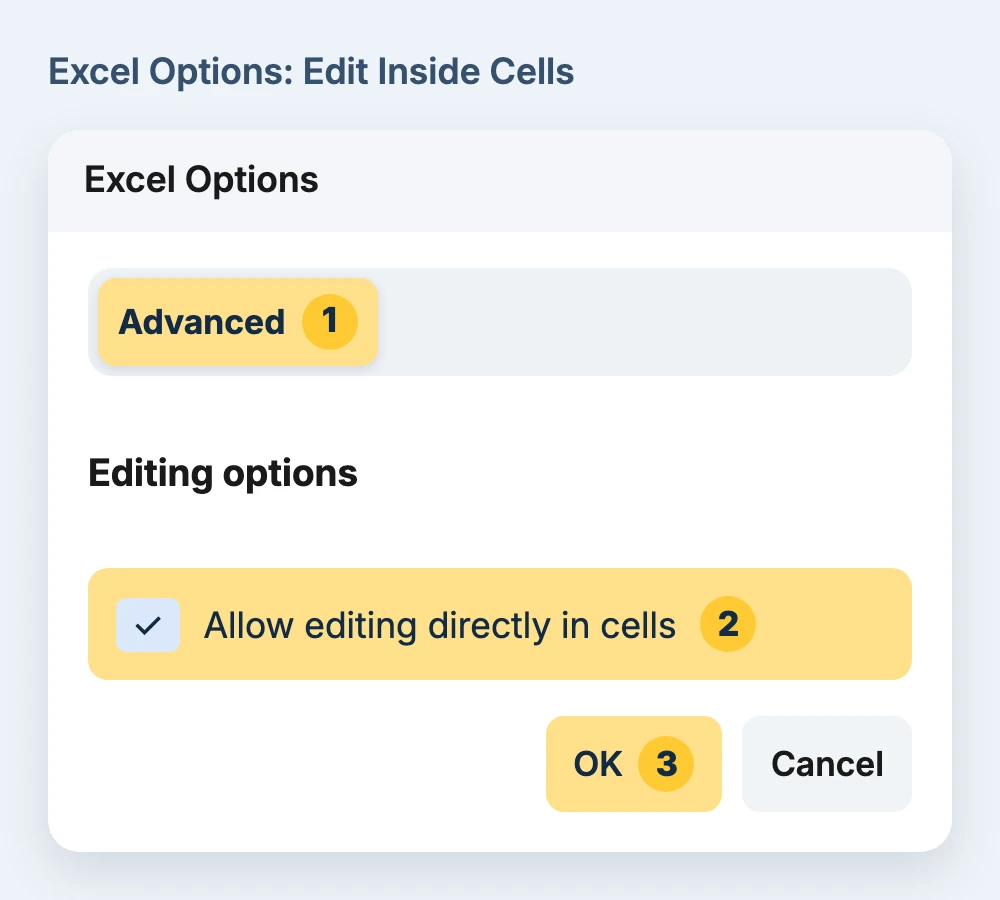
This option controls editing within the cell. It isn't a way to unlock a protected sheet, and it isn't the cause when a blank cell refuses every new entry. Use it when the specific problem is entering Edit mode.
On a Mac, use the formula bar to check whether the existing content is editable without following Windows' File > Options path. If you can change text there, describe the problem as in-cell editing when asking for Mac-specific help.
If the entry is accepted but Excel displays a formula instead of its answer, use the formula display fixes. In that case typing works; check the cell's display and formatting settings.
5. Check activation for an app-wide restriction
Compare a newly created workbook with the file that first failed. If neither accepts input, look for Unlicensed Product or an activation message. When Office activation fails, most features can be disabled across the apps.
Sign in using the account tied to your purchased Office license or Microsoft 365 plan. If IT manages your account, ask whether your license includes editing in desktop Excel. Permission to open a shared file doesn't include that license.
If Excel freezes instead of showing an access warning, save any available changes, then restart the app. Check a new blank workbook afterward. If that fails too, give Excel support the app version and exact activation or error message.
On Windows 11, use the Office entry in Installed apps, then Modify for repair. In Windows 10, find the suite in Apps and Features, then choose Modify. Close Office apps. Repair affects the suite, so check access and licensing first.
On a Mac, give support the license message and whether a blank workbook accepts text. Ask them to check your editing license and Excel version. These details help with an app-wide restriction; a sheet password won't change it.
The Short Version
Follow the message: enable trusted-file editing for Protected View, ask the owner about protection or permissions, and check activation when every workbook is blocked. Change direct editing only when existing text won't enter Edit mode.
Checked November 27, 2026.
 If you have any business, I can build it online