Whisky is no longer actively maintained, so Steam or game updates can break a working setup. Error 0x3008 has a workaround that uses an older Steam client.
For a stuck download, restart Steam or try ESync. If the game needs features Whisky doesn't support, you'll need another way to run it.
In this guide
1. Identify what fails before changing the bottle
Check what fails: Whisky opening, Steam starting, or one game launching. A bottle is a separate Windows-style environment with its own apps and settings. A fault in one bottle doesn't automatically affect the others.
Whisky's maintenance notice says its Wine component won't receive further updates or app-specific repairs. Wine is the software that lets Windows programs run without a full Windows installation.
Old tutorials can depend on a Whisky update that won't arrive. The project isn't keeping pace with Steam and game changes. I'd compare the error with its existing fixes before rebuilding a game library.
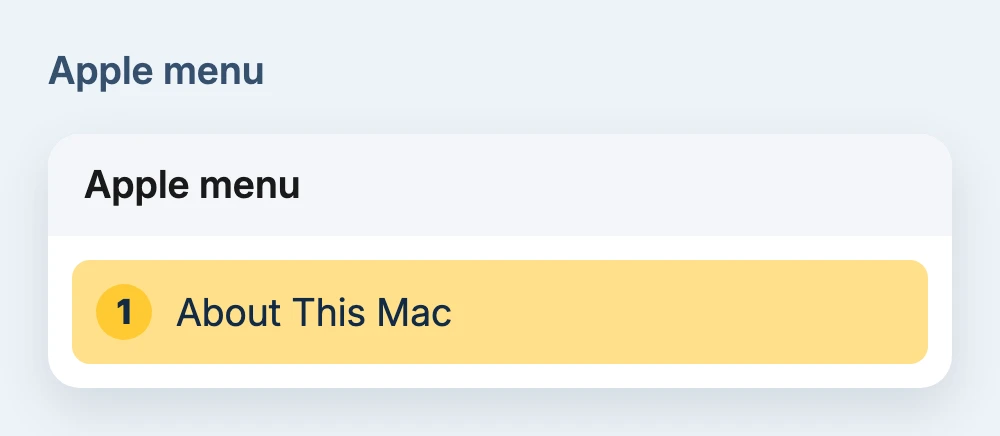
Check Apple menu > About This Mac. Whisky needs Apple silicon and macOS Sonoma 14 or later. Look for an Apple chip under Chip; an Intel model under Processor means the Mac doesn't meet that hardware requirement.
If an app asks to install Rosetta, follow the Rosetta installation prompt. Rosetta lets an Apple-silicon Mac run Intel Mac software used by the setup. It doesn't turn an Intel Mac into a supported Apple-silicon machine.
2. Restart a stuck Steam download, then try ESync
If Steam opens and the game download stops near completion, restart Steam first. The project's common-issues page lists this specific download problem with MSync enabled. It is different from Steam failing to open at all.
For another stall, open that bottle's configuration, switch MSync to ESync, and restart Steam. These settings change how Windows programs coordinate their work. Check whether the stalled download resumes.
Apply this change to the affected bottle only. Check whether that download finishes before adjusting graphics settings or installing extra components. The download fix doesn't call for either of those changes.
Once it completes, launch the game separately. A finished download means the files have arrived, but the game may still need features Whisky doesn't support. Use the game-specific check in section 5 if it fails after installation.
3. Treat Steam error 0x3008 as an old-client problem
The Whisky Steam instructions list a workaround for a Steam startup dialog offering quit or restart. It restores a March 6, 2025 client, then prevents that client from updating itself.
This uses outdated Steam software, which Valve doesn't recommend because of possible security risks. A maintained way to run the game is the better long-term choice; use the archived procedure only if you accept that tradeoff.
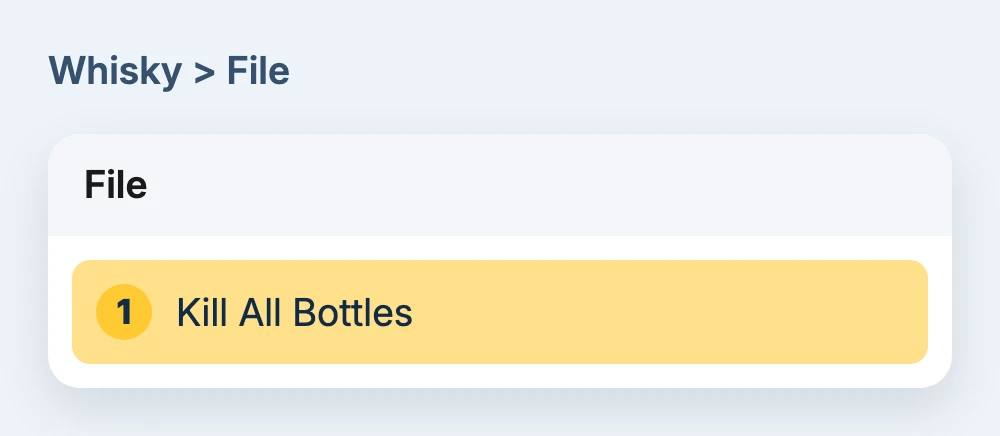
First, save anything running in your bottles. In Whisky choose File > Kill All Bottles, or press Command+Shift+K. That stops programs across the bottles, so don't use it while another game has unsaved progress.
In the Whisky configuration for Steam, add this argument line exactly. It requests the archived client package; it isn't a web address to paste into Safari.
-forcesteamupdate -forcepackagedownload -overridepackageurl http://web.archive.org/web/20250306194830if_/media.steampowered.com/client -exitsteamClick Run. An update installer should appear, then Steam should close. Replace the previous arguments with this second line before running Steam again:
-noverifyfiles -nobootstrapupdate -skipinitialbootstrap -norepairfiles -overridepackageurlDelete and recreate your Steam shortcuts as the project instructs. This workaround is for that startup error. It doesn't change a game's hardware requirements or add support for future Steam services.
4. Try a fresh bottle without deleting the old one
If the Steam workaround fails, the project's next step is a new bottle with Steam installed again. Locate your game saves and other needed files before removing the old bottle. A bottle contains more than an app launcher.
Click Whisky's plus button, enter a name for it, choose its Windows version, and click Create. Select it in the sidebar. Download the Windows Steam installer, then use Run to select that installer and open it.
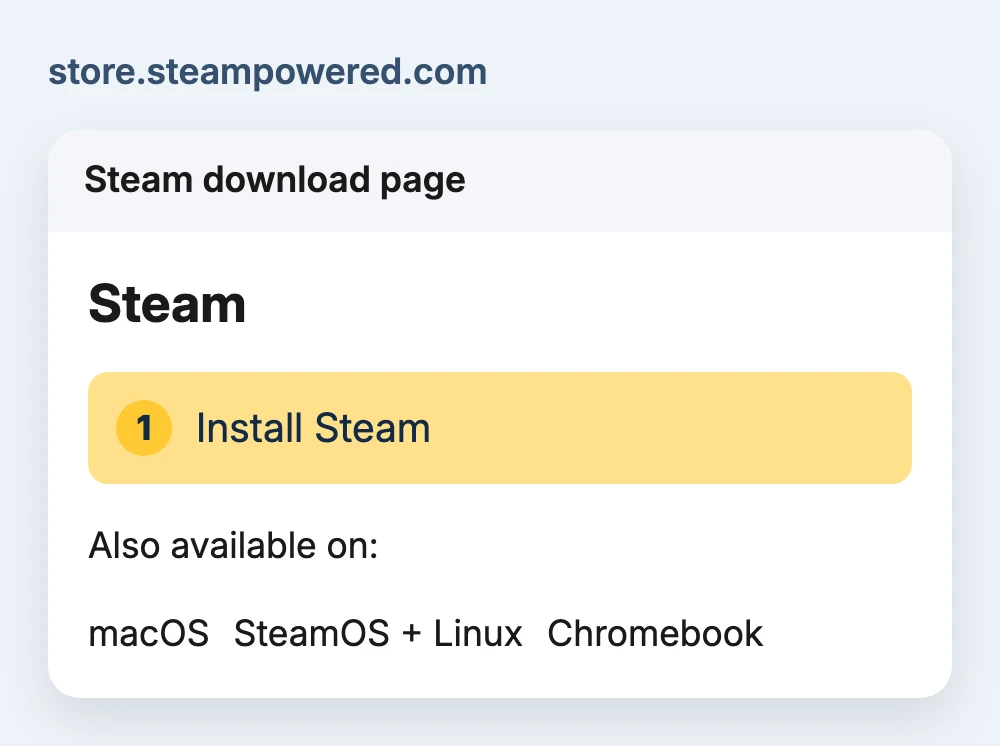
Wait for the Steam window to appear; the first launch can be slow. Repeated clicks on Run make the first launch harder to follow.
Compare the new bottle with the old one before reinstalling every game. If Steam works in the new bottle, continue there. If the same error happens in both bottles, the old bottle's settings aren't the only possible cause.
A separate game library can reduce repeated downloads, but it isn't a backup of every game's saves. Check the game's own save location before removing any bottle. Don't delete the original environment just to make the sidebar tidy.
5. Check AVX and graphics requirements
An invalid-instruction crash can involve AVX, processor instructions some games need. Rosetta supports these on macOS Sequoia and later. Sonoma doesn't have that support.
Multiplayer games with driver-level anti-cheat
Competitive multiplayer games can use driver-level anti-cheat, which checks Windows at a level Wine can't support. Those games won't run through Whisky because of that requirement. Reinstalling Steam won't remove it.
DirectX 9 games can have graphics problems too. DirectX is the Windows graphics system games use; Whisky focuses on DirectX 11 and 12 titles. Check the game's graphics requirements before changing bottle options.
For a missing-component error, note its name and consult the game's compatibility notes. Install Winetricks components only when those notes call for them. Adding unrelated components makes later troubleshooting harder.
When Whisky can no longer run the game
Use a native Mac edition when available. Otherwise check the exact game's current support in a maintained compatibility tool, or use a Windows PC. Confirm multiplayer requirements before buying another app.
The free Mac gaming routes include using another computer to run the game. With streaming, the game runs on that computer, so Whisky doesn't have to handle the Windows component it can't support.
For the Mac's own sound or playback failure, use the Mac audio and video checks only when that symptom matches. Changing macOS sound output won't repair Steam authentication or an anti-cheat rejection.
The Short Version
Restart stalled downloads and try ESync. For 0x3008, the project has an archived Steam workaround with security drawbacks. Keep saves before replacing a bottle, and stop when the game's requirements exceed Whisky's support.
Checked November 27, 2026.
 If you have any business, I can build it online