Offline iPad games include Retro Bowl, Crossy Road and KAMI 2, all in the App Store's offline collection. Download and open a game while you have internet, then play a round with the internet off before counting on it while traveling.
Offline play doesn't make every feature available. Single-player can work while leaderboards, purchases and new content still need a connection. Try the part of the game you want to play while you're away.
In this guide
Choose a game that suits the time you have
Start with the App Store's offline iPad collection, then open the individual listing to check compatibility. These three options suit different kinds of play, so you don't need a large bundle of unfamiliar games.
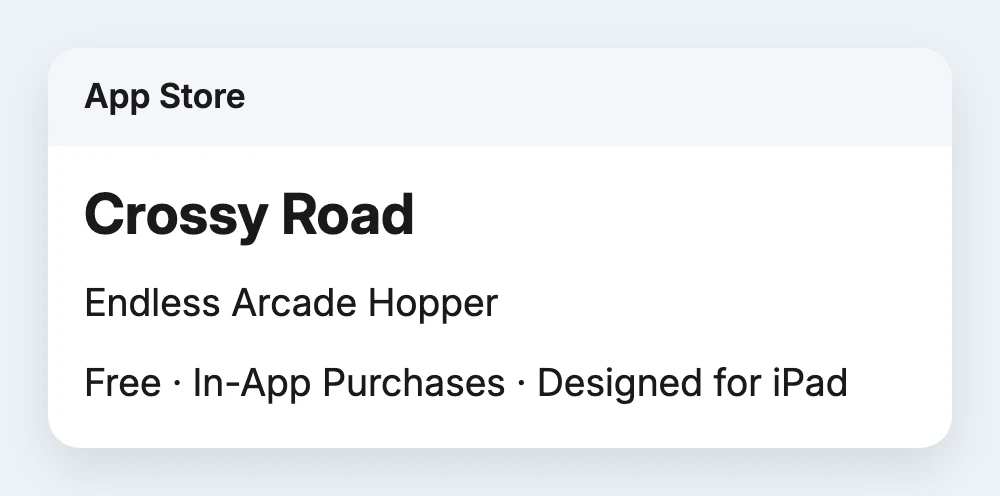
All three listings offer a free download with in-app purchases. That means you can start without buying the app, but some content or extras can still cost money. Read the purchase section before handing a game to a child.
Retro Bowl for football and team management
Retro Bowl, from New Star Games, combines football matches with roster management. It's a good choice when you want a season to keep returning to, rather than a puzzle that ends after a single board.
The listing describes managing the team as well as calling the shots on the field. Start a game and learn its controls while connected. That lets you spend offline time playing instead of finishing setup.
Its current listing requires iPadOS 15.6 or later. Check that requirement on an older iPad before trying to download it. An iPad that can't update far enough needs a different compatible game.
Crossy Road for short rounds
Crossy Road, from HIPSTER WHALE, is an endless hopping game built around crossing roads, railway tracks and rivers. Short attempts make it a practical choice for a few minutes between other activities.
The listing includes offline play. Test the regular crossing game rather than assuming daily challenges or leaderboards work disconnected. Being able to play a round offline doesn't tell you whether those features will work too.
Its current minimum is iPadOS 15.0. The listing also includes in-app purchases, so free download doesn't mean every character or extra is included. Pick the exact title and developer rather than a similarly named collection.
KAMI 2 for a quieter puzzle
KAMI 2, from State of Play Games, asks you to turn a patterned puzzle into one color using as few moves as possible. Choose it when you'd rather think through a board than react quickly to moving obstacles.
The listing includes more than 100 handcrafted puzzles, daily challenges, shared puzzles and a puzzle builder. Test the built-in puzzles for offline use. Don't count on getting new community puzzles while you're offline.
KAMI 2 requires iPadOS 15.0 or later and offers paid hints. Check available puzzle content before leaving, especially for several days offline. A familiar game with enough puzzles ready is better than an icon that still needs downloads.
Install and finish setup while connected
On the iPad, open App Store, search for the exact game and open its listing. Tap Get or the download button, then complete any Apple Account authentication. Wait until the game can be opened from the Home Screen.
Check Compatibility on the listing if the download is unavailable. To see the iPad's software version, open Settings > General > About. Use Settings > General > Software Update to check whether that model can install a newer version.
Open the game while connected. Complete its first-run screens and any additional download. Reach the actual game, not just its title screen. Some downloads appear only after you choose a mode or begin a level.
Storage matters too. Open Settings > General > iPad Storage if downloads won't finish or the iPad is nearly full. The iPad storage guide explains how to remove replaceable content without deleting everything.
For a stuck download, press and hold its downloading icon, then choose Prioritize Download if offered. Apple says download problems can include payment issues even for free apps.
If you see verification required or a billing message, fix the account problem while you're online. Repeatedly tapping the icon during a flight won't resolve it. Finish that part before treating the game as ready to travel.
Test the iPad with its internet connection off
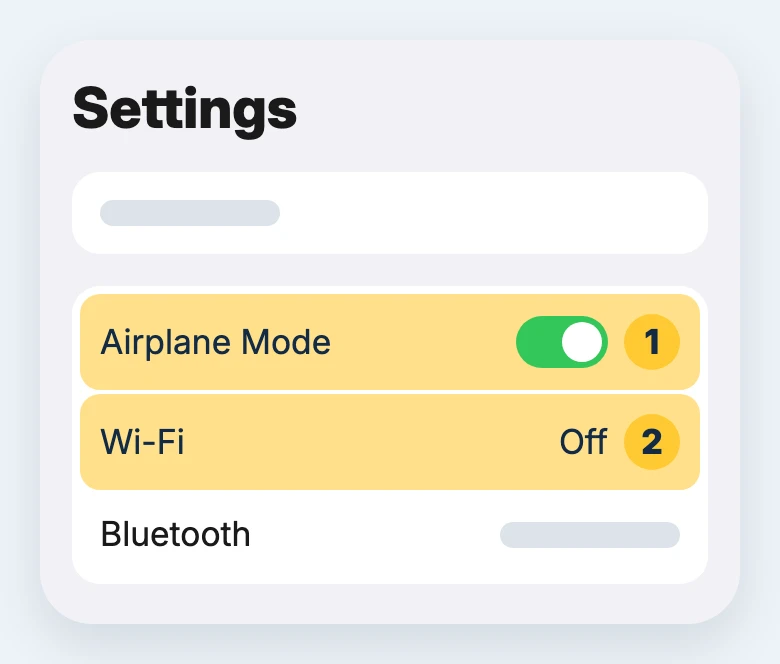
Open Settings and turn on Airplane Mode. Also open Wi-Fi and disable it during this check. Wi-Fi can be enabled during Airplane Mode, so that airplane symbol isn't enough to confirm the game has no internet access.
Start a local round, finish it and begin another. For a game with progress, exit and launch it again to confirm your progress resumes. This tests playing and loading your saved progress, rather than just opening a menu.
If that works, you can use that part of the game offline. If it requests internet, note what triggered it: the game, a new level, a purchase or an online event. Reconnect and finish any available content download, then test offline again.
I'd keep two games ready for a long journey: one for short rounds and another with puzzles or a season. Keep that small selection ready instead of filling storage with untested apps.
For games on a phone as well, use the separate offline iPhone game choices. A game available on both devices still needs its own download and preparation on each one.
Consider Arcade, then get help for the right problem
Apple Arcade is another option if you already subscribe or want its catalog. Open the Arcade tab in the App Store or Apple Games app and download a compatible game. The subscription is separate from the free App Store titles listed here.
Arcade supports offline play, but download the game first and test its local mode before traveling. Keep the subscription active for access. You'll still need a connection for online multiplayer and to update saved progress across devices.
If one game fails offline after preparation, find App Support on its store page and ask the developer which modes and content work offline. Include the iPad model, iPadOS version, game version and the exact connection message.
If several apps won't download, use Apple Support's App Store download help. That help covers installation, payment and account problems. A game developer can't repair an Apple Account restriction affecting unrelated apps.
The Short Version
Try Retro Bowl, Crossy Road or KAMI 2, check compatibility and finish setup online. Test a round with Airplane Mode on and Wi-Fi off. Keep online challenges, purchases and Arcade subscription access separate from local play.
Checked November 27, 2026.
 If you have any business, I can build it online