An iPhone can keep dropping Wi-Fi because the signal is weak, or seem to switch away because cellular assistance takes over. Start near your router and watch Settings > Wi-Fi when it happens.
If the checkmark disappears, the Wi-Fi connection broke. If it stays but pages stop loading, check the network's internet access instead.
In this guide
1. Check what changes when the connection drops
Open Settings > Wi-Fi, join your network, and look for the blue checkmark. Stay near the main router while repeating the activity that usually triggers the drop. Note whether the checkmark disappears or remains beside the network.
If your phone stays connected nearby but drops in another room, focus on coverage. Work on the router's placement or coverage before changing the phone's saved settings. Try the room where it drops again after each change.
A checked network with pages that won't load is a different result. Compare page loading with another device on your router. If neither loads pages, check the household connection before reconnecting the iPhone again.
The Wi-Fi and internet comparison explains how the router can stay connected while internet service is down. A hotel or public network may also need its sign-in page completed before you can get online.
2. Check whether cellular assistance explains the change
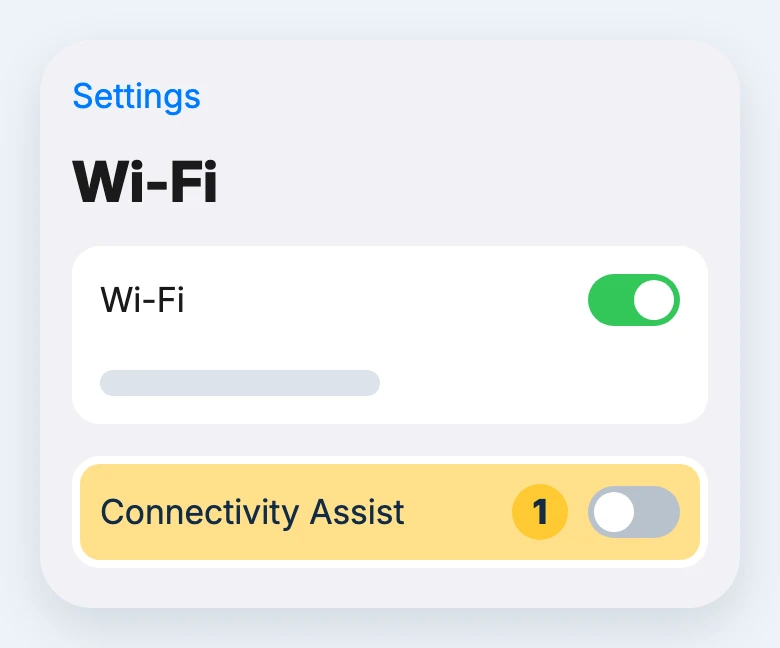
For Connectivity Assist, open Settings > Wi-Fi and scroll to its switch. Turn it off during the check. This feature adds cellular data when Wi-Fi is weak, busy, or without internet access.
For one network only, tap its information button and look for Use Connectivity Assist. Turn that option off to check your home connection while keeping the feature available on other networks.
Older iOS versions use Wi-Fi Assist in Settings > Cellular, near the end of the settings list. Connectivity Assist replaces that older control, so use whichever name your iPhone shows.
Apple's Connectivity Assist explanation describes that change. A cellular icon or cellular data use doesn't automatically mean the phone has forgotten your router; check whether the network still has its checkmark in Wi-Fi settings.
If turning assistance off simply leaves the phone connected to unusable Wi-Fi, restore your preferred setting and work on the weak signal or lost internet access. Assistance changes how the phone stays online; it doesn't repair a router.
3. Restore joining when the phone doesn't reconnect
If the phone disconnects and then sits on cellular even after you're back in range, open Settings > Wi-Fi and open the saved network's information page. Turn Auto-Join on if it's off.
Tap the network name to join it manually once. If that works and the phone later rejoins automatically, that points to its saved Auto-Join setting. Repeated password errors need the saved connection replaced instead.
The Auto-Join and Control Center checks explain temporary disconnection from Control Center too. Use that route when the problem begins after tapping the Wi-Fi control, rather than during ordinary use.
To replace a failing saved connection, have the password ready, tap the information button, choose Forget This Network, and confirm. Select that network again from the list and enter its password.
Your organization may manage the saved Wi-Fi setup. Ask its administrator before removing it, especially if it uses security certificates or a sign-in method you can't set up again yourself.
4. Restart the equipment and compare another band
To restart, use Settings > General > Shut Down and slide to power off. With the phone off, hold its power button down. Release it once the startup logo shows.
For a router you own, disconnect and reconnect power to the router and modem, then wait for their connection to return. Use the power connection for this restart, rather than the factory-reset button.
For separately named bands, switch from 2.4 GHz to 5 GHz or the reverse. Keep the phone in place for that comparison. A steady connection on one band gives you an option while checking the router.
Update the router's firmware using its supported process. For equipment you don't manage, tell the owner when it dropped and which other devices were affected. Those details help the owner check the drop without an unnecessary reset.
Try the iPhone on another trusted Wi-Fi network too. A phone that stays connected elsewhere points toward the first network; if it fails on unrelated networks too, keep checking the phone itself.
5. Remove a VPN conflict or a camera-related disconnect
For a VPN or security app, uninstall it and test after an iPhone restart. Switching a VPN off can leave network components installed. Keep the instructions for reinstalling any software you need.
If the connection becomes steady without it, contact that provider or your organization's VPN manager with the result. If your workplace requires that protection, ask its VPN manager how to get it working with Wi-Fi.
A separate case happens while the iPhone acts as a Mac webcam through Continuity Camera. Wireless camera use can sometimes disconnect the iPhone from Wi-Fi to optimize the camera connection, with cellular data handling background tasks.
For that camera session, use a USB cable between the devices or disable cellular data to prevent that disconnect. Compare a session without Continuity Camera before treating its disconnect as a general Wi-Fi fault.
6. Reset networks only after the narrower checks fail
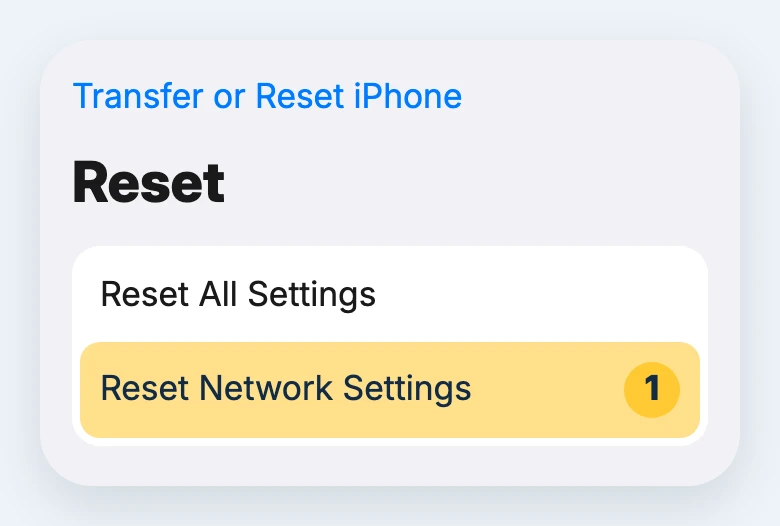
Open Settings > General > Transfer or Reset iPhone > Reset > Reset Network Settings. This removes saved Wi-Fi networks and passwords and resets cellular, VPN, and APN settings. Make sure you can rejoin the networks you need afterward.
Rejoin the home network and repeat the same activity near the router. If the phone now stays connected, add required networking apps back carefully so you'll notice any renewed drops as you reinstall them.
If the iPhone still fails on unrelated networks, contact Apple Support about Wi-Fi disconnections. Give the iOS version, whether the network checkmark disappears, and the results without VPN software and after the network reset.
For home-only failures, give the router maker or provider your model and ask about wireless interruptions and firmware. Include whether other devices fail at the same time and which band stayed connected.
The Short Version
Watch the network checkmark and compare reception near the router. Check cellular assistance, replace a bad saved connection, and compare another network before resetting network settings.
Checked November 27, 2026.
 If you have any business, I can build it online