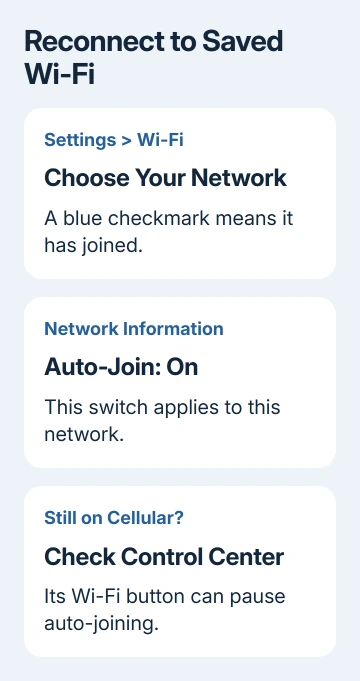
An iPhone that joins Wi-Fi when tapped but won't reconnect usually needs Auto-Join turned on for that network. Check its information page in Settings > Wi-Fi. Control Center's Wi-Fi button can also pause automatic joining.
The blue checkmark matters: if it's already beside your network, the phone has joined. A hotel login screen needs you to sign in; No Internet Connection needs an internet access check. Neither is a failure to join Wi-Fi.
In this guide
1. Enable Auto-Join on the network you actually want
Open Settings > Wi-Fi and make sure the main Wi-Fi switch is on. Tap your network's name to connect manually, entering its current password if requested. Look for the blue checkmark beside the name.
Tap the information button next to that network. Turn on Auto-Join, then return to the Wi-Fi list. This is a setting for that particular network, so enabling it for a nearby guest network won't change your home's saved connection.
On versions with an Edit button in Wi-Fi settings, that list also lets you inspect known networks. Use the information button for the intended saved network rather than assuming the strongest network on the first screen is the right one.
Next time you return within range, check whether the phone joins without tapping the name. If it connects manually and then reconnects on its own, your saved password and Auto-Join setting are working.
If tapping the network produces a password error or never gives a checkmark, the failure isn't limited to automatic joining. Move to the saved-network repair after checking Control Center.
2. Undo Control Center's temporary disconnect
Control Center's Wi-Fi button doesn't behave like the main switch in Settings. Tapping it disconnects the current network and temporarily disables automatic joining nearby, even though Wi-Fi remains available for some other features.
On a Face ID iPhone, swipe down from the screen's top-right corner. For a Home button model, swipe upward starting from its bottom edge. Tap the Wi-Fi control to allow connections again, or join your network through Settings.
Apple's Control Center explanation lists the events that restore auto-joining: turning Wi-Fi back on there, connecting in Settings, changing location, restarting, or reaching 5 a.m. local time.
That's why one tap can leave your phone on cellular all evening, only for it to reconnect the next morning. Waiting until morning isn't necessary; reconnect in Settings when you want the network now.
After reconnecting, leave the Control Center Wi-Fi button alone. Check whether the phone reconnects when you leave home and return. Repeatedly tapping that button can recreate the very behavior you're trying to stop.
3. Unlock after restarting and check the selected network
After an iPhone restarts, unlock it once with its passcode. The phone can't use its saved Wi-Fi login details for automatic joining until that first unlock. If it's at the passcode screen, unlock it before checking whether it reconnects.
If the phone connects to a different saved network, inspect the information page for that unwanted network and turn Auto-Join off there. Keep it on for the preferred network. Manual joining also influences which network the phone prefers.
Your iPhone doesn't simply pick the strongest signal. The known-network priority rules consider earlier choices, private and public networks, management and other details before signal strength.
I'd disable automatic joining only for the network you keep having to leave. Forgetting every saved network creates extra password work and removes connections that were behaving correctly.
For a nearby iPhone's Personal Hotspot, check Settings > Wi-Fi > Auto-Join Hotspot instead. That control has its own Never, Ask to Join and Automatic choices. A home router uses the separate Auto-Join switch on its network information page.
4. Separate hotel sign-in from joining the network
A public hotspot can show a checkmark while still waiting for a room number, voucher or acceptance of its terms. Your phone has joined Wi-Fi at that point, but internet access still needs the provider's sign-in.
Open Settings > Wi-Fi, tap the network, and wait for its welcome screen. Alternatively, tap the information button and choose Join Network when offered. Complete the requested sign-in before judging whether the connection works.
Keep Auto-Join on if you want to reconnect to that hotspot. Auto-Login, when present, controls a different part of the sign-in behavior. Turning it off makes the welcome screen appear next time you connect.
If the portal never appears, follow the iPhone Wi-Fi login screen fixes. A provider can also require a new voucher or device registration after a previous session expires.
The checkmark confirms the Wi-Fi connection, rather than internet access. Open a normal website after sign-in. If other guests can't get online either, ask the venue to check the network instead of resetting your phone.
5. Replace the saved connection when manual joining fails
Make sure you have the current Wi-Fi password before forgetting a home network. In Settings > Wi-Fi, tap its information button and select Forget This Network. Return to the list and join it again with the current password.
Check Auto-Join on the newly saved connection. This is useful after a router replacement or password change because the phone needs a working saved connection before it can reconnect automatically.
Try near the router and compare another device. If neither can connect, restart the router and modem using their normal power procedure. A router that isn't accepting connections won't be repaired by changing another iPhone preference.
When the phone joins but internet keeps dropping, the iPhone Wi-Fi connection guide addresses that broader fault. Leave privacy features on when checking why automatic joining stopped.
6. Reset networks only for a persistent phone-wide failure
Try another known Wi-Fi network first. If automatic joining fails across networks after the matching checks, try Settings > General > Transfer or Reset iPhone > Reset > Reset Network Settings next.
This removes saved Wi-Fi passwords and other network settings, including VPN and APN (cellular data) settings. Ask IT first for a managed phone. Rejoin one trusted network and check automatic reconnection before adding the rest.
If the phone can't connect to any Wi-Fi network, ask Apple Support to check its Wi-Fi connection and tell them which networks you tried. If only one router fails, ask its provider to review that router's configuration and connection logs.
The Short Version
Enable Auto-Join and undo a Control Center disconnect. Unlock after restarting. A checkmark with no internet needs a router or hotspot sign-in check. If auto-joining still fails across networks, try a network reset after the other checks.
Checked November 10, 2026.