For repeated Android System Intelligence crashes, update the app and restart your phone first, then clear its cache if needed. Check the name: Google, Android System WebView, and Android System Intelligence are separate components.
On a Pixel, it helps run features such as Live Caption, text suggestions, and Now Playing. A crash in it doesn't mean the whole phone needs erasing. Start with that app's controls before checking for a fault affecting the whole phone.
In this guide
1. Update the named component and restart the phone
Open Google Play Store and tap the profile picture. Select Manage apps & devices. Under Updates available, check for Android System Intelligence and install its update if one is offered.
Update other pending system apps too. Then open Settings > System > Software update on a Pixel and check the phone's Android update. Follow any restart prompt before checking whether the crash returns.
For Pixel 6 and newer, including Fold, hold Power + Volume Up briefly, then tap Restart in the power menu.
For Pixel 5a and older models, hold Power for roughly 30 seconds, or until the device restarts.
If the phone is responsive, use its normal restart control rather than a forced shutdown. After it starts, try the feature that previously brought up the message, such as copying text.
Google says to start with restart and app updates. If the message stops, keep using the phone normally rather than clearing app data just because the option exists.
On a non-Pixel Android phone, names and update paths can differ. Search Settings for the exact app named in the crash. If that component isn't listed, don't install a random APK just to add it.
2. Force stop it, then clear its temporary files
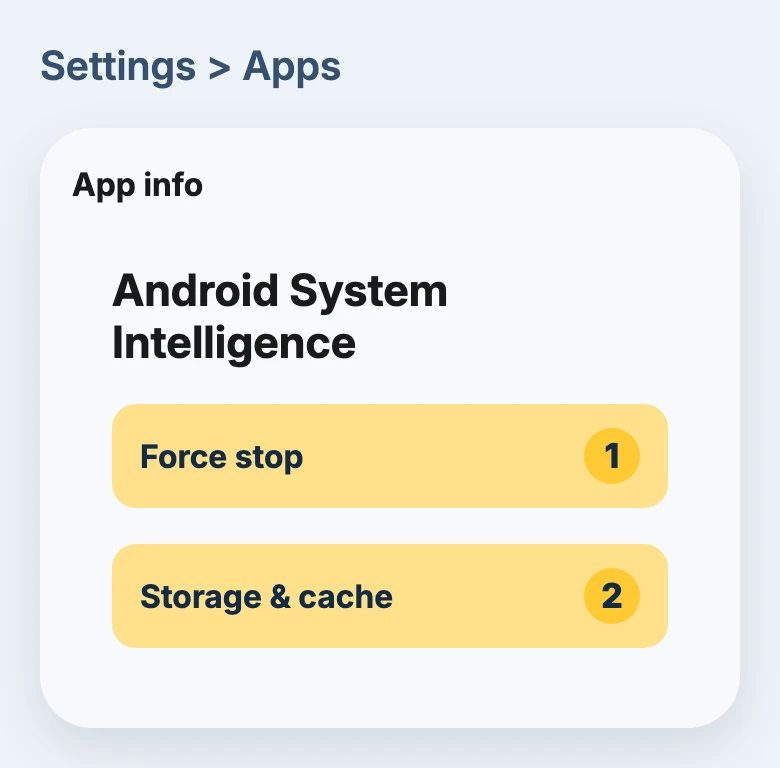
Open Settings > Apps > See all apps > Android System Intelligence. Tap Force stop, then confirm OK. Open Storage & cache and choose Clear cache.
Cache holds temporary files. Clearing them isn't the same as choosing Clear storage, which removes the component's saved app data. Start with the cache control so you don't erase that data unnecessarily.
If the app is hard to find, search Settings for Android System Intelligence. Depending on the phone's app list, you may need its Show system option. Use the exact component name rather than a similarly named service.
After the cache cleanup, restart and repeat whatever brought up the error. If the message has stopped, clearing the temporary files was enough this time. The phone can rebuild its cache during ordinary use.
The Android cache guide explains the distinction between temporary files and app data. You don't need to clear every app on the phone to troubleshoot one named component.
If the crash returns immediately, note that result and move to its saved data. Repeating Clear cache every few minutes doesn't resolve a fault that survived the first cleanup.
3. Clear Android System Intelligence's saved data
Clearing data resets this component's saved information, including local preferences and learned data. Read what the confirmation says will be cleared before agreeing. This isn't a factory reset of the phone.
On the Pixel privacy route, open Settings > Security & privacy > More security & privacy > Android System Intelligence. Choose Clear Data and follow the confirmation choices shown on your version.
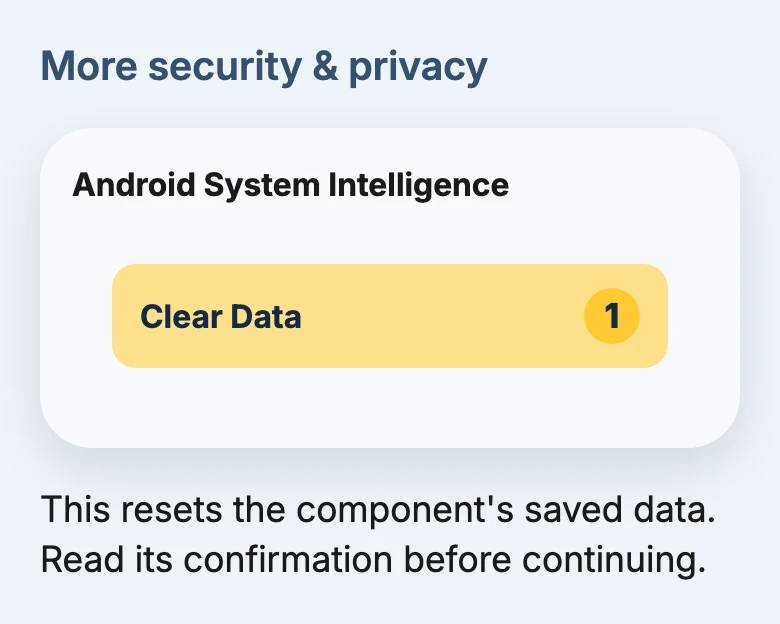
The component's data controls provide that route. Another app-management route is Apps > See all apps > Android System Intelligence > Storage & cache > Clear storage or Clear data.
Use the route your phone actually offers. Don't clear unrelated components such as Google Play services while following this step, and don't select a whole-phone reset because the wording contains the word data.
Restart, then repeat the task that brought up the popup. Features powered by the component may need time and use to rebuild their personalized suggestions after its stored data has been removed.
I'd reset this component's data before trying a factory reset. You're working on the app named in the crash message, without erasing the phone while a more focused repair is still available.
4. Roll back the component's update if the option exists
If the crashes started immediately after its app update and clearing data didn't help, open the component's App info page. Open the three-dot More menu and look for Uninstall updates.
For a Pixel system app that offers it, select Uninstall updates and confirm OK. This returns the app to its built-in version rather than removing the system component entirely, and it can erase the app's saved data.
Check the phone once on that version, then return to Google Play to check for a newer update. Record whether the older version stops the popup. That tells support whether changing the app version helped.
If the menu doesn't offer Uninstall updates, skip this step. Don't use developer commands or an APK from an unfamiliar source to force a rollback that your phone doesn't offer through Settings.
A component rollback is different from undoing an Android operating-system update. It won't return the entire phone to an earlier Android version, and the app's available features can change between its versions.
5. Check whether the problem extends beyond this app
Check whether only this component crashes, or whether other apps close, the phone restarts, or Settings stops responding. If those problems happen too, check the phone's stability rather than continuing to change this component alone.
Check Settings > Storage if the phone also reports low space. Free space by removing downloads or backed-up items you no longer need. Avoid deleting system folders while trying to recover space for updates.
If the phone is getting unusually hot as well as crashing, use the Android overheating checks before continuing heavy tasks. Heat and a named app crash can happen together without sharing one simple cause.
For a recurring single-component crash, keep the Android version, phone model, and app version from App info. Also record when it started and whether updates, cache clearing, data clearing, or the rollback changed it.
Take a persistent crash to the phone maker
On a Pixel, open Settings > Tips & support when available, or use the support options in Pixel Phone Help. Ask about a recurring Android System Intelligence crash and provide the exact popup and version details.
For another Android brand, contact its phone maker with the same details. If several apps fail or the phone keeps restarting, say so at the start. That tells support to check why the phone is unstable, rather than just this app.
The Short Version
Restart after updating. Force stop the named component and clear its cache, then reset its data if needed. Use Settings for an available update rollback, and send support the version details if crashes continue.
Checked November 27, 2026.
 If you have any business, I can build it online