LockDown Browser can fail to appear on a Mac when the exam is launched from a full-screen Chrome window. Exit Chrome's full-screen mode before opening the exam; if windows are already flashing or inaccessible, restart the Mac first.
An insecure-environment message, missing-resource error, or repeated installation failure needs a different repair. Check the wording on your screen before changing settings, particularly if the Mac runs a patched version of macOS.
In this guide
1. Leave Chrome's full-screen mode before launching
Return to Chrome before starting the assessment. Move the pointer to the window's green button and choose the option to leave full screen, or use Control+Command+F where supported. Launch the exam again with Chrome in a normal window.
This fixes the Mac launch problem covered in the full-screen troubleshooting steps. The issue happens before the LockDown Browser window appears.
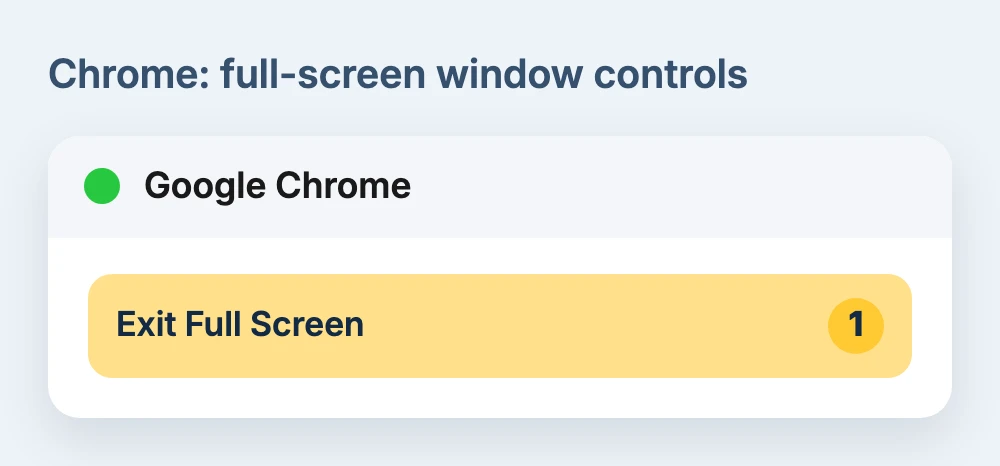
If you've already tried launching and the desktop starts flashing when you resize Chrome, restart the Mac to restore normal access. After restarting, use Chrome outside full screen to reopen the course assessment link.
Avoid making that retry in the middle of an active assessment without telling the instructor. These steps are for an exam that hasn't started. Repeatedly closing an active exam could interrupt an attempt that's already being recorded.
If a normal Chrome window launches the exam successfully, you can stop there. If the next attempt shows an error message instead, record its wording and follow the matching repair section.
2. Match the installed app to the Mac requirements
If LockDown Browser opens, select its i information button, then Check for Update. Install an offered update before trying the course's practice quiz or system check again. The full installer can also update the app.
The November 17, 2026 Mac release is 2.1.6.02, with bug fixes and security changes. Use the current update the app offers you instead of hunting down an outdated build to bypass a failed startup.
Current Mac requirements list macOS 12 or later, 2 GB RAM, and 400 MB of free disk space. Exams using a webcam need at least 4 GB of available RAM. Check Apple menu > About This Mac for your system version.
A Mac on macOS 11 needs a supported system upgrade or another compatible computer for the current browser. Being able to download the app doesn't mean your macOS version meets its requirements.
If the Mac otherwise runs normally but this app still won't open, move on to its security or installation message. If many apps are failing too, the Mac app troubleshooting guide covers that wider problem.
3. Check System Integrity Protection for security exits
A message about an insecure test environment or disabled System Integrity Protection calls for a check of the Mac's security settings. System Integrity Protection, or SIP, limits changes to protected parts of macOS.
Open Finder > Applications > Utilities > Terminal, type csrutil status, and press Return. This command checks SIP without changing it. Read the result before deciding whether a reinstall would help.
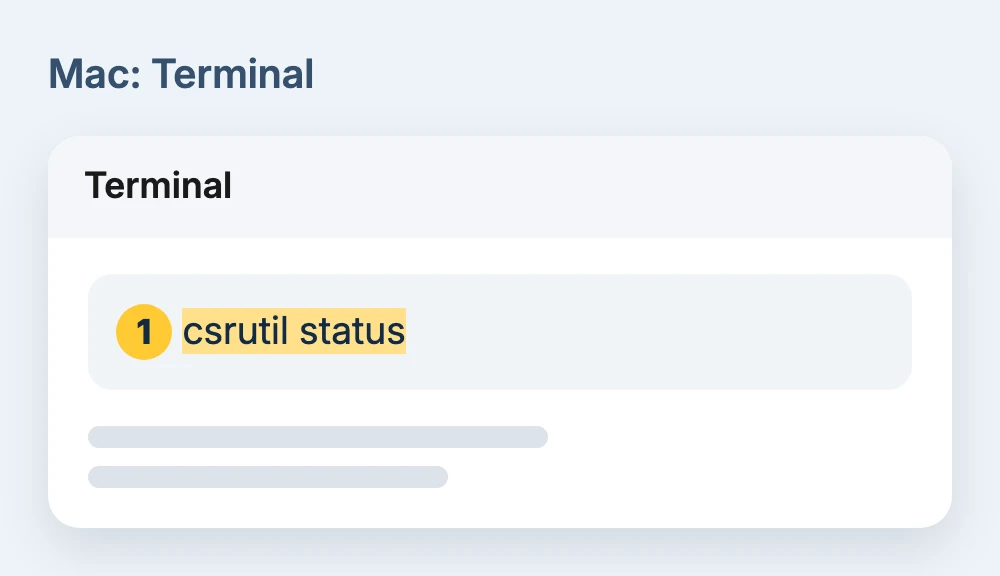
With SIP fully enabled, the result reports System Integrity Protection status: enabled. If it reports disabled or unknown, the current Mac browser won't allow assessments until SIP has been re-enabled.
Apple explains what SIP protects. For a managed Mac, send the result to school IT and ask them to restore the required security configuration before the assessment.
On an ordinary supported Mac, turn SIP back on from macOS Recovery with csrutil enable, followed by a restart. On Apple silicon, hold the power button from shutdown to reach startup options, then select Options > Continue.
On an Intel Mac, start it while holding Command+R. In Recovery, open Utilities > Terminal, run the command, and restart. Check the status again in normal macOS before relaunching the assessment.
A Mac using OpenCore Legacy Patcher may need reduced SIP for its hardware patches. Don't force a security change that breaks those patches just before an exam. Arrange a compatible school or personal computer with fully enabled SIP instead.
The Mac recovery startup guide helps when the startup controls don't reach Recovery. The processor in your Mac determines which startup controls to use. Follow the method that matches your Mac.
4. Reinstall for a missing-resource error
An Error loading application resources message can mean the installation is missing configuration files. The relevant folder is /Library/Application Support/Respondus LockDown Browser/config, including an id.txt file.
Use Finder > Go > Go to Folder to inspect that location if school IT asks for the details. Don't create an empty id.txt file or copy one from another school. Reinstalling should put the right configuration files in place.
Get a fresh installer from your school's LockDown Browser link. That download includes your school's ID, so another school's installer won't work in its place. Request the link from your instructor or campus help desk.
Install that copy, then return to your course and retry a practice assessment. If the same resource error returns, tell campus IT which folder or file was missing and that reinstalling from your school's link didn't bring it back.
5. Repair an installation failure or update loop
For The Installation Failed, sign directly into a Mac administrator account. Remove the LockDown Browser app and its previously downloaded installers, then empty the Trash after checking it contains nothing you need.
Restart the Mac with the option to reopen windows unchecked. Download a fresh copy from your school's unique link and install it again. This replaces the app and stale installer instead of running the same failing package repeatedly.
If the app keeps asking for an update, use a fresh installer from your school while signed into an administrator account. For an organization-owned Mac, have their IT team do the installation rather than changing its management settings.
For a deadline that's close, I'd arrange another compatible computer while IT handles a continuing failure. Send the instructor the exact error, macOS version, app version, and the time it occurred so they can review the assessment attempt.
Finish by trying a practice quiz or the system check in the app's Help Center. If the app launches but the webcam fails there, report that separate result instead of reinstalling again for a launch problem you've already solved.
The Short Version
Exit Chrome's full-screen mode before launch. Check SIP for security exits and use your school's installer for damaged resources or update failures. If this Mac can't meet the requirements, arrange another compatible computer.
Checked November 27, 2026.
 If you have any business, I can build it online