iPad swipes can fail when touch freezes, an accessory interferes, or VoiceOver changes the gestures. Unplug the charger and wipe the screen clean. If the iPad reads selected items aloud, check VoiceOver and its different gestures.
If swipes work except in one app or the App Switcher, focus on that app or gesture. The steps depend on whether ordinary taps still work and whether the iPad responds outside that screen.
In this guide
1. Unplug accessories and check ordinary touch
Disconnect the charging cable and any Lightning or USB-C accessories. Use a soft cloth to remove moisture and debris, then dry your hands. Try opening Settings and scrolling a list while the iPad runs on battery.
Remove the case, then test again without the screen protector. Something pressing against the display or interfering with contact can make a swipe stop early, skip, or fail to register. Try both the center and outer edges.
If touch returns when you unplug an accessory, try a different suitable cable, charger, and wall outlet. Change only one item per attempt to see which accessory affects touch.
Apple's touchscreen checks recommend these accessory and screen checks before service. A display that remains unresponsive with everything disconnected needs a button restart next.
If one strip of the screen never responds while the rest works, remember its location. Tell the repair provider where touch fails. Mention a recent drop, liquid exposure, or display replacement too.
2. Restart with the buttons when swiping is impossible
A normal shutdown uses an on-screen slider. When that slider won't move, force-restart the iPad using its physical buttons. This restarts the device without the touchscreen and doesn't erase your stored files.
Without Home: quickly press, then release, whichever volume button sits closest to the top button. Follow with one brief press of the other volume button. Finally, keep the top button held; let go once Apple's logo is visible.
With Home: hold these two buttons together: Home and top. Release them when Apple's logo becomes visible. The logo confirms that the iPad is restarting.
On models without Home, make two separate volume presses before holding the top button. Don't press every button simultaneously. Follow their physical positions rather than guessing which one currently raises volume.
After startup, enter your passcode and try a simple scroll in Settings before reopening the app that failed. If ordinary touch works again, the earlier session was stuck. If the screen talks or selects items instead, check the next section.
For an iPad stuck at the Apple logo rather than a usable lock screen, use the frozen iPad startup steps. That's a startup problem, so repeatedly testing swipes won't move it forward.
3. Recognize VoiceOver before changing touch settings
VoiceOver reads items aloud when you touch them. A single tap selects an item, and a double-tap activates the selected item. That makes normal taps and one-finger swipes behave differently from what you're expecting.
If Siri is available, ask it to turn VoiceOver off. Otherwise open Settings > Accessibility > VoiceOver and turn it off using VoiceOver's gestures. Tap once to select a control, then double-tap to activate it.
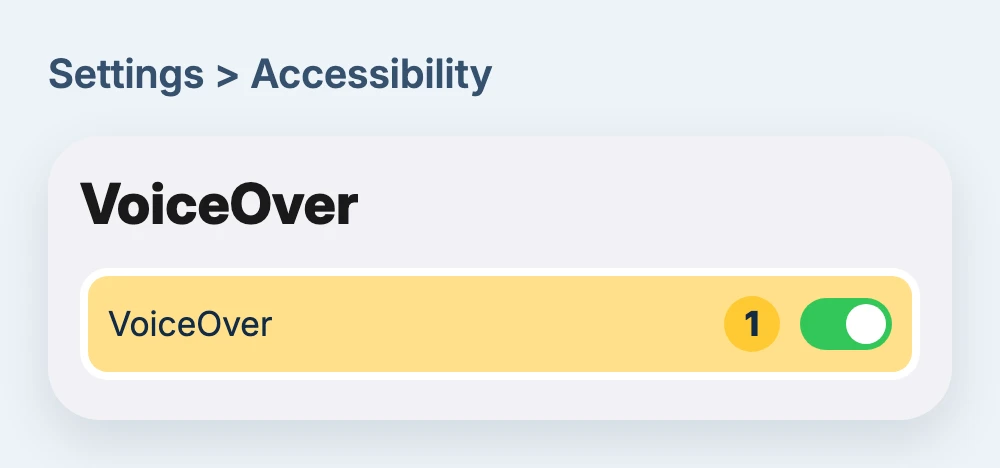
To scroll a page while VoiceOver is active, swipe with three fingers. A one-finger swipe moves between items rather than scrolling the page in the usual way. Use that distinction to reach the switch without random repeated tapping.
If an accessibility shortcut was configured for VoiceOver, triple-clicking the top button or Home button can toggle it. If a menu appears, select VoiceOver there. That shortcut only works for the features assigned to it.
Keep VoiceOver enabled when you need its accessibility features. Practice its gestures rather than expecting ordinary touch behavior. If the iPad responds consistently to those gestures, the screen is picking up your touch.
4. Separate a stuck app from a navigation gesture
When scrolling works in Settings and on the Home Screen, return to the app that won't respond. Close and reopen that app. Install an available app update if the same page or control keeps getting stuck.
Without Home, start at the bottom edge, drag upward, and pause around the screen's middle. This opens the App Switcher. With Home, press Home twice. Flick the affected app preview upward, then launch that app again.
The pause matters: a quick swipe toward Home and a swipe that pauses to open the App Switcher are different gestures. Begin at the bottom edge rather than halfway up the app's content.
On iPadOS 26 and later, a window moving or minimizing can also look like a failed attempt to close it. Use the iPad app-closing controls when the gesture works but the result changed.
If only one app keeps failing, tell its developer which version you have and which screen stops responding. A working Settings list is a good reason to pursue that app first instead of erasing the whole iPad.
5. Check Guided Access when one app traps you
Guided Access can keep an iPad in one app and limit touch in parts of the screen. That is different from a frozen device: the restriction may have been set up intentionally for a child, lesson, or kiosk.
On iPadOS 26 and later, triple-click the top button or Home button to pause Guided Access. On iPadOS 18 and earlier, double-click it instead. Confirm your identity, select Guided Access if prompted, then tap End.
The session passcode can differ from the iPad's unlock code. If another person set it up, ask them to end the session. A restart doesn't remove those intentionally configured restrictions.
For an iPad that stays frozen after the button sequence, use the iPad force-restart checks to check the sequence and startup state.
Arrange service when touch still fails
Contact Apple Support if touch still fails after disconnecting accessories and restarting with the buttons. Describe whether taps fail across the display, along an edge, or during charging. Mention physical damage too.
Make a backup before repair while the iPad still responds. Don't start an erase just to test a screen that won't accept touch; service may be the next useful step, particularly with a consistently dead area.
The Short Version
Disconnect accessories, clean the display, then use your model's button restart. Spoken selections suggest VoiceOver; one-app failures need that app's checks. Arrange service for touch that remains unresponsive.
Checked November 29, 2026.
 If you have any business, I can build it online