Oticon hearing aid Bluetooth problems often clear after a restart and fresh pairing. Use Accessibility > Hearing Devices on iPhone or Oticon Companion on Android; the ordinary Bluetooth list isn't the full setup route.
Restart Bluetooth and the hearing aids near your phone. If Companion connects but music or calls won't stream, check compatibility before removing the pairing. App controls and direct streaming need different features.
In this guide
1. Restart the connection while the hearing aids are nearby
Keep the hearing aids close to your phone, then turn Bluetooth off and back on. Close Oticon Companion completely and reopen it. Check whether it now shows both hearing aids rather than one or neither.
On Android, an existing connection can sometimes be restored by opening Settings > Bluetooth and tapping the hearing aids already listed there. This reconnects hearing aids already paired with your phone. For a new pairing, use Companion.
Oticon's connection troubleshooting recommends restarting the hearing aids next. Restarting opens their pairing period for about three minutes, so have the phone ready before doing it.
For hearing aids with disposable batteries, open and close each battery drawer. For rechargeable models, place them in their charger and take them out. Use the model's own power controls if its instructions specify another method.
Try the connection while that pairing period is active. A hearing aid that's still switched off won't appear. Waiting too long to start pairing can also mean the phone misses it.
If both hearing aids now connect, play a familiar audio clip and check each side. If only one appears, restart both together before moving to the phone-specific pairing steps.
2. Rebuild the iPhone pairing in Hearing Devices
Open Settings > Bluetooth. Turn Bluetooth on if the switch is off. Then go to Settings > Accessibility > Hearing Devices. The hearing aids are managed here rather than through the usual headphone-pairing route.
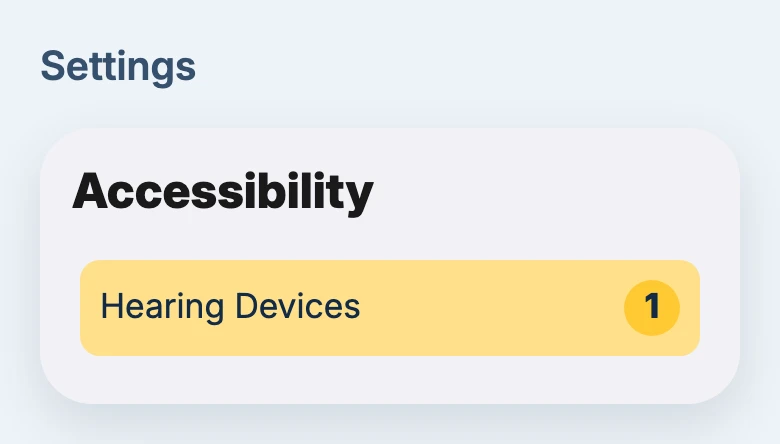
When an existing pairing fails, select your hearing aids and choose Forget this device. Keep the hearing aids nearby and restart them so they're ready to be discovered again.
On newer screens, tap Pair MFi Hearing Device, select the available hearing aids, and follow the pairing prompts. If that button isn't shown, select your hearing aids from the names shown in Hearing Devices.
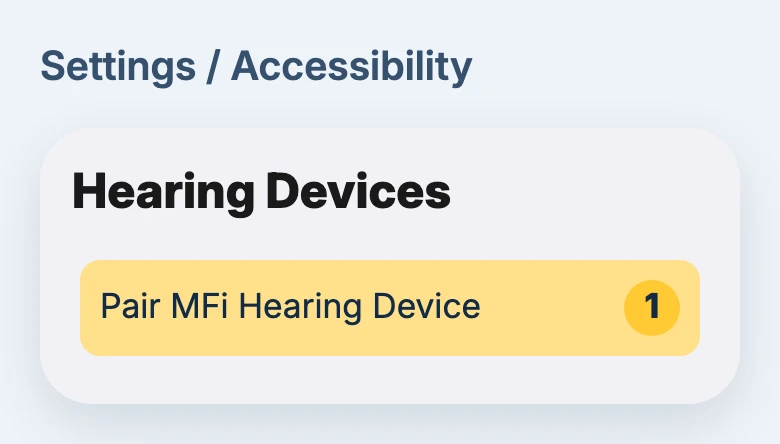
Tap Pair when requested. With two hearing aids, you may see two pairing requests. Accepting the first doesn't necessarily pair both. Allow up to a minute for the process to complete.
The hearing aids should appear in Hearing Devices once paired. Open Companion afterward to use its controls. If pairing succeeds but call audio goes somewhere else, check the audio output separately.
For audio that keeps returning to the phone's speaker, the hearing-aid audio routing guide explains the output controls. Changing where sound plays is different from repairing a missing connection.
The current Made for iPhone hearing device steps show the supported pairing routes. Check compatibility there if the hearing aids never appear, even during their pairing period.
3. Pair Android through Oticon Companion
Open Companion and follow Hearing Aids > Pair new hearing aids > Unpair Current > Pair now when rebuilding the app's current connection. Keep Bluetooth enabled and restart both hearing aids as the setup asks.
Wait for the app to find and connect to them. Approve the phone's pairing requests if they appear. Check that the app shows both of your hearing aids before trying the volume controls or streaming.
Don't set up the direct-streaming connection separately through Android's ordinary Bluetooth menu when using ASHA. That's Audio Streaming for Hearing Aids, a feature supported by selected phones and hearing aids.
Pairing through Companion also makes ASHA available on a compatible phone. Using the app keeps the setup together and avoids a second connection that you'd have to troubleshoot.
Android menus vary between Samsung, Pixel, and other brands. Follow Companion's pairing instructions rather than expecting the Bluetooth settings screen to match the iPhone's Hearing Devices page.
If Bluetooth won't turn on for any accessory, deal with the phone first. If Bluetooth works and Companion alone can't complete setup, note which step fails, then check compatibility.
4. Check streaming support when app controls already work
Move a volume control in Companion and check whether the hearing aids respond. If they do, the app has a working control connection. That doesn't automatically mean the phone supports direct music or call streaming.
For direct Android streaming, the phone needs compatible Bluetooth LE Audio or ASHA support alongside compatible hearing aids. Check the exact phone model and hearing-aid model in Oticon's compatibility guide.
A phone can have Bluetooth and still lack the direct-streaming feature your hearing aids need. Repeatedly removing the pairing won't add that feature. Keep the control connection working while checking the supported audio route.
For a setup that requires ConnectClip, pair the hearing aids with ConnectClip first, then pair ConnectClip with the Android phone. Follow the accessory's instructions for that separate route.
I'd confirm these requirements before resetting anything else. It saves time when the app works normally and the only missing feature is streamed sound, especially after moving to a different phone.
5. Stop another device from taking the connection
Temporarily switch Bluetooth off on an old phone or tablet paired with the hearing aids. Then reconnect them to the phone you're troubleshooting and check whether they stay available there.
Hearing aids linked to several Apple devices can switch between them when audio or a call starts. That can feel like a random disconnection when another device nearby begins playing something.
If you want to use several devices, check how switching works once the hearing aids connect reliably to one phone. During these checks, keep Bluetooth on for just that phone so another device can't take the connection.
Install available phone software and Companion updates too. If your app is out of date, update it before trying to pair again. Use the phone's normal update controls for its manufacturer.
If the iPhone can't discover any accessory, the general discovery checks cover that wider problem. If only these hearing aids fail, return to their model-specific support.
Ask your hearing care professional to check firmware and the exact phone compatibility if pairing still fails. Give them the hearing-aid model, phone model, software versions, and which side loses its connection, or whether both do.
Also explain whether Companion controls work and only streaming fails. Your report helps them check the Bluetooth pairing, the audio features, or the hearing aids themselves.
The Short Version
Restart both hearing aids and rebuild the pairing through Hearing Devices on iPhone or Companion on Android. Approve both pairing requests when needed. If app controls work but audio won't stream, check compatibility.
Checked November 29, 2026.
 If you have any business, I can build it online