A grayed-out Bluetooth switch in iPhone Settings needs a restart, then support if it stays unavailable. A dim Control Center button means something different: open Settings > Bluetooth and try the actual switch first.
Bluetooth that turns on but can't find headphones is a pairing problem. Bluetooth that won't enable is a phone problem. Check whether Bluetooth turns on before resetting an accessory that can't connect.
In this guide
1. Check Bluetooth in Settings rather than Control Center
Open Settings > Bluetooth. Check that page's main switch instead of relying on the Bluetooth symbol among the swipe-down controls. Try turning the switch on and wait for the device list to appear.
If the switch becomes green and the page begins searching, Bluetooth has turned on. A device that doesn't appear now needs help becoming visible or pairing with the phone. The switch itself is working.
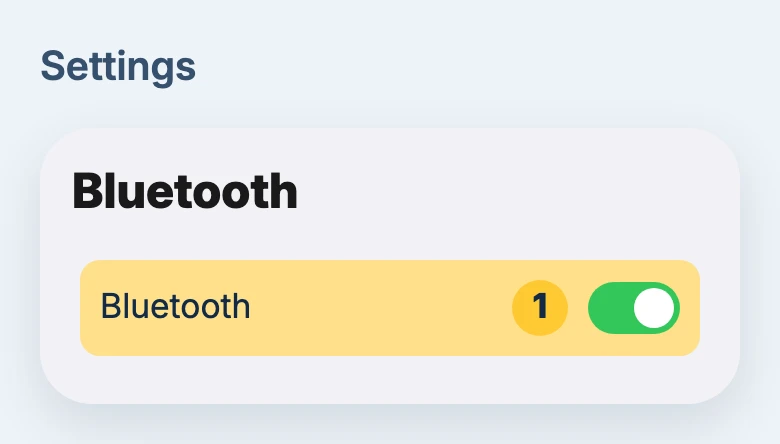
A dim Control Center button can mean the phone disconnected accessories while keeping Bluetooth available for other features. Apple's Control Center explanation describes this behavior.
A dim button can make Bluetooth look broken, especially when an accessory disconnects at the same time. The Settings page gives you a clearer answer because its switch controls Bluetooth itself.
For the opposite problem, where Bluetooth comes back after you disconnected it, the Control Center timing explanation covers that behavior. It doesn't mean the switch is physically stuck.
If the Settings switch is gray, won't respond, or never turns on, continue with the restart. Note exactly what happens so you can describe it to support if restarting doesn't help.
2. Shut down and restart with the matching controls
For iPhone X and newer models, press the side button plus either volume control. Keep pressing both until the power-off control appears. Drag the slider, wait 30 seconds, then press and hold Side to start the phone.
For iPhone 6/7/8 and SE (2nd/3rd generation), press and hold Side to show the shutdown slider. Drag it, wait 30 seconds, and keep Side pressed again, releasing at the Apple startup logo.
For SE (1st generation) and iPhone 5 or older, the power button is on top. Use that button for shutdown and startup. The rest of the normal shutdown and startup sequence is the same.
Enter your passcode after startup, then return to Settings > Bluetooth. If the switch now works, reconnect one accessory and check it stays connected. Erasing your iPhone isn't needed once a restart gets Bluetooth working.
If the phone itself won't respond to the shutdown controls, use a force restart instead. Use your model's force-restart sequence in the next section; its controls differ from ordinary shutdown.
3. Use a force restart for an unresponsive iPhone
For iPhone 8 and newer models, plus SE (2nd/3rd generation): tap Volume Up and let go, tap Volume Down and let go, then keep Side pressed. Release Side once the Apple logo shows.
For iPhone 7/7 Plus, press Side alongside Volume Down, keeping both held until the startup logo shows. For iPhone 6s and older, plus SE (1st generation), press Home with the power button until that logo shows.
After releasing at the logo, wait for the Lock Screen. A force restart keeps your passcode and the content stored on the phone. Check the Bluetooth switch again once you're back in Settings.
If Bluetooth remains unavailable while the rest of the phone responds normally, repeating this sequence won't tell you much more. Check for new software next and collect the details support will need.
If the display stays black instead, the iPhone power checks address charging and startup. Solve a failed startup before checking whether Bluetooth works.
4. Install an offered software update
Join a Wi-Fi network with internet access, then open Settings > General > Software Update. Install an offered update after making a backup. Leave a charger attached until installation finishes.
An update can correct software problems, but no particular iOS version is promised to fix every Bluetooth switch that won't turn on. Choose your phone's offered update, without chasing a particular older build.
When Software Update reports that iOS is current, record the version and stop checking the same page. Even without an available update, you can ask support for help with a Bluetooth switch that won't turn on.
After an update, open the Bluetooth page again. Check the switch itself first. If Bluetooth turns on afterward but one accessory still fails, follow that accessory's pairing instructions rather than assuming the update failed.
I'd keep this check short. Changing a long list of unrelated privacy settings won't help explain why the Bluetooth switch itself won't turn on.
5. Separate an app permission from a disabled radio
This step applies only if the main Bluetooth switch now works. Some accessories use an app to find or manage them, and that app needs separate permission even when Bluetooth is on.
Go into Settings, select Privacy & Security, then open Bluetooth. Enable the relevant accessory app if it appears there. Reopen the accessory app afterward and retry its connection steps.
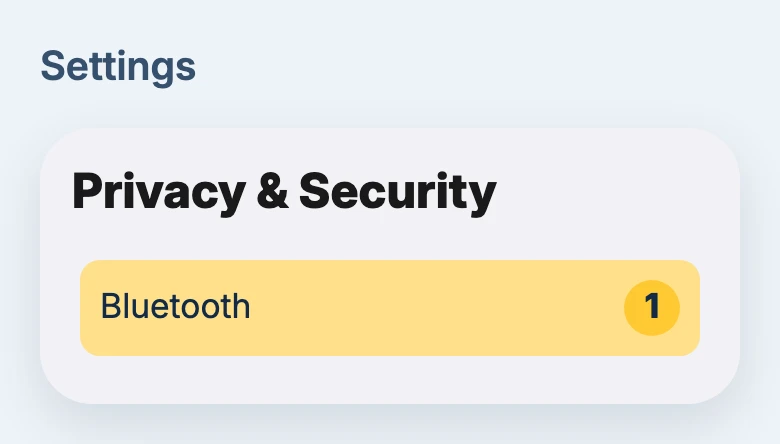
A permission change lets that app use Bluetooth. It doesn't repair a gray main switch, so skip this branch when Bluetooth itself remains unavailable. If the switch stays gray, go straight to the support step.
Likewise, a switch that works with one accessory but not another points toward the accessory, its compatibility, or its saved pairing. Charge that accessory, activate its discovery mode, and follow its maker's reconnection steps.
6. Ask for an assessment when the switch stays unavailable
Apple's Bluetooth troubleshooting page directs you to support when Bluetooth can't be turned on or the setting is grayed out. Use its contact link and describe the unavailable Settings switch.
Give support your model and installed iOS version, plus what happens after restarting. Mention whether Wi-Fi also fails, whether the issue began after damage, and whether the switch stays gray or keeps trying to enable.
Ask support which check comes next for Bluetooth that won't turn on, and whether service is needed. Back up the phone before a repair appointment if you can. That assessment helps decide between hardware repair and another software fix.
The Short Version
Try the Settings switch, reboot your iPhone, and apply an offered iOS update. App permission matters only after Bluetooth turns on. If the switch stays gray or won't turn on, ask support to check it.
Checked November 29, 2026.
 If you have any business, I can build it online