Excel's Error Checking command reviews formula problems cell by cell, while green triangles flag possible mistakes as you work. Select Formulas > Error Checking to read the warning before changing the formula.
A triangle doesn't always mean the result is wrong, and a sheet without triangles can still contain mistakes. Use the warning to decide what needs checking, then compare the formula with the calculation you intended.
In this guide
Start with a flagged cell and read the warning
Select the cell with a green triangle, then the warning button beside it. Read the first entry before choosing a correction: it describes what Excel thinks is wrong, and the menu changes with the warning.
For example, a number stored as text needs a different correction than a formula omitting nearby cells. A product code might need to stay as text; an amount you want to calculate with may need converting to a number.
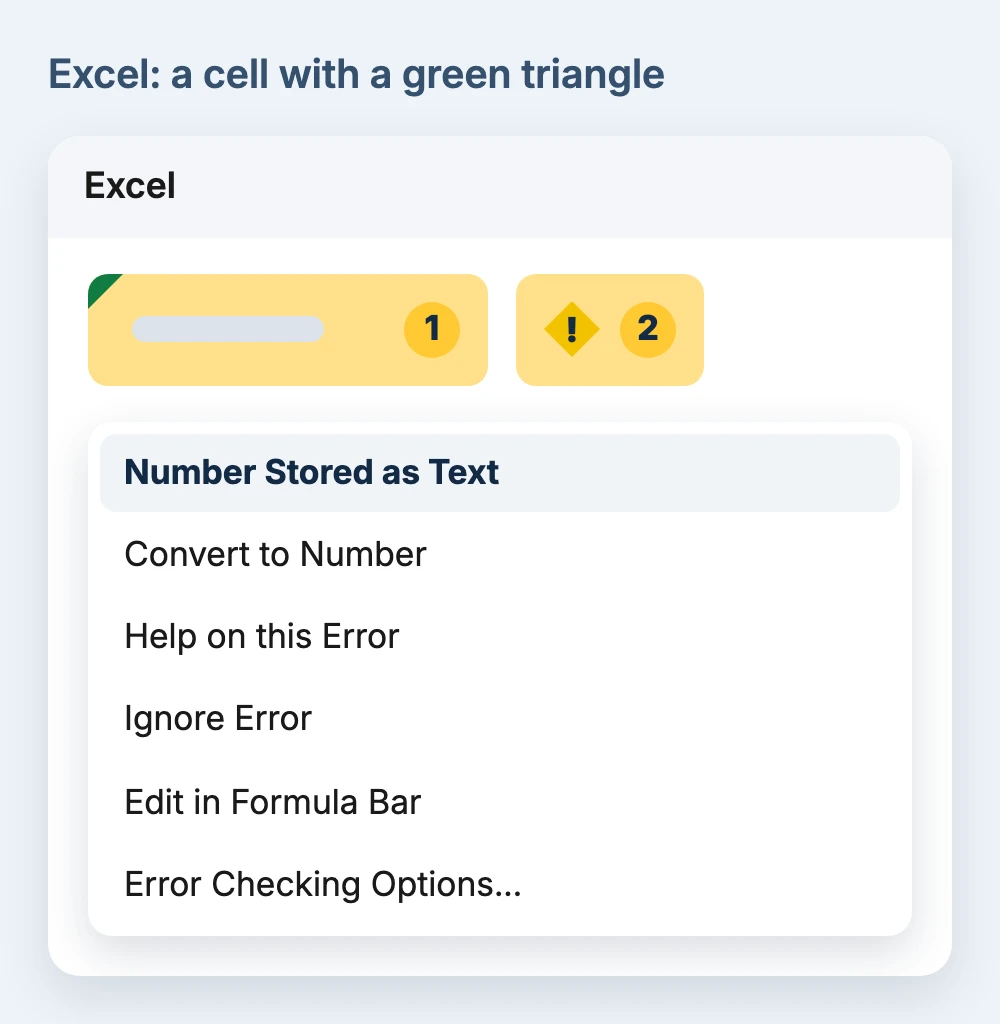
Don't select Ignore Error just to clear the triangle before reading it. Ignoring it changes whether that warning appears in later checks, but it leaves the cell's contents as they were. Fixing and hiding are different actions.
Microsoft says its error-checking rules support both reviewing warnings manually and displaying them in the background. The desktop commands in this guide apply to Windows and Mac, with their settings paths given separately.
For Excel in a web browser, these desktop commands may be absent. Use desktop Excel for that workbook if it's available to you.
Review the worksheet with the Error Checking command
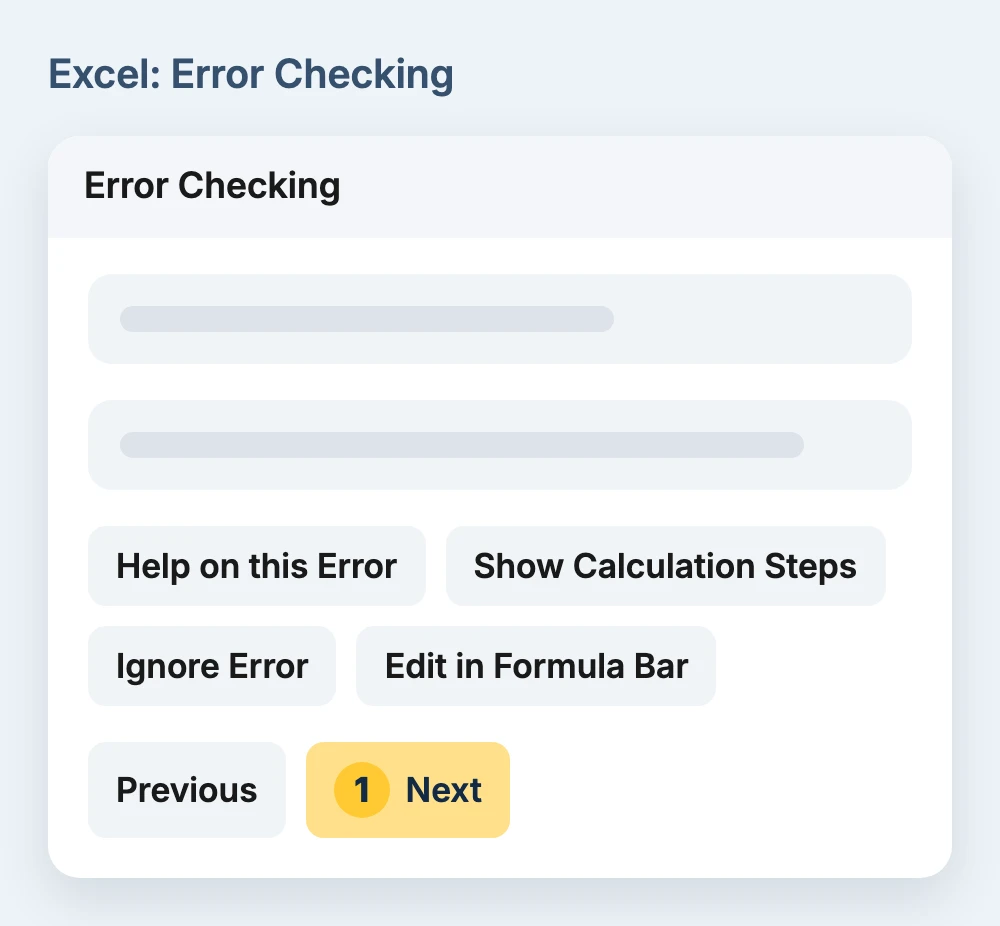
Open the worksheet that needs reviewing. On desktop Excel, open Formulas > Error Checking; on the Windows ribbon it sits in the Formula Auditing group. The dialog stops at a reported problem and identifies its cell.
Read the formula bar alongside the dialog's explanation. Compare the inputs with the row or column labels. A formula can refer to valid cells while still using the wrong month's figures or leaving out a category.
Choose the offered action that matches your intended calculation. The available buttons depend on the problem. Use Next to continue through the worksheet instead of assuming the first correction clears every other warning.
After editing the formula, check that its result agrees with the inputs. I'd compare a small calculation by hand before copying the corrected formula through a large range, even when the error value has gone.
Check the other worksheets that feed into your result too. One sheet can be clean while a formula on a different tab feeds an incorrect value into the summary. Keep the intended calculation in view as you work.
For words in headings or notes, use Excel's spelling check separately. Error Checking reviews formula rules; it doesn't replace a spelling review of the workbook's labels.
Turn on the background warnings you need
On Windows, open File > Options > Formulas. Under Error Checking, select Enable background error checking. Review the rules in the same settings area and keep the ones relevant to your workbook enabled.
On Mac, open Excel > Preferences > Error Checking. Enable background checking there and review the available rules. The Mac preferences layout differs from Windows, so the Windows File > Options route isn't the place to look.
Return to the worksheet and inspect any triangles that appear. Each one asks you to check a possible problem. Read the warning before accepting a replacement. Some workbooks intentionally use patterns that trigger warnings.
A sheet with no warnings can still be wrong. Excel can't know whether you intended a sum, an average or a percentage. Check what the formula calculates against your source figures, as well as whether it's written correctly.
If background checking is already enabled but nothing is flagged, check whether the relevant rule was turned off or the cells were ignored earlier. The next section explains how to bring those ignored warnings back for another review.
Recheck warnings that were ignored earlier
On Windows, return to File > Options > Formulas and select Reset Ignored Errors, then OK. On Mac, go to Excel > Preferences > Error Checking and use its reset control for ignored errors.
Run Formulas > Error Checking again. Previously dismissed warnings can now appear in the review, which is useful when someone else prepared the workbook or when you want to revisit an earlier decision.
Resetting ignored errors lets those warnings appear again; it doesn't undo formula edits. To restore an incorrectly changed formula, use the correct expression, an earlier saved copy or version history.
If the cell is meant to be different, check it before choosing to ignore that specific warning again. The guide to ignoring Excel errors explains the difference between dismissing indicators and handling formula error values.
Check inconsistent formulas before copying a neighbor
An inconsistent-formula warning means the formula differs from nearby patterns. That can happen after an accidental edit, but a subtotal or a special calculation can differ on purpose. Compare the formula with the cells around it first.
For an accidental difference, the menu can offer Copy Formula from Left or copying from the preceding row. Use a copy action only when that neighbor contains the calculation this cell should follow.
Check the references after copying. Relative references move with the copied formula, so make sure it uses the intended inputs for its new row or column. Don't judge the correction only by whether its triangle disappeared.
If the different formula was intentional, keep it and dismiss that cell's warning. Disabling the entire inconsistent-formula rule would remove useful warnings elsewhere too.
Follow a formula further when the warning isn't enough
On Excel for Windows, select one cell and use Formulas > Formula Auditing > Evaluate Formula. Select Evaluate to examine the calculation in stages. Step In can follow a referenced formula when that action is available.
Continue until you see where the result starts differing from what you expected. This can help with a nested formula, meaning a function used inside another function, without changing the rest of that formula.
That evaluation dialog belongs to Excel for Windows. On Mac, inspect the formula bar and referenced cells directly rather than expecting the same Windows evaluation dialog. Keep a copy of the formula before making big changes to it.
If the result still makes no sense, send the formula to Microsoft support or the person who made the workbook, along with the expected answer and sample inputs. Remove private customer or payroll data so the example is safe to share.
The Short Version
Review formula warnings through Formulas > Error Checking. Choose corrections that match the intended calculation, and restore ignored warnings when needed. Check the result after each correction.
Checked November 29, 2026.
 If you have any business, I can build it online