An Outlook data file corruption error in classic Outlook can be repaired with SCANPST.EXE, the Inbox Repair Tool. Close Outlook and back up the affected PST before scanning it.
An Exchange OST is a different kind of file: it's a local mailbox copy, so first confirm that the mail you need is present on the server.
Deleting a file based only on its PST or OST extension risks losing mail. The extension helps you choose the repair route. Some old messages may exist only in your local archive.
In this guide
1. Identify the damaged file and the Outlook version
Note the complete error message, including any filename it mentions. A message saying a file can't be opened, folders can't be opened, or errors were detected in a PST tells you which file to check. Keep that path for the repair tool.
This procedure uses classic Outlook for Windows, from Microsoft 365 or a supported standalone edition. New Outlook has different controls. Without a File tab, these classic Account Settings steps won't match your screen.
In classic Outlook, choose File > Account Settings > Account Settings > Data Files. Match the file to the error and note its location. Several accounts can mean several files; repairing another one won't fix the named error.
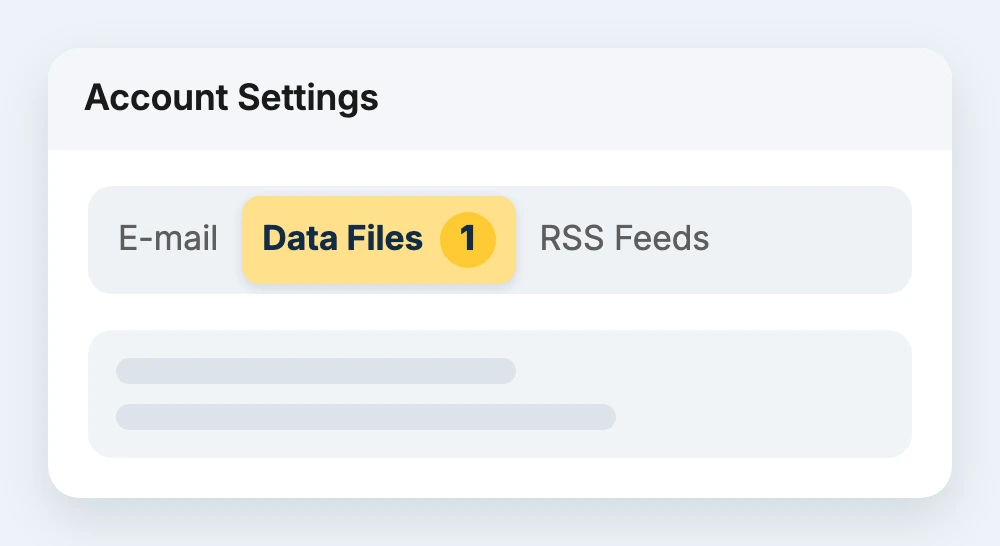
A PST can hold a local archive or POP-account mail. An OST is an offline copy used by accounts such as Exchange. Check which kind you have: a local PST may hold mail that your provider no longer has.
A message saying the data file cannot be accessed, especially during sending or receiving, can instead involve the account profile or delivery location. Use the Outlook file-access checks for that error before assuming corruption.
2. Close Outlook and preserve the original PST
Exit Outlook before working on the file. Copy the affected PST from the location you recorded to a safe backup location with enough space. Leave that copy untouched while repairing the working file.
I'd make this separate copy even though the repair tool also offers a backup. You'll have the file as it was before any repair attempts, in case the recovered folders are incomplete.
Microsoft's Outlook data-file repair procedure recommends backing up first. The tool checks files on the computer; it doesn't scan the mail stored inside an Exchange server mailbox.
If the file won't copy or Windows reports a storage error, stop trying repeated mail repairs. Ask IT or a repair provider to check the drive and preserve the file. The repair tool needs to be able to read the file reliably.
For an important local archive with no usable backup, keep the original and describe that fact when asking for help. Replacing it with an empty archive can make Outlook open without recovering any of the messages you need.
3. Scan the named PST with the Inbox Repair Tool
Find SCANPST.EXE in the installed Office program files. One documented location for Outlook 2016 and 2019 Click-to-Run installations is:
C:\Program Files (x86)\Microsoft Office\root\Office16
Office folder locations vary by installation type and 32-bit or 64-bit edition. Check Program Files too, or search the installed Microsoft Office folder for SCANPST.EXE. Don't download a similarly named repair tool from an unrelated source.
Open the tool and select Browse. Choose the affected PST using the path you recorded, then select Start. This scans the file; you'll choose whether to repair it afterward.
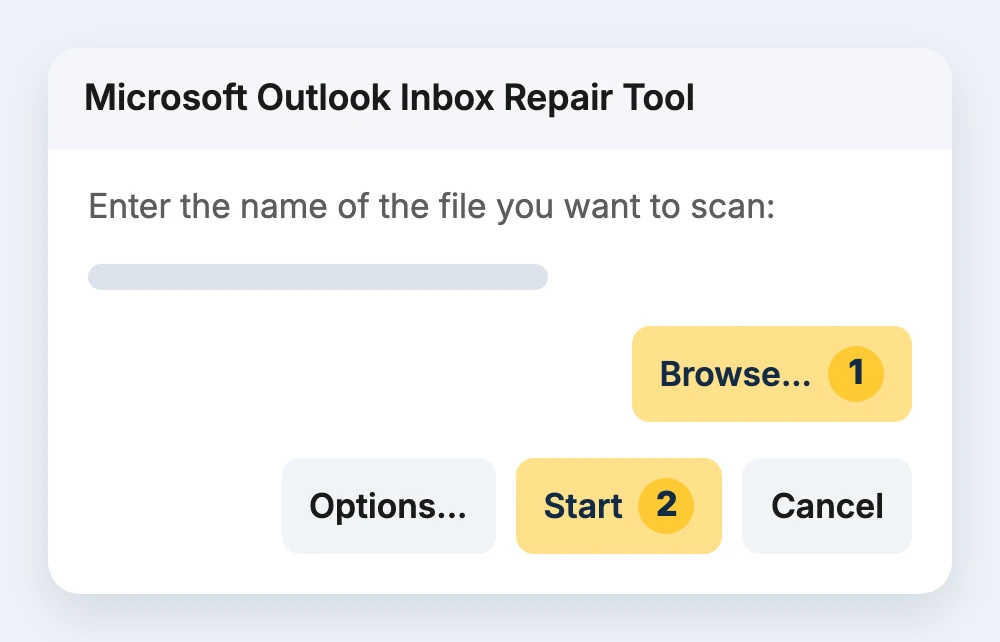
If it finds errors, choose Repair. Keep the backup option enabled and note its location. The tool creates a backup during repair, and its backup filename or location can be changed when needed.
Let repair finish before opening Outlook. The time it takes depends on the file. If the tool won't start, repair the Office installation before trying to launch it again.
Some damaged files need more than one pass. Keep the original copy you made earlier, and rescan the working PST if errors remain. Permanently deleted items or data damaged beyond repair may not be recoverable.
4. Open the repaired archive and check recovered folders
Start classic Outlook using the profile that uses the repaired file. Check the folders you actually use, including older messages and attachments. Even if Outlook opens, check that your archived messages are still there.
Look in the Folder Pane for Recovered Personal Folders and Lost and Found, if they appear. Lost and Found holds recovered items the tool couldn't put back in their original folder structure. Some recreated folders can be empty.
Create a new PST if you need somewhere to put recovered items, then move those items into it. In classic Outlook, use New Items > More Items > Outlook Data File. Keep the repaired file until you've checked the transferred content.
The repair backup uses a .bak extension and normally sits beside the original PST. If more items might be recoverable from it, duplicate the BAK, then rename that duplicate so it ends in .bak.pst.
Import that copied file through Outlook's Import and Export Wizard into the new PST. Work with the copy, keeping the original backup available. Try this for another chance to recover messages, though some items may still be lost.
5. Use a different route for an Exchange OST
For an Exchange account, check the mailbox through another working client and verify that the server holds the important messages and folders. Ask IT to check unsynced work before rebuilding the local copy.
Once the server copy is confirmed and Outlook is closed, the Exchange OST can be removed so Outlook recreates it at the next launch. Use the exact file associated with that account. This isn't a deletion procedure for local PST archives.
Let Outlook download the replacement local copy, then check the folders. Recreating an OST won't restore messages missing from the server mailbox. Give IT the missing folder or date range so they can check mailbox recovery options.
Repeated warnings about a problem with a data file can come from a known repair-prompt loop. The Outlook repair-loop guide covers that separate fault and its targeted workaround.
When the file still needs recovery
For a work mailbox, send IT the full error, file extension and location, Outlook version, and the scan result. Say whether Outlook opens afterward and whether folders or attachments are missing. Keep the original PST and repair backup.
For a personal installation, use Outlook's Help > Contact Support when available, or the help service linked from the repair page. Ask about PST recovery or rebuilding the specific Exchange cache.
The Short Version
Preserve a PST copy, scan the affected file with SCANPST, and check recovered folders afterward. Rebuild an Exchange OST only after confirming the server mail. Keep the original archive and backups until you've accounted for your messages.
Checked November 29, 2026.
 If you have any business, I can build it online