
The 0x8004010F error can come from a damaged Outlook profile rather than a lost mailbox. Find and keep the data file your affected account uses, then try a separate profile before repairing the file itself.
These steps apply to classic Outlook on Windows. A profile holds your account settings and tells Outlook which files to use. Replacing it doesn't mean throwing away saved mail. Keep the original profile until the new one works.
1. Confirm the error and the account involved
Open the failed Send/Receive task and note which account reports 0x8004010F. If you have several accounts, an error in one doesn't mean all your mailboxes or archive files are damaged.
Microsoft says a corrupted profile can cause error 0x8004010F. That article covers Outlook 2010 and 2013; you can also create a separate profile in current classic Outlook.
Check the error code as well as the words. A password prompt, full mailbox warning or shared-folder access problem needs its own repair. These steps are for a data-file access error while sending or receiving mail.
If Outlook stays running after its window closes, use the unfinished-Outlook shutdown checks first. An Outlook process still holding the file open can get in the way of repairs.
2. Find the current mail file before changing profiles
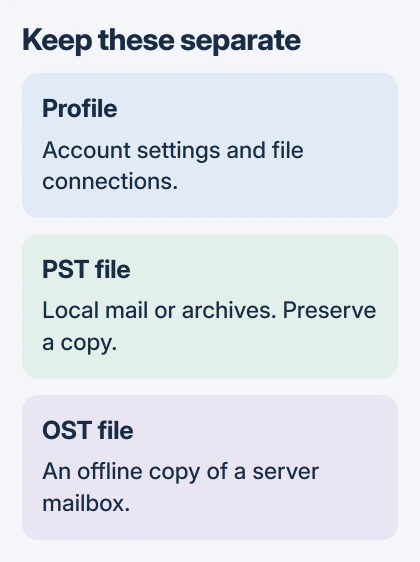
In classic Outlook, select File > Account Settings > Account Settings, then Data Files. Note the affected account's file name, full path and extension. The check mark shows which data file the profile uses by default.
If Outlook won't open, search Windows for Control Panel, open Mail, then choose Show Profiles. Select the existing profile, open Properties, then Data Files to inspect its file list.
A PST can hold mail on your computer, including POP mail and archives. An OST is an offline copy of a mailbox on the server. Replacing that offline copy is different from recovering a personal archive.
For a PST, close Outlook and save a separate copy before trying repairs or moving it. If Outlook can't reach its external drive or folder, get that location working again first.
If Outlook still opens your mail, its PST export procedure offers another backup route. Select the correct account and include its subfolders. Mail that isn't available in Outlook won't be included.
3. Build a separate profile using the current picker
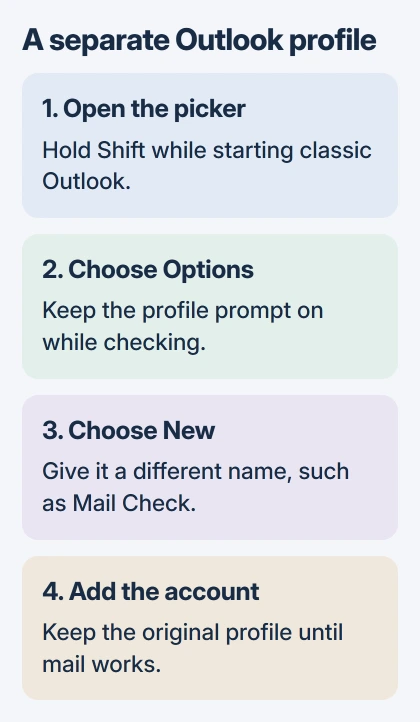
Close classic Outlook. Hold Shift while starting it to reach the profile picker. Alternatively, press Windows + R, enter outlook.exe /profiles, and press Enter.
Choose Options, enable Prompt a profile to be used if needed, then select New to create another profile.
Give the profile a clear name, such as Mail Check, and add your email account. Follow the provider's sign-in prompts. If your organization manages account setup, use the address and method your IT team gives you.
Start Outlook with that new profile and let the account load. Keep the original profile so you can return to its settings and archives. I'd leave profile prompting on until you've checked the folders you actually use.
For Outlook 2010 or 2013, the older Mail dialog instead uses Show Profiles > Add. Its manual account setup has different labels from today's sign-in window. Follow the steps for your edition.
4. Keep a POP account connected to its existing mail
Check your provider's account type before accepting automatic setup. POP downloads mail to a file on your computer; IMAP keeps mail folders in sync with the server. Switching types won't automatically move all your old local mail.
The instructions for this error warn that automatic setup can choose IMAP when your provider supports both. To keep using POP, enter the manual setup details your provider gives you instead of guessing server names.
In the older manual POP setup, Existing Outlook Data File > Browse lets you select the PST recorded earlier. Complete the account test and finish setup. The new profile will then use your existing mail file.
Current account setup can look different. If that control is missing, ask the provider or IT team to help reconnect your existing PST. Don't remove the old profile just to make the new account screen simpler.
You may need to reopen other archives separately in the new profile. Compare your old file list with the new folder list. Mail can look lost after a profile change when its archive simply hasn't been connected yet.
5. Test delivery before choosing the new default
Send a short message to another address you can check, then reply to it. Confirm that both directions work without 0x8004010F. Also check older mail, Sent Items and folders you've saved only in a local file.
If those checks pass, use the profile picker to select the working profile on later starts. The older Mail dialog offers Always use this profile when you're ready to make it the default.
New messages can arrive even when old folders are missing. Check your saved file list and reconnect any missing archives before removing the old profile.
If the error still names the same PST in both profiles, try repairing that file. If the account setup itself fails, take its sign-in or connection message to the mail provider instead.
6. Repair the PST only if file access still fails
Use the Inbox Repair tool instructions for SCANPST.EXE. With Outlook closed, open that tool, choose Browse, select the affected PST and choose Start.
If the scan reports errors, use Repair and keep its backup file. Reopen Outlook afterward and check both the original folders and any recovered items. Some damaged or permanently deleted items may be lost for good.
For an OST or a file you can't read, contact your provider or IT before deleting anything. Give them its path, account type and what happened with the new profile. An Office program repair is a different repair from a mail-file repair.
The Short Version
Note the affected file and keep your local mail. Try a separate classic Outlook profile with the correct POP or IMAP account type, then check sending and your old folders. Repair the PST if you still can't access it.
Checked November 5, 2026.

Isaac Smith is the founder and editor of PC Glance, a website that covers computers, laptops, and technology. He is a tech enthusiast and a computer geek who loves to share his insights and help his readers make smart choices when buying tech gadgets or laptops. He is always curious and updated about the latest tech trends.