

Scanpst.exe lives in classic Outlook's installation folder, where Windows search can miss it. Open C:\Program Files\Microsoft Office\root\Office16 in File Explorer, then check the same location under Program Files (x86).
The tool repairs Outlook data files; it isn't a separate Microsoft 365 download. A missing program and a missing mail file are different problems, so first find the tool, then choose the actual file Outlook uses.
In this guide
1. Open the Office folder directly
Press Windows + E to open File Explorer. Click its address bar, paste the first path, and press Enter. Paste into the location field; the search box searches within a folder instead.
Look for SCANPST.EXE or SCANPST. Windows can hide known file extensions, so the shorter name alone doesn't mean the file is missing. The program opens a window named Microsoft Outlook Inbox Repair Tool.
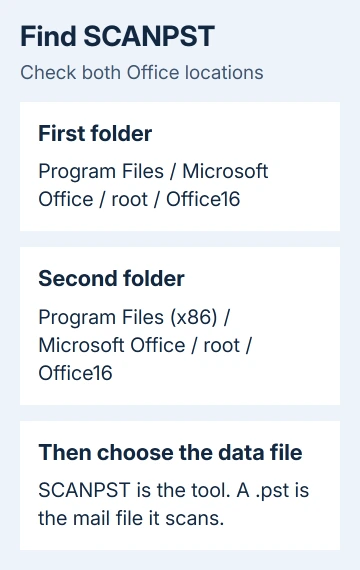
Check these two locations in order:
C:\Program Files\Microsoft Office\root\Office16
C:\Program Files (x86)\Microsoft Office\root\Office16
The folder depends on which Office edition is installed. A 64-bit Windows computer can have 32-bit Office, so don't stop after checking Program Files. File > Office Account > About Outlook lists the release and its 32-bit or 64-bit edition.
The folder name Office16 is normal for several newer classic Outlook releases. Don't replace it with Office365 or create a folder with that name. If neither location exists, check the installed app in the next section.
One owner on Microsoft's forum couldn't find the program through searches, then confirmed they found it after receiving the direct folder location. They still had trouble selecting the right mail file to scan. That's a separate check.
2. Confirm that classic Outlook is installed
Open the Outlook app you normally use. Classic Outlook has a File tab and File > Office Account. The newer app has different controls. Outlook in a browser doesn't install the desktop Inbox Repair Tool on your PC.
Search Start for Outlook (classic). If it opens, check its Office folder. If only new Outlook is installed, don't hunt through protected app folders. Check whether your Microsoft 365 plan includes desktop Office.
Check the installed app rather than relying on your subscription's name. The tool comes with classic Outlook. On a work PC, ask whether desktop Outlook was included in the deployment before trying to add it yourself.
For older installations, the path can omit root:
C:\Program Files\Microsoft Office\Office16
C:\Program Files (x86)\Microsoft Office\Office16
Check these as other places Office might be installed. You don't need to create extra folders. Microsoft's manual Inbox Repair Tool instructions also list older Office15 and Office14 locations.
3. Repair Office if its tool really is missing
If classic Outlook is installed but SCANPST is absent from its folder, repair Office. I'd try this before downloading an executable from a repair advertisement. The tool should come from your installed Office package.
In Windows 11, open Settings > Apps > Installed apps. Find your installed Office suite, open its three-dot menu, and choose Modify. In Windows 10, use Settings > Apps > Apps & features, select Office, then Modify.
Close Office apps and choose Quick Repair first. When it finishes, reopen the folder from section 1. If SCANPST is still missing or Quick Repair fails, choose Online Repair. This repair needs internet access.
Office repair works on the whole suite, even if Outlook is the only app giving you trouble. Keep your account sign-in details available. An administrator may need to run the repair on a managed PC, especially when Modify is unavailable.
For a diagnostic checkbox that stays locked after reinstalling, compare Outlook's logging profile instead of scanning a mail archive.
The Office repair options explain that choice in more detail. If File Explorer instead displays Access denied, give the administrator the exact blocked path; don't change ownership of the whole Office folder.
4. Choose your mail file, not another executable
Once SCANPST opens, its file box needs an Outlook data file, usually a .pst. It doesn't scan scanpst.exe, outlook.exe or a file called PST.exe. The box can remember an old location even after its file was moved or removed.
In classic Outlook, open File > Account Settings > Account Settings > Data Files. Select your account's data file or archive and choose Open File Location. Note its full path and extension before closing Outlook to run the repair.
For a PST repair, copy the closed mail file to a separate safe location. Local archives and POP mail can contain messages that aren't available from the mail server. That copy matters more than getting through the scan quickly.
Use Browse in the Inbox Repair Tool to select the file at its current location. Choose Start to scan it. If errors are found, keep the tool's backup option selected and choose Repair. Reopen Outlook afterward and check the affected folders.
An .ost holds an offline copy of an account's mail. It needs different handling from a local PST archive. If the original fault is Outlook cannot access its data file, follow the account and profile checks for that message.
When the program or file still won't open
Have your workplace administrator or Microsoft 365 support check the classic Outlook installation. Send them your Office version, its 32-bit or 64-bit label, the folders you checked, and the exact error from File Explorer or SCANPST.
If SCANPST runs but the PST stays unreadable, keep the original and backup. Ask support about recovering that file. Reinstalling Office won't locate a moved archive or restore messages the file repair couldn't recover.
The Short Version
Check both Program Files locations for the Office16 folder. Confirm classic Outlook is installed, then repair Office if SCANPST is missing. In the tool, select the current data file instead of a remembered path that no longer works.
Checked November 17, 2026.
 If you have any business, I can build it online






