

Outlook 2016 can list a cloud file yet fail to attach its link. One owner fixed that by reconnecting the Office sign-in and removing old service connections. Try that when the OneDrive or SharePoint file still opens normally.
For an urgent message, Browse Web Locations can bypass the recent entry. Check whether Outlook adds a cloud link or a separate attachment, because those choices send different things to your recipients.
In this guide
1. Reconnect the Office account used for the file
Save open Office documents and keep any email draft before signing out. Check that you have the work account's sign-in details and access to its verification method.
In Outlook 2016 for Windows, open File > Office Account. Under User Information, choose Sign out for the affected Office sign-in, then sign in again using the account that opens the OneDrive or SharePoint file.
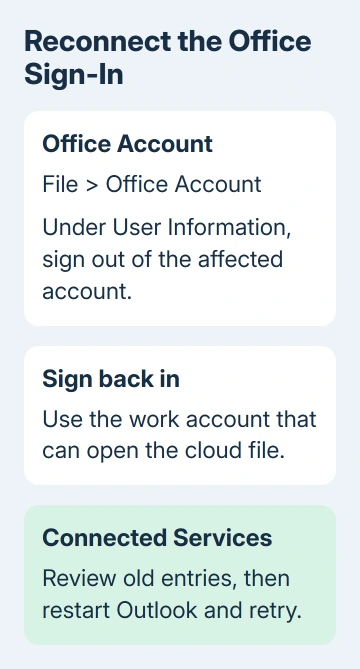
Check Connected Services afterward. The owner in the original attachment-error thread removed services that hadn't returned automatically after signing in, leaving their business OneDrive and SharePoint sites.
Their report says signing out twice was needed in that case. Check which Office accounts are still listed rather than repeatedly signing out of unrelated accounts or deleting an email profile.
Remove only an old or incorrect service you recognize. On a managed computer, have IT confirm an unfamiliar entry before removing it; a second service may belong to another legitimate work account.
Close Outlook, reopen it and create a test draft. Choose Attach File, select the recent cloud file and choose the link option. When it works, the shared item appears in your draft without the file-not-found message.
That restored linked attachments for the owner. If it doesn't restore yours, try the direct location next.
2. Bypass the recent entry with Browse Web Locations
In the message, choose Attach File > Browse Web Locations. Open the relevant OneDrive, SharePoint site or Group Files location and select the file from there instead of the recent-items list.
The Outlook attachment instructions distinguish recent entries, web locations and local files. Use the cloud location when your aim is to share the existing online document.
The original asker later reached the file through Browse Web Locations > Group Files and added it as a link, though the operation was slow. That gives you another route while the recent entry remains unreliable.
Check the draft's attached item. A cloud item can offer sharing and permission choices in its menu. A local attachment remains a separate copy, even when it has the same name as the team's shared document.
I'd use the direct cloud location before uploading the local copy again. That way, you know the link points to the original SharePoint library rather than a new OneDrive upload.
If the needed location is absent from Browse Web Locations, check the signed-in Office account and its connected services again with IT. If the location opens but one file is absent, check the file's actual name and folder with its owner.
3. Compare the cloud entry with the local copy
The recent-items list can show the same filename twice. The original report described one entry with a cloud icon and another without one, with web-style and Windows-style paths for the two items.
Select the item that matches the way you intend to send it. A local path points to a computer copy; a SharePoint or OneDrive location points to the shared file. Two entries with the same filename don't necessarily point to the same place.
If the document was renamed or moved, browse to its current folder rather than retrying the old recent entry. Confirm the current filename with the owner when the library contains several working copies.
A sync checkmark on the local file doesn't confirm that Outlook's cloud entry is usable. In the original report, the local copy could be attached even while the cloud entry failed to share as a link.
If a separate copy is acceptable, use Attach File > Browse This PC and select the verified local file. That is a practical fallback, but tell collaborators it is a copy if they normally edit one shared document.
When the file reaches a recipient but they can't locate or open it, use the Outlook attachment checks. A sender-side recent-file error and a recipient's missing attachment need different checks.
4. Escalate account failures without rebuilding Windows
Keep a note of whether the file opens from its actual cloud location and whether Browse Web Locations works. That tells IT whether only Outlook's recent list fails or you also can't access the library.
An error naming an Outlook data file instead needs the Outlook data-file access checks. That error is about the file holding your mailbox, rather than the document you're attaching.
Another owner in the thread tried repeated Office repairs without success. Don't jump to a full Office repair, new Windows profile or Windows reinstall as a proven fix for this error.
Windows Office 2016 support ended October 14, 2025. For repeated failures in that edition, discuss a supported Outlook client with your Microsoft 365 administrator alongside the account-service checks.
Provide the Outlook version from File > Office Account > About Outlook, the exact error, file location and the results of both attachment routes. Share screenshots only after hiding private account names and document details.
Have the administrator verify the account's access to the original SharePoint library. If a supported client still fails, include those details in a Microsoft 365 support request so support can use the comparisons you've already made.
The Short Version
Reconnect Office and review old service connections. Bypass Recent Items by browsing to the cloud location, then check whether the draft has a link or a copy. Give your administrator the results if account or library access still fails.
Checked November 16, 2026.
 If you have any business, I can build it online






