Siri on Apple Watch needs internet access and its activation settings turned on. Check its connection and Settings > Siri first. For an answer that appears silently, check the voice download and response settings.
A watch ignoring your voice, one that asks you to try again, and one that responds silently need different checks. Check which of those happens on your watch before turning settings off or resetting it.
In this guide
1. Check whether Siri opens and hears the request
Call Siri by holding down the Digital Crown, then make a simple request. This opens Siri without needing to say Siri or Hey Siri. Watch for the listening screen and a response.
If Siri opens with the Crown but ignores your voice, check its activation controls. If you get a connection error, check the network next. If the answer appears without sound, go to the voice-download section.
On the watch, open Settings > Siri and check the settings for calling Siri. Press Digital Crown needs to be enabled for the button method. Raise to Speak and listening for Siri or Hey Siri control other ways of calling it.
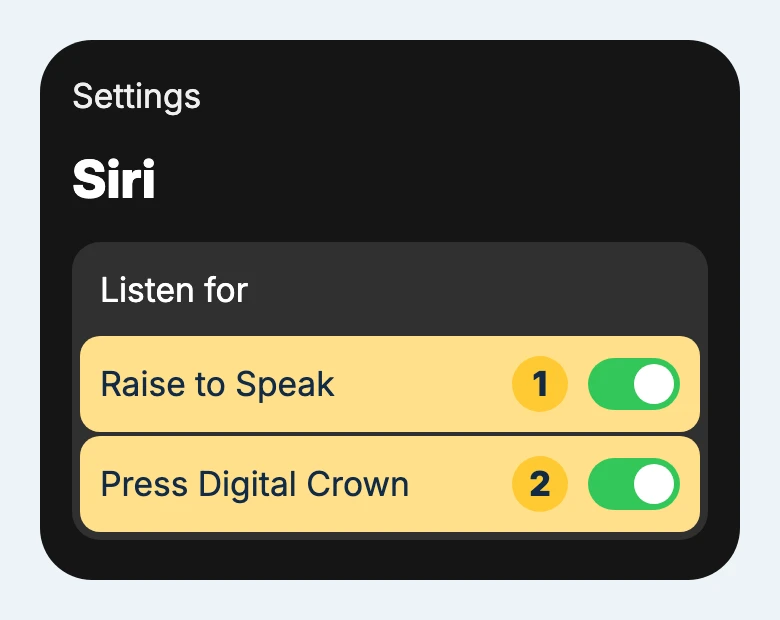
Check which choices your watch and language provide. The Siri and Hey Siri choices vary, so use the phrase your watch lists. Test the same short request after changing the setting for how you call Siri.
If Siri hears you and only one kind of request fails, the microphone and activation method are already working. For a timer-specific failure, use the Apple Watch Siri timer guide instead of changing every Siri setting.
2. Restore the watch's connection
Keep your paired iPhone nearby and check that it can connect to the internet. With watchOS 10 or later, Control Center opens when you press the watch's side button. On older watchOS, a swipe up from the face opens Control Center.
Look for Airplane Mode and the connection indicators. A disconnected watch can't use the nearby iPhone's connection normally. If Airplane Mode is active, switch it off. Allow the connection to return, then repeat your request.
A watch away from its iPhone needs its own working Wi-Fi connection or an active cellular connection on a cellular model. A GPS-only watch doesn't gain mobile service simply because the paired iPhone has a phone plan.
Open Settings > Wi-Fi on the watch and connect to a compatible network if needed. A saved network and a working internet connection aren't the same thing, so see whether the watch can load fresh information in another connected app.
For a watch showing a disconnected iPhone, use the Apple Watch connection checks to restore that link. Once the connection works again, ask Siri the same request before changing voice settings.
3. Check Siri on the paired iPhone
Open Settings > Siri on the iPhone. If Siri is off, tap Turn On Siri and complete setup. On the current layout, open Requests and enable listening for Siri or Hey Siri, as offered.
Some iOS versions use Apple Intelligence & Siri. If you don't see Requests, open Talk & Type to Siri or Talk to Siri. Complete voice setup if asked, then try the watch again.
Apple says to check Siri on both devices. Turning Siri on at the watch isn't enough if Siri is off on the paired iPhone.
Check whether Siri responds on the iPhone too. If neither device can use Siri through that network, check the connection before changing more watch settings. Try another working network before assuming the watch microphone needs repair.
For a phone that also ignores its wake phrase, use the Siri voice recognition checks. Compare what happens on each device so you know which one needs attention.
4. Restart the watch and remove microphone obstructions
Remove the charger. Keep the side button (beside the Crown) pressed to open the shutdown controls. On current watchOS, tap the power button in the corner, then drag Power Off. Restart by holding that button until Apple's logo appears.
Older watchOS versions show the Power Off slider without that extra power-button tap. A normal restart reloads Siri and keeps your watch's pairing and data.
Once the watch restarts, try the same request using the Crown and your voice. If a normal restart restores both, you can stop. If the listening screen opens but misses speech, check the microphone area next.
Remove a protective case that might cover the microphone or speaker. Look for an obstruction without pushing anything into the openings. A case touching the wrong area can affect hearing or sound even though the display works normally.
Tell support whether taking the case off changes the result. A response that improves with the case removed points toward that accessory; a watch that still can't hear a request needs more checks.
5. Finish the voice download for a silent response
For on-screen answers without speech on Apple Watch Series 3 or later, check Settings > Siri > Siri Voice on the watch. Look for the voice download status. A voice that hasn't finished downloading can leave the spoken answer unavailable.
Connect the watch to Wi-Fi and put it on its charger. The voice download usually happens while charging. Leave it charging overnight if it needs time, then return to Siri Voice and check whether the download has completed.
I'd finish that download before changing the watch's language. A voice that hasn't arrived yet doesn't call for a language change. Keeping the language unchanged also helps you tell what restored spoken replies.
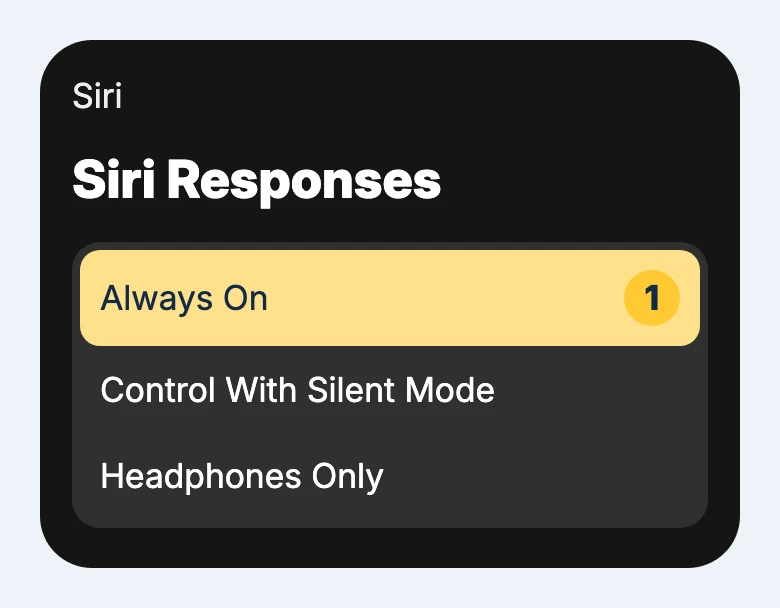
If the voice is ready, open Settings > Siri > Siri Responses. Choose Always On to hear replies even in Silent Mode. Headphones Only limits replies to Bluetooth headphones; check that it isn't selected unintentionally.
6. Request help for the failure that remains
Request Apple Watch Siri help from Apple Support if these connection, settings, restart, and voice checks fail. Give the watch model, watchOS version, paired iPhone version, and the result of holding the Crown to make a request.
Mention whether Siri hears speech, whether the answer appears on screen, and whether other watch audio works. Support can check the voice download and response setting, then decide whether the microphone or speaker needs service.
The Short Version
Call Siri with the Crown, check connectivity, and enable Siri on both devices. Restart and remove a blocking case for missed speech. For silent answers, finish the Siri Voice download on Wi-Fi while charging and check Siri Responses.
Checked November 29, 2026.
 If you have any business, I can build it online