
You raise your wrist and ask Siri for a ten-minute timer. Siri thinks for a while. Then it says it can't, because the Clock app is not on your watch. It is right there on your watch.
It is annoying. A timer may be the one thing you use Siri for all day. Plenty of owners hit it the week watchOS 27 came out.
I will give you the fix that worked first in the thread, then the one for Siri AI users, then the last resort. You probably will not need the last one.
What is going on
Apple still says this should work. Its Apple Watch guide gives the exact request to use: "Set a timer for 20 minutes."
A forum member at Level 6 checked the same thing: "Apple's watchOS 27 guide still lists setting alarms and timers with Siri as supported."
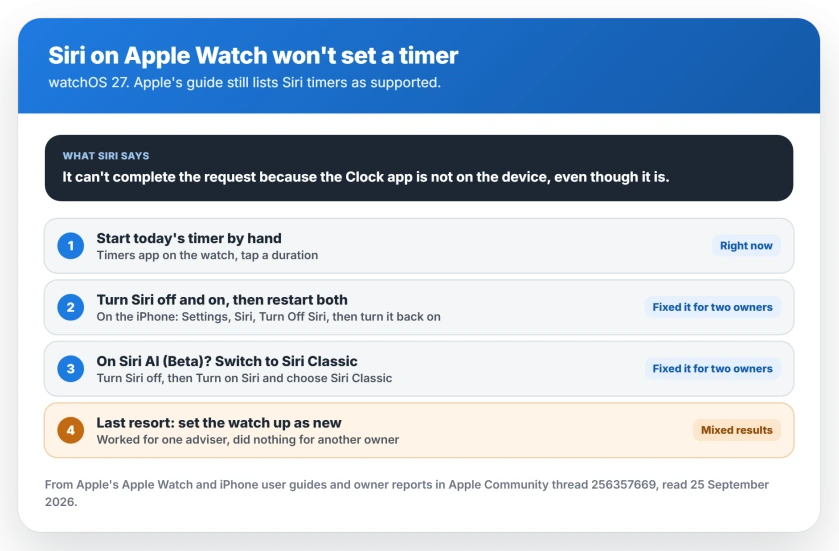
Yet the community thread on it has 52 people saying Me too. Its starter described the reply exactly: Siri "tells me it can't complete the request because the clock app is not on the device, even though it is."
It is not one model, either. Owners report it on a Series 11, an Ultra 2 and an Ultra 3.
1. Set today's timer by hand
This does not fix Siri. It just gets you going. Open the Timers app on your watch.
Apple's steps are short: "To quickly start a timer, tap a duration (like 1, 3, or 5 minutes) or tap a timer you've recently used."
2. Turn Siri off and on, then restart both devices
This is the fix that worked first in the thread. You do it on your iPhone, not the watch.
The forum member who suggested it gave the steps: "turn Siri off, then turn it back on. Restart both devices afterward." Apple's iOS 27 route is Settings, then Siri. Scroll down, tap Turn Off Siri, and confirm.
Then turn Siri back on in the same place, and restart your iPhone and your Apple Watch.
The thread's starter came back the next day: "Turning off Siri and turning it back on solved my problem. All working fine now." Another owner replied: "Worked me also."
3. On Siri AI? Switch back to Siri Classic
If you signed up for the new Siri AI beta, step 2 may not be enough. One owner on the beta wrote that turning Siri off and on "did not fix mine."
What did fix it was leaving the beta. Apple documents how to "use Siri Classic instead of Siri AI". First turn Siri off as in step 2. Then, in Apple's words, "Tap Turn on Siri, then tap Siri Classic."
Two owners confirmed it. One said timers worked fine on iOS 27 until the beta, then "backed off to 'regular' Siri from Siri AI (Beta), and watch Siri Timer commands are now working again."
The other had even erased their watch first: "I factory reset my watch to no avail. But, turning off the new Siri fixed my issues on both my watch and phone."
My reading, and it is ours: the new Siri is the part that loses track of the watch's Clock app. You can rejoin the beta later, once Apple fixes it.
Update, 29 September 2026: slowness is the other Siri AI complaint on the watch. On an Ultra 2, one owner's one-minute timer requests "take 12 seconds before it tells me the timer is started". Owners who went back to Siri Classic got their speed back, and several say Siri AI runs much faster on the Series 12 and Ultra 4.
4. Last resort: start the watch over as new
Only try this if steps 2 and 3 have not worked. A Level 10 adviser did it on an Ultra 3: "I ended up erasing the watch and setting it back up as new. Working normally now."
But it is not a sure thing. The owner quoted in step 3 erased theirs, and Siri still failed. Only turning off the new Siri helped.
Setting a watch up as new also means redoing your watch faces, Apple Pay cards and settings. That warning is ours.
Tell Apple about it
The forum is where owners help each other, so report the bug to Apple itself. Use the Apple Watch feedback page and say which Siri you use, Classic or Siri AI.
If your watch has other trouble since the update too, a watch that will not update properly has its own checks. And if it has lost its link to your phone, the red iPhone icon has its own fixes.
If your rides now record with no speed, turning one iPhone setting off and on fixed that for two owners.
And if the new app grid hides the apps you want, one turn of the Crown gets past it.
Status: watchOS 27 and iOS 27, checked 25 September 2026. Apple's watch guide still lists Siri timers as supported. Owners fixed the Clock app error by turning Siri off and on on the iPhone and restarting both devices, or by switching from Siri AI (Beta) back to Siri Classic. Erasing the watch worked for one owner and not another. Apple has not commented.
Why won't Siri set a timer on my Apple Watch?
Since watchOS 27, some owners hear Siri say it cannot complete the request because the Clock app is not on the device. Apple's guide still lists Siri timers as supported. Turning Siri off and on on your iPhone, then restarting both devices, fixed it for owners.
How do I fix Siri timers on Apple Watch?
On your iPhone, go to Settings, then Siri, turn Siri off, then turn it back on and restart both devices. If you use Siri AI (Beta), switch back to Siri Classic, which fixed it for two owners.
How do I switch from Siri AI back to Siri Classic?
Apple's steps: turn off Siri in Settings, then tap Turn on Siri and choose Siri Classic. You can try the beta again later.
Should I erase my Apple Watch to fix Siri?
Only as a last resort. It worked for one adviser and did nothing for another owner, who then fixed it by leaving the Siri AI beta. Try the Siri steps first.
The Short Version
- Apple still lists Siri timers as supported on watchOS 27.
- Siri may say the Clock app is not on your watch. It is.
- Start today's timer by hand in the Timers app.
- On your iPhone, turn Siri off and on, then restart both devices.
- On Siri AI (Beta)? Switch back to Siri Classic.
- Erasing the watch is a last resort, and it failed for one owner.
Where to Next
Step 2 comes first. It takes two minutes and has the most confirmations. If you are on the Siri AI beta, go straight to step 3.
Did one of these work for you, or did something else? Name your watch and your Siri in the comments. That helps the next reader most.
Looking for Walkie-Talkie after the same update? Apple discontinued it, and the Walkie-Talkie page lists what still works.

Isaac Smith is the founder and editor of PC Glance, a website that covers computers, laptops, and technology. He is a tech enthusiast and a computer geek who loves to share his insights and help his readers make smart choices when buying tech gadgets or laptops. He is always curious and updated about the latest tech trends.