
An Apple Watch alarm can ring or tap your wrist without an alarm on your iPhone. Open Alarms on the watch, set a time with the Digital Crown and save it, then check the repeat days and whether it makes sound or taps.
An alarm you create on the watch won't alert your iPhone. To get an iPhone alarm on your wrist too, turn on the separate phone-alert setting. Alarms only go from the phone to the watch, not the other way around.
Create the alarm directly on your watch
Press the Digital Crown to open your apps, then open Alarms. Choose the alarm-clock app rather than Timers, which counts down a set amount of time instead of ringing at a particular time of day.
- Tap the Add button, shown as a plus sign. Older watchOS versions may show Add Alarm.
- Choose AM or PM if your watch uses a 12-hour clock.
- Tap the hour and turn the Digital Crown until it's correct.
- Tap the minutes and turn the Crown again.
- Tap the checkmark to save the time.
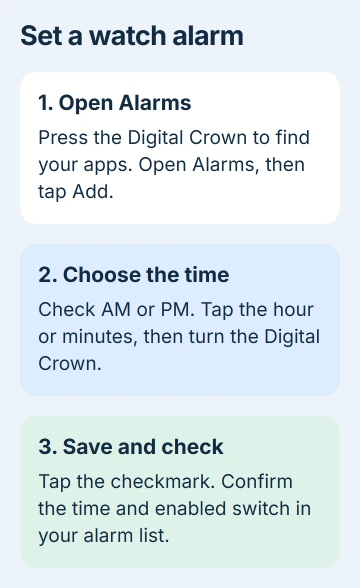
Your new alarm should appear in the list with its switch on. Check AM or PM carefully. Mixing these up can leave the hour right but make the alarm seem to have missed its time.
Apple's guide explains creating and editing watch alarms. The current watchOS 27 guide also includes Snooze Duration and Break Through Silent Mode; older releases can show fewer controls.
Before relying on it for an important morning, I'd set a short test alarm while you're awake. That lets you hear or feel what your settings do before bedtime.
Set repeat days and give it a useful label
Tap the alarm's time in Alarms to open its options. Choose Repeat, then select the days when it should ring. For a work alarm, select the weekdays you need so you don't have to create it again each evening.
Open Label and give the alarm a name that tells you what it's for. A label such as Medication or Leave home helps when several alarms are close together. It also makes the correct entry easier to edit later.
Use Change time when you only need to change the time. Return to the list to check the saved time and that its switch stayed on. Changing just the label shouldn't change when the alarm rings.
To pause an ordinary alarm, turn its switch off. To remove it, swipe left across its entry and tap Delete. For a temporary break, switching it off keeps your saved time and settings ready to use again.
Choose sound, wrist taps and snooze
With Silent Mode on, ordinary watch alarms can tap your wrist without making a sound. Press the side button to see Control Center, then check its bell control for Silent Mode.
In watchOS 27, open the alarm's options and check Break Through Silent Mode. Use this setting when that alarm should make a sound while you're wearing the watch with Silent Mode on.
For quiet wrist taps, leave that option off and use Silent Mode. Wear the watch snugly enough that its back comfortably touches your skin. A loose band can make the taps harder to notice.
Open Settings > Sounds & Haptics on the watch to check its alert volume and haptics. With watchOS 26 or later, automatic volume adjustment can offer a Level choice such as Louder, Default or Quieter.
The sound and haptic settings also offer a constant volume level. For a separate workout announcement problem, use the workout voice-alert checks.
Tap the alarm to turn Snooze on or off. If Snooze Duration is available, choose how long to wait before it rings again. Switch Snooze off if you don't want the option to delay the alarm.
Decide whether the iPhone should ring as well
To get an iPhone alarm on your watch, create it on the iPhone first. In the iPhone's Watch app, choose My Watch > Clock > Push Alerts from iPhone.
With that option on, your watch can alert you when the iPhone alarm goes off and let you snooze or dismiss it. The switch sends alarms from your phone to the watch, but it doesn't send watch alarms back to the phone.
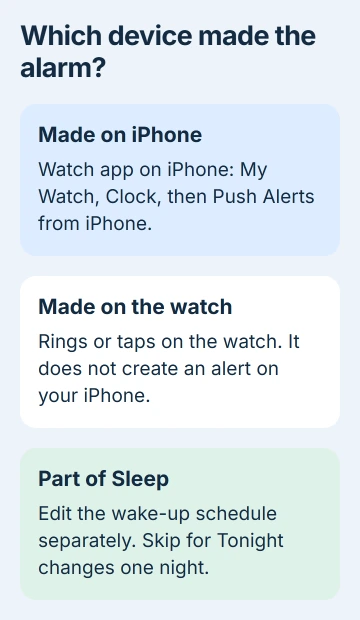
Before adding a second alarm, check where you created the first. A watch alarm and a phone alarm set for the same time are still separate, so you'll need to edit each one separately.
If Siri refuses to create the alarm or mentions a missing Clock app, use Alarms by hand for now. The watch Siri timer repair covers that voice-command failure separately.
Keep a sleep schedule separate from an ordinary alarm
A sleep schedule's wake-up alarm has its own controls. In Alarms, select the wake-up entry and use Skip for Tonight to skip that night's scheduled wake-up without changing the repeating schedule.
For a lasting change, open Sleep on the watch and edit the schedule. Check Next Wake Up for a one-time adjustment or Full Schedule for changes that should repeat on future days.
The sleep schedule guide explains the difference. Changing an ordinary alarm in Alarms won't change your bedtime schedule, so check which alarm is actually waking you.
Use the watch as a bedside alarm
Open Settings > General > Nightstand Mode on the watch and enable it. Connect the charger and position the watch so you can see its display. Nightstand mode can show the time, charging state and next alarm.
An alarm created in Alarms uses a nightstand sound while charging. When it rings in this mode, the side button stops it and the Digital Crown snoozes it. Those controls help when the watch is resting beside the bed.
If you still can't hear or feel the short test alarm, contact Apple Support. Give them your watchOS version, whether you were wearing or charging the watch, and whether you set the alarm in Alarms, Sleep or on the iPhone.
The Short Version
Use Alarms to save a time, choose repeat days and test sound or taps. Push Alerts from iPhone forwards phone-created alarms to your wrist. Watch-created alarms stay on the watch; Sleep wake-up controls are separate.
Checked November 5, 2026.

Isaac Smith is the founder and editor of PC Glance, a website that covers computers, laptops, and technology. He is a tech enthusiast and a computer geek who loves to share his insights and help his readers make smart choices when buying tech gadgets or laptops. He is always curious and updated about the latest tech trends.