Google Drive can keep computer folders synced or store a one-time upload of your files. Choose Drive for desktop's folder sync for Windows PC or Mac files; use Android's separate Google backup for phone settings and messages.
Synced folders stay connected: edits and deletions can carry between the computer and Drive. Keep a separate backup as well if you need a copy that won't change when a working file is deleted or overwritten.
In this guide
Choose the backup that matches your files
Start by choosing what you want to recover: files, phone settings or photos. A Documents folder, an Android phone's settings and a photo library have separate backup controls, even when you use the same Google Account for all three.
- Computer folders: Drive for desktop can sync selected folders from the computer to Drive.
- A few files or a one-time folder copy: Upload them through the Drive website.
- Android apps, messages and settings: Use the phone's Google backup controls.
- Photos and videos in a Photos library: Use Google Photos backup.
This choice prevents a common mistake: seeing files in My Drive and assuming the whole computer is protected. Drive only has the content you've uploaded or included in its sync setup.
Google explains how local folders differ from My Drive. Changing My Drive's download setting doesn't automatically add local folders to your backup.
Sync a Windows PC or Mac folder
Install Drive for desktop from the official Drive download. Open the app and sign into the Google Account you've chosen for these files.
If your work or school blocks installation or folder syncing, ask your administrator about access.
On Windows, open Drive from Windows' notification area. On a Mac, use its menu-bar icon. Open Settings > Preferences and find Folders from your computer to manage local folders.
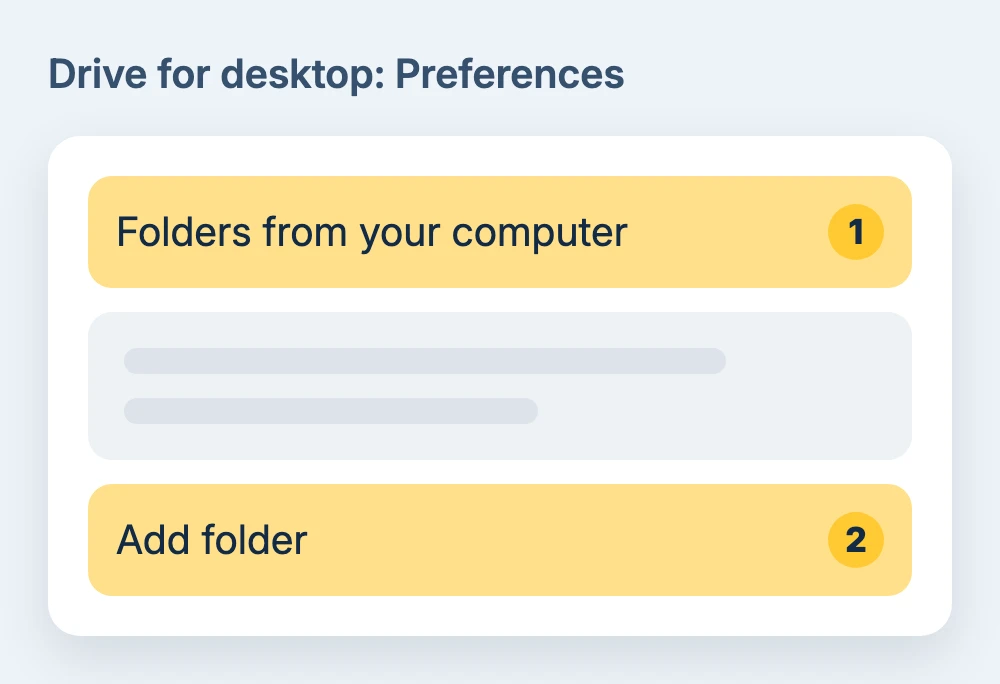
- Choose Add folder and select a computer folder for Drive to sync.
- Choose Sync with Google Drive for that folder.
- Save the preference and allow the first upload to finish.
- Confirm your account choice and wait for uploading to finish before relying on the online copy.
Start with a folder whose contents you recognize. Adding a huge parent folder can include files you didn't intend to upload, so check what's inside it before selecting it.
The Drive in File Explorer setup covers Windows installation and reaching the connected drive. A website shortcut alone doesn't create continuous folder sync.
On a Mac, allow Drive access to the local folders it needs when macOS asks. If access was denied, review System Settings > Privacy & Security for the relevant permission. Repeatedly adding the folder won't bypass a denied permission.
Upload a separate file copy through the website
For a one-time copy, open drive.google.com in your chosen Google Account. Click New > File upload for files, or New > Folder upload for a folder, and select the items from your computer.
Allow that transfer to complete, then open one of the uploaded files in Drive. A transfer still in progress isn't a finished backup, and an account with a similar profile picture can be the wrong destination.
Use a clearly named destination folder to distinguish this saved copy from files you're actively editing. For example, a dated folder helps you recognize which version you uploaded before later changes.
A browser upload doesn't keep watching the original folder for later changes. Repeat the upload when you want a newer copy, or use the desktop folder-sync route when ongoing updates are the goal.
For important work, open the uploaded file and check its contents, not just its name. The correct filename can belong to an older revision, an empty export or a different document from the same project.
Understand what sync can change
Streaming and mirroring describe how your My Drive files live on the computer. Streaming keeps files mainly online and downloads them as needed. Mirroring keeps a full local copy of My Drive as well as its online copy.
Both carry changes between the computer and Drive. Mirroring isn't a frozen archive of last month's work, and streaming isn't a way to delete cloud files while keeping every local copy safe.
Deleting a file inside a connected Drive folder can affect the other synced copy too.
Folders added from your computer use mirroring, so their files stay local while syncing with the cloud. That doesn't give you a backup you can use to restore the entire computer.
A separate external-drive backup or another independent backup gives you another way to recover files without relying on that sync connection. I'd keep that extra copy for irreplaceable files rather than depending on a single synced folder.
Handle Android backup and Google Photos separately
For Android apps, call history, settings and supported messages, open the phone's Settings > Google services > Backup. Check Backup details to see what's included for your device and account.
The Android phone backup guide covers that process in detail. Those backups are for restoring phone data, rather than ordinary documents you browse and edit in My Drive.
Photos and videos need their own Google Photos backup check. A successful phone backup doesn't automatically mean every picture folder has uploaded.
Likewise, a folder full of images in Drive isn't the same collection as a backed-up Photos library.
The current advanced Drive help says backup to Google Photos is no longer available in Drive for desktop. Some earlier setup screens and help text still mention that option.
Open Google Photos to select your photo backup folders again. Pictures you've already backed up remain in Photos.
On a Mac, don't select the live Apple Photos library package as an ordinary working folder. The current help recommends exporting the pictures first and syncing the exported files to avoid damage to that library's database.
Check recovery before relying on the backup
After uploading finishes, sign into the Drive website with that account and find a file from the computer folder you selected. Check the Computers area for computer-folder content rather than expecting everything under My Drive.
Open that file to compare its contents against the original. For a document, check a recent change you recognize. For a photo, open the actual picture. That way, you're checking the saved contents as well as the filename.
When files don't arrive, check the app for errors or paused syncing. Use Settings > Resume syncing if needed. Compare the Google Account's storage with the computer's free space too; these are different limits.
If the same folder still fails, open Drive Help's Fix problems in Drive for desktop page from the app's help route. Give support the account type, operating system, folder location and exact error.
Keep your originals while you work on the upload problem.
The Short Version
Use desktop folder sync for computer files, a browser upload for a one-time copy, Android backup for phone data and Google Photos for its photo library. Verify a saved file online and keep an independent backup of important work.
Checked November 29, 2026.
 If you have any business, I can build it online