Gmail adds an automatic signature after you create it in Settings and choose when it should appear. On a computer, open Settings > See all settings > General, find Signature, then save your changes.
The Gmail phone app has its own mobile signature setting.
Start on the device you actually send from. The signature in your browser can contain different text from the one your phone adds.
In this guide
Create the signature in Gmail on a computer
Open Gmail in your browser and check the signed-in address through the account picture. You're changing the signature for that account, so changing a personal mailbox won't update a separate work mailbox.
- Click Settings, then See all settings.
- Stay on the General tab and scroll to Signature.
- If no signature exists, click Create new, give it a name, and confirm.
- Select the signature and type your name, role, and contact details in its text box.
- Set the signature defaults described in the next section.
- Find Save Changes at the end of Settings and click it.
The signature name helps you select it in Gmail. It isn't the text your recipient sees. Choose a name you'll recognize when selecting a signature, such as Work or Short Reply, then put the actual contact details in the editor.
Keep the first version simple. Name, role, and a useful contact method are enough to check that Gmail adds it correctly. Formatting and a logo can come afterward, once the right text appears in a new message.
Google explains how to format signature text and add an image in the computer editor.
An image also counts toward the signature's character limit, so a large image can cause a size error.
Choose defaults for new messages and replies
Saving the signature doesn't tell Gmail when to use it. You'll need to choose its defaults too. In the Signature defaults controls, choose the signature for new emails and choose what to use for replies and forwards.
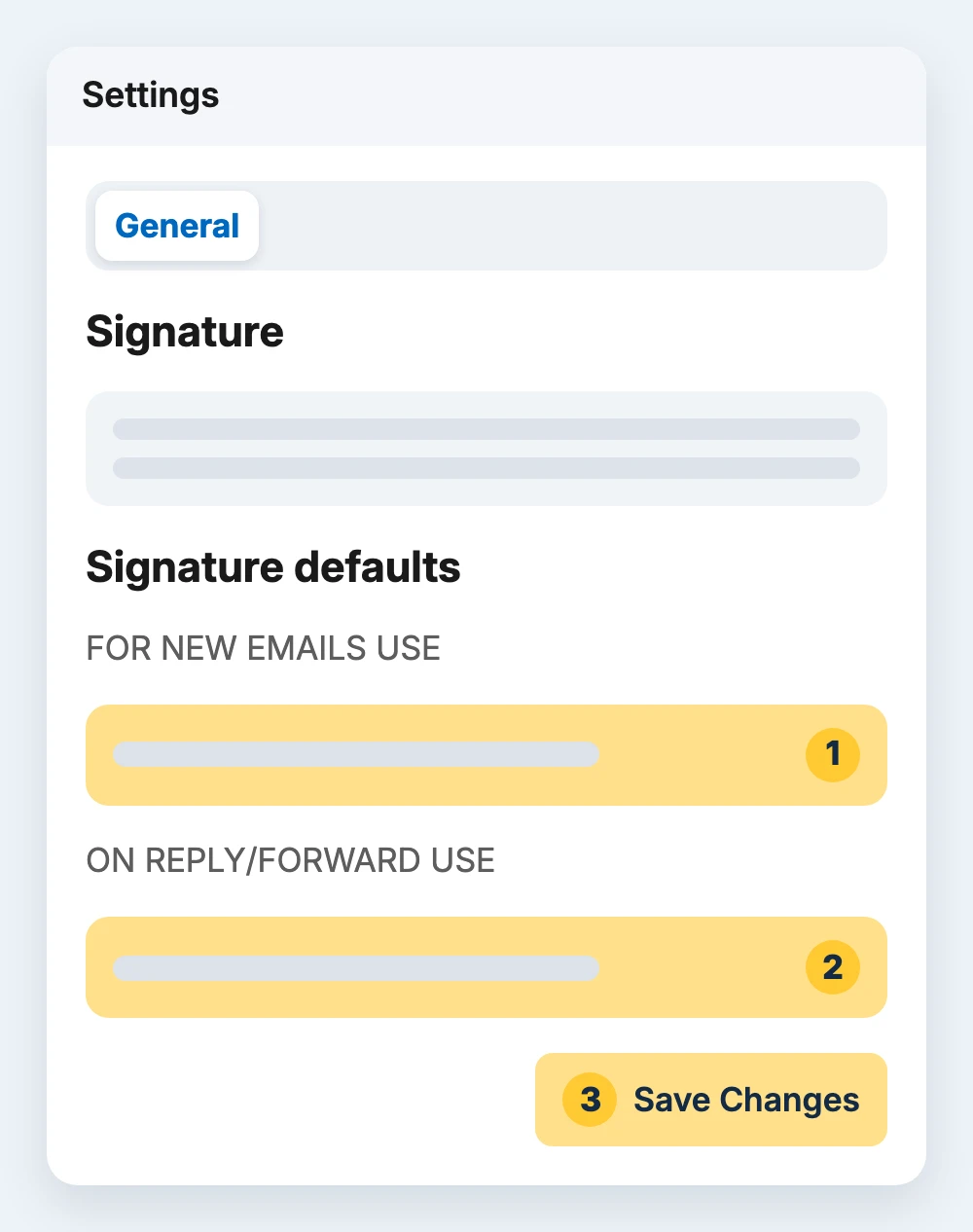
For example, a detailed signature can suit a first message, while a shorter one suits an ongoing conversation. Choose No signature for a category only when you want to insert one manually there.
Check both defaults before saving. If your signature appears in new messages but disappears in replies, those two settings may explain why.
After Save Changes, click Compose and inspect the new message. Then open a conversation and start a reply. Checking these separately catches a missing reply default without changing a signature that already works for new mail.
Email yourself a test from that account. Look at the received message rather than judging only the editor, especially when the signature includes an image or several lines of formatting.
Add the Android app's mobile signature
The Gmail Android app has a text signature for messages sent from that app. It is set for the selected Google Account, which matters when several accounts appear in your Gmail menu.
- Launch the Android Gmail app.
- Tap Menu, scroll down, and tap Settings.
- Select the account whose signature you want to change.
- Tap Mobile signature.
- Enter the signature text and tap OK.
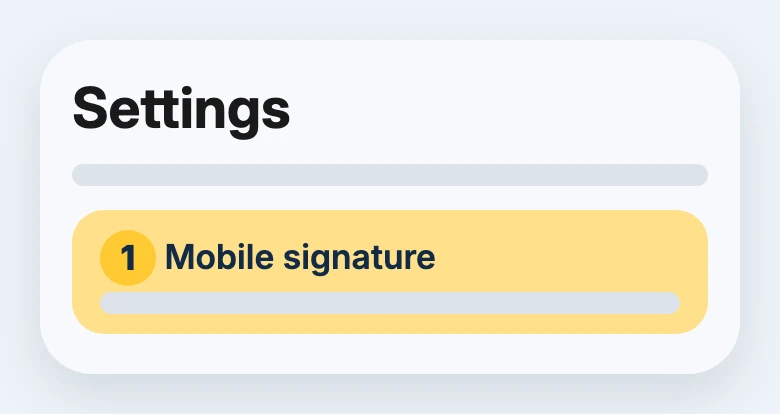
Compose a new message from that account to check the result. If the account changes in the From field, check the signature again before sending a work message from a personal address by mistake.
When you haven't created a signature in the Gmail app, new messages use the signature created on the computer. Setting a mobile signature gives that app its own version, which explains why your phone can show different text.
The Android app gives you a text field, without the desktop formatting controls. Use the computer editor for a richer signature design and keep the mobile version readable as plain text.
Set the iPhone or iPad signature separately
On an iPhone or iPad, launch Gmail and open Menu > Settings. Under Compose and Reply, tap Signature settings, turn on Mobile Signature, and add or edit the text. Tap Back to save it.
Repeat the setup for each account that needs it. The text you want for a work account may be quite different from the one used for your personal messages.
If you don't create an app signature, new messages use the signature set up on your computer. Decide whether you want the same signature everywhere before adding a mobile version you'll also have to keep up to date.
These controls belong to the Gmail app. Sending a Gmail address through Apple Mail uses that app's settings instead. Open the app you actually use to compose the message before looking for its signature control.
I'd test one message from the computer and one from the phone before adding a logo. A simple footer makes it easier to spot differences between the two devices.
Switch signatures or match a different From address
On the computer, the compose window's Insert signature control lets you choose a different footer for a particular message. Use this when an occasional message needs a different footer without changing the account default.
To edit a saved version, return to Settings > See all settings > General > Signature, select it, change the text, and save. Check its defaults again if you created a new version rather than editing the existing one.
For accounts using Send mail as, choose the sending address from the menu by the signature editor. Different sending addresses can have different signatures.
If that address menu is missing, check Accounts and Import > Send mail as to confirm the additional address is listed. Changing the display name alone doesn't add a separate sending address.
A business address that isn't available needs the account setup fixed first.
The guide to using an Outlook account in Gmail covers a related account task; it doesn't replace choosing signature defaults.
Fix a missing or awkward-looking footer
If no signature appears, check the account, the new-message or reply default, and whether you saved the settings. For phone-only trouble, check that app's mobile signature rather than repeatedly changing the browser footer.
For image errors, resize the image or test with a text-only signature. If Gmail adds the text version correctly, focus on the image or formatting.
For a pasted block with strange spacing, re-enter a short plain version in the signature editor and add formatting gradually. Before replacing a complex design, copy the original text somewhere safe in case you need it again.
If the iPhone app also fails to send or load messages, use the Gmail on iPhone troubleshooting guide for that broader app problem.
For a problem that continues after a saved text-only test, use Gmail Help's signature troubleshooting page or post to its help community. State the device, app, account type, and whether the problem affects new mail, replies, or both.
The Short Version
Create the signature, assign its defaults, and click Save Changes on a computer. Set Mobile signature separately in Android Gmail, or Signature settings on iPhone and iPad. Test a new email and a reply from the device you'll use.
Checked November 29, 2026.
 If you have any business, I can build it online