Gmail filters act on incoming messages, and adding a label doesn't automatically remove mail from the inbox. Check the saved rule's search criteria first, then select Skip the Inbox (Archive it) to remove matching mail from the inbox.
Old messages, replies with different details, and mail opened in another app can make a working filter look broken. Use Gmail's desktop website to check a missed email before rebuilding all your rules.
In this guide
1. Open the saved filter in the right account
Open Gmail in a computer browser. Use the top-right profile picture to confirm which account received the messages. Filters belong to that mailbox, so changing a rule in a second signed-in account won't change the first one's mail.
Choose Settings > See all settings > Filters and Blocked Addresses. Find the rule that should handle the missed message, then click Edit. Check what the rule searches for, rather than relying on a familiar label name.
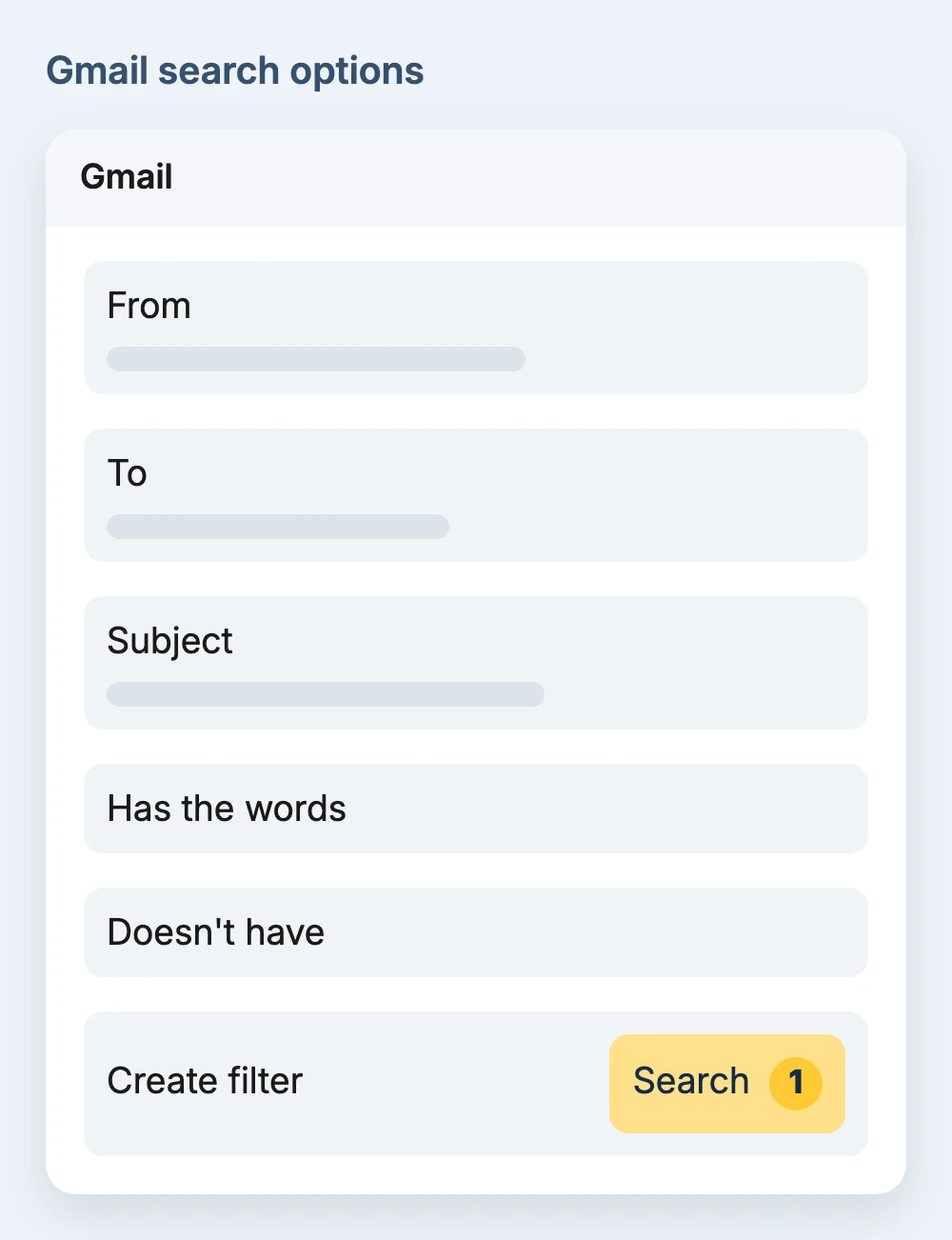
Google's filter guide explains how to edit criteria and actions separately. Two filters can apply the same label but match different messages, so check which one handles that sender.
If the rule isn't listed, create it in this account. An existing label doesn't mean the filter was saved successfully. A label can remain after its filter has been removed, and you can also apply labels by hand.
Check the browser mailbox even when Outlook or a phone app is your usual reader. It shows what reached Gmail before another app's folder view or syncing makes the problem harder to follow.
2. Match the message's actual details
Open a message that should have matched and check its sender, recipient, subject, and content. A familiar display name can hide a different sending address, especially with receipts, newsletters, and automated notifications.
Click Show search options at the right of Gmail's search box. Enter the sender address in From, then click Search. Confirm that the missed message appears before adding extra conditions.
If the message doesn't appear, correct the address or criteria. Gmail can only apply the action when the message matches the rule. Begin with the detail you need, such as the sender, rather than recreating a long rule from memory.
Add a subject condition only if the messages you want consistently contain it. A receipt whose subject changes each month can stop matching a rule built around last month's complete subject line.
Each reply must meet the search criteria too. A matching message doesn't make every reply in the conversation match. Check the missed reply's details when only part of a conversation seems misplaced.
I'd keep a troubleshooting filter narrow and easy to recognize. One known sender with one visible label helps you tell whether the search or the action is wrong.
3. Choose the action that does the job
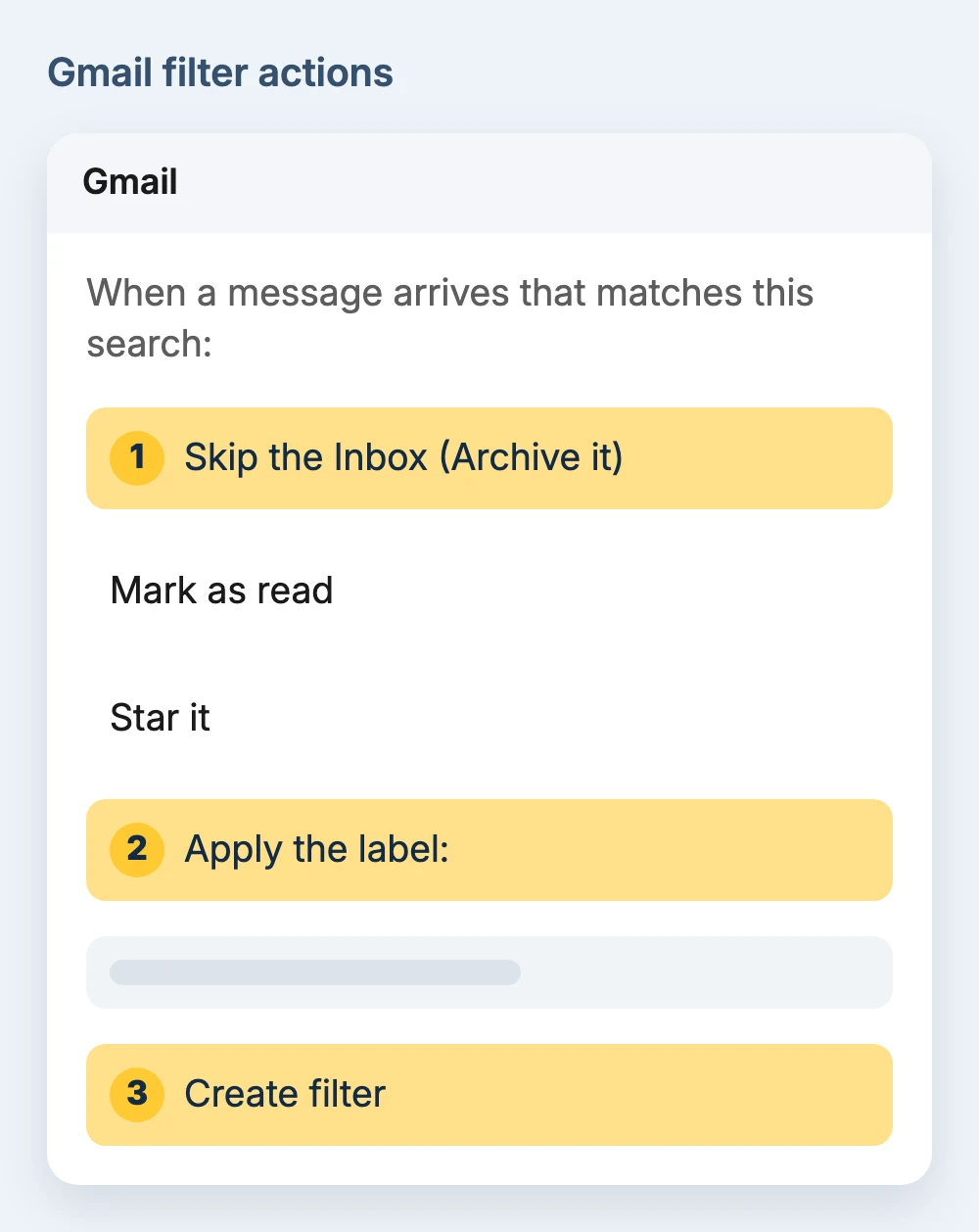
Click Create filter after checking the search, or click Continue while editing an existing filter. Review the action list. Choose Apply the label to organize messages, and select the label you actually want.
To keep those messages out of the inbox, also select Skip the Inbox (Archive it). Labels organize mail; archiving removes the Inbox label. They're separate actions, so you need to select both if you want both.
Save with Create filter or Update filter, depending on the screen. Leaving the action window without saving won't change the existing rule. Reopen the filter list to review the saved criteria.
Archived mail remains available in All Mail and through search. It hasn't been deleted. If you can find a labeled message there but not in the inbox, the archive filter is doing its job.
Use a label while checking the rule rather than selecting Delete it immediately. It gives you a visible result to check without sending an accidentally broad match to Trash.
4. Handle old mail separately from new arrivals
A newly saved incoming-mail rule doesn't automatically sort your entire existing mailbox. When creating or updating a rule, use the option to apply it to matching conversations if you also want the current matches processed.
Read the displayed match count and criteria before applying a broad action. A rule that archives one sender's future messages can also archive years of their existing mail when you include matching conversations.
After saving, check an old message and a newly arrived one separately. If only the fresh arrival gets the action, revisit whether you selected the existing-conversations option. Creating a duplicate filter won't help with that.
Forwarding has a special limit: creating a forwarding filter affects new messages. It isn't a way to forward a mailbox's entire history. Use an ordinary manual forward for an older message that another person needs.
A fresh test should arrive from the sender address the rule names. A message you send from a different account with a similar subject won't match a rule restricted to the original sender.
5. Compare Gmail with the app where mail looks wrong
When a matching message arrives, check its label and inbox status in Gmail on the web. If both are correct there, check the other mail app's account, selected folder, and syncing rather than changing a filter that's working in Gmail.
For example, Gmail deletions returning through Outlook need sync troubleshooting, whereas a missed sender needs its filter checked. Record which action fails and in which app it fails.
If messages seem to be missing instead of unsorted, search All Mail, Spam, and Trash. Review saved filters for archive or delete actions that could explain their destination. A matching rule can be the reason a message left the inbox.
When mail appears in one place but not another, the Gmail All Mail folder in Outlook needs its own sync and folder checks. Changing the sender in a filter won't make a missing folder appear.
When a simple saved rule still misses new mail
Save the exact search criteria, the action you want, and a recent message the filter missed. For work or school mail, give that example to your account administrator. For personal Gmail, use the Help community or Send feedback from Gmail.
Describe whether a manual search finds the message, whether the rule works on older matches, and whether it also fails on the web. Hide private details before sharing an example, and don't share passwords or the full private message.
The Short Version
Confirm the mailbox, search for a missed message, and save the intended action. Labels don't archive mail by themselves. Process existing conversations separately, and check the result in Gmail on the web before troubleshooting another app.
Checked November 29, 2026.
 If you have any business, I can build it online