Reset a forgotten Gmail password through Google Account recovery. If your account still opens, use its Password setting instead. The new password also applies to that account's other Google services, including Drive and YouTube.
In this guide
Recover the account when the password is forgotten
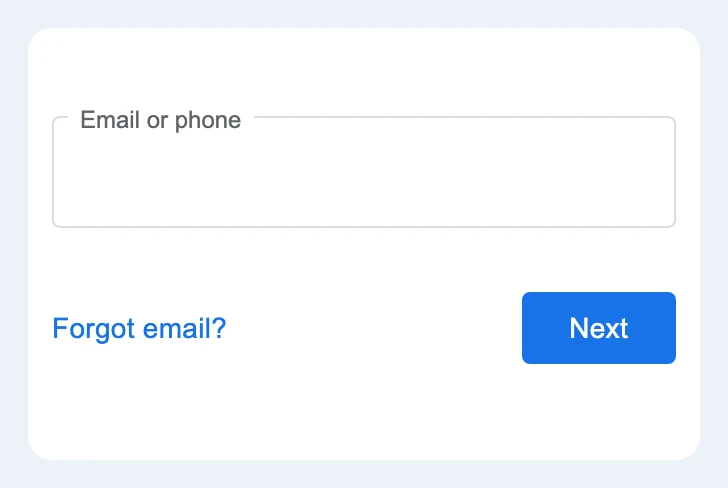
Open Google Account recovery in a browser. Enter the Gmail address you want to recover, then follow the questions for that account. Check the address carefully when you have several accounts.
Use a phone or computer where you've signed in before, with your usual browser and location when possible. I'd start there before using a new computer; the familiar setup gives recovery more useful account history.
The questions differ between accounts. A recovery email, phone verification, a device prompt, or a previous password may be offered. Use an option you can access; your account won't necessarily show the same questions as another account.
If you're asked for the last password you remember, enter the newest one you can recall. An older remembered password is still more useful than leaving the question unanswered. Pay attention to typing and capitalization.
Choose Try another way when the offered verification route isn't available and that option appears. It lets you try another verification method if one is available. You'll still need to pass the account's security checks.
After verification, choose a password you haven't used for this account before. Complete the prompts and open Gmail. Check for your expected messages to confirm you're back in the right account.
Change the password from a computer when access still works
With access to the account, start in its settings. Open myaccount.google.com and check your email address in the profile menu before replacing its password.
Choose Security & sign-in. Under How you sign in to Google, open Password. Complete another sign-in check if requested, enter the replacement, then select Change Password.
Google's password instructions describe both changing a known password and recovering a forgotten one. Even when you're signed in, you may still need to confirm it's you before changing the password.
Return to recovery if the settings page requires a forgotten password and its other verification choices don't work. An open Gmail tab doesn't let you skip the security check on the Password setting.
Use a long, unique password and store it in your password manager. Reusing the password from another account puts Gmail at risk if that other service loses its sign-in details.
Find Password on Android, iPhone, or iPad
On Android, open the phone's Settings > Google, tap your name, then Manage your Google Account. Choose Security & sign-in > Password under How you sign in to Google.
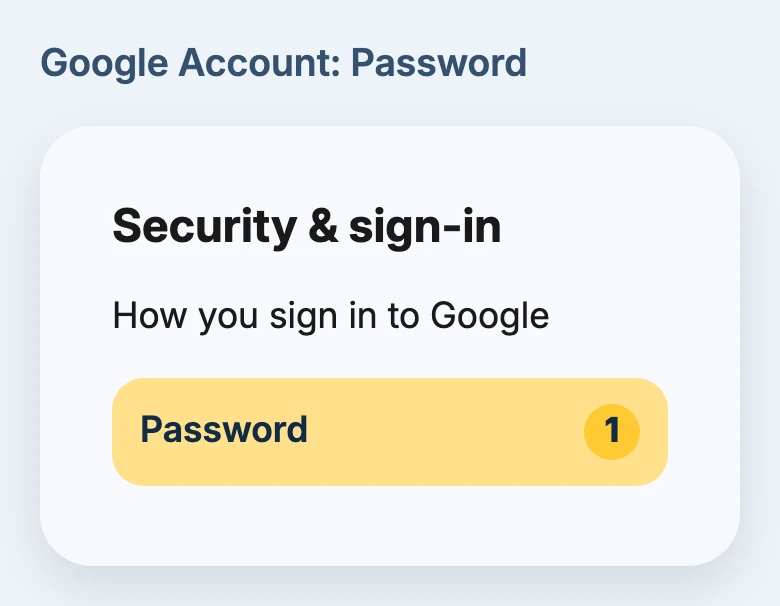
Complete the requested verification, enter the new password, and tap Change Password. The account page is also available at myaccount.google.com when the phone maker's Settings layout differs.
On iPhone or iPad, open Gmail, open its profile menu in the upper-right corner, then choose Manage your Google Account. Choose Personal info, then Password under Other info and preferences for Google services.
Enter the new password and tap Next. Without the Gmail app, open myaccount.google.com in Safari or another browser and use the account settings there. Check the selected address to avoid changing a different inbox's password.
For a forgotten password on either platform, use the browser recovery procedure in the first section. Deleting and reinstalling Gmail won't reset the Google Account password or replace the verification requirement.
Deal with missing emails, unavailable codes, and delays
If the recovery process says it sent an email, check the destination shown on screen. Search that mailbox's inbox and its spam or junk folder. Check other addresses you've used with the account when appropriate.
For a missing reset email, add noreply@google.com to your address book and repeat recovery to request another. That can help email delivery. A lost recovery phone needs another verification option.
Answer as many questions as possible; a wrong guess doesn't end the recovery process. After a failed attempt, try a familiar device and more accurate account details. Don't buy a supposed recovery service.
Recently changed recovery information may take up to seven days to take effect. If that applies, try again in a few days using the routes still offered. Follow any waiting instructions shown for your specific recovery request.
Only enter passwords and verification codes at accounts.google.com. Don't share a code with someone promising an account reset. A person who receives the code may be able to complete the sign-in themselves.
For a work or school Gmail account, ask the organization's administrator to reset the password or restore access. Personal account recovery steps may not work for an account controlled by that organization.
Restore mail access and review the account after the reset
Changing or resetting the password signs you out of most places, though some connections stay active. Devices used to verify your identity, some third-party apps with account access, and certain connected home devices may remain connected.
Sign back in to Gmail and other affected Google apps when prompted. If the inbox works online but not in the iPhone app, use the Gmail checks for iPhone to repair that separate app connection.
For Apple Mail showing a connection error, follow the Cannot Get Mail checks. Use its Google sign-in flow when requested rather than repeatedly typing a password into an unrelated mail-server setting.
Review your account's security and recovery details after access returns. If the password changed without your permission, use the help for a hacked account linked from account recovery and check connected devices and apps as well.
For repeated verification failures, keep using the recovery form; a phone agent can't bypass it. The help community can explain a screen, but never post passwords, verification codes, or private recovery details there.
The Short Version
Use Account recovery for a forgotten Gmail password. With working access, change Password in Google Account settings. Complete the verification offered, choose a unique replacement, then sign back in where prompted.
Checked November 29, 2026.
 If you have any business, I can build it online