AirPods that play music but leave calls on the phone usually need the call's audio destination changed. On iPhone, open the active call, tap Audio, and choose your AirPods. On Android, check that the paired AirPods have Phone audio enabled.
If the call reaches your ears but your voice doesn't reach the other caller, that's a microphone problem instead. Check whether you can't hear them or they can't hear you before changing a connection that already carries sound.
In this guide
1. Choose the AirPods during an iPhone call
Wear the earbuds, then open Settings > Bluetooth. Check that their entry says Connected. AirPods saved in the list aren't necessarily connected for the call you're making now.
Start or answer a call, then open its full screen. If a small call banner is showing, tap it to return to the controls. Tap Audio and choose the AirPods from the available destinations.
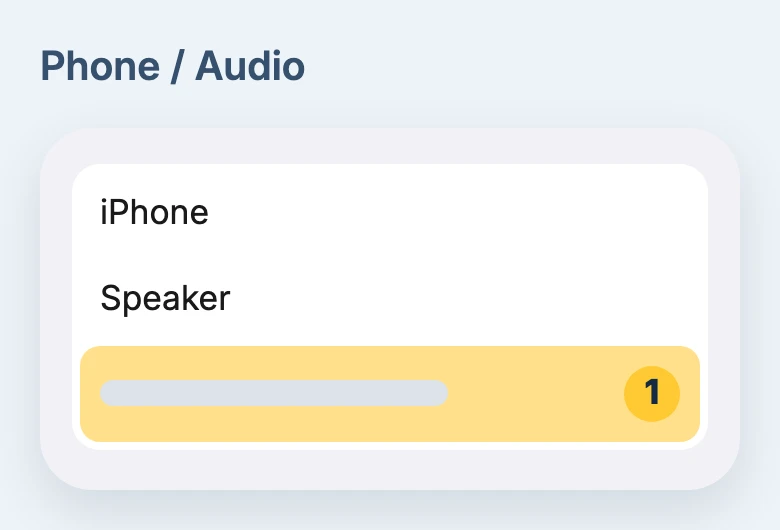
Apple says you can choose a call's audio destination while talking. Selecting AirPods here changes the active call's destination; choosing them for music earlier doesn't replace this check.
Press the iPhone's volume-up button while the call is active if the conversation is too quiet. Adjust it during the call; the volume that worked for music may not be right for a conversation.
If the AirPods appear and selecting them restores the conversation, the call was going to another output. Continue with the routing setting if the same thing happens every time a new call starts.
If AirPods don't appear in the list, return to Bluetooth and check their connection. Skip to the pairing section if that list can't connect them. The phone needs to connect to the AirPods before a setting for where calls go can help.
2. Check where iPhone sends new calls automatically
Open Settings > Accessibility > Touch > Call Audio Routing. Check whether it's set to Speaker. That preference can explain why a call starts somewhere other than the headset you intended to use.
Choose Bluetooth Headset if you want calls directed to an available Bluetooth headset. Use Automatic if you prefer the phone to choose automatically. Then make another call with the AirPods connected.
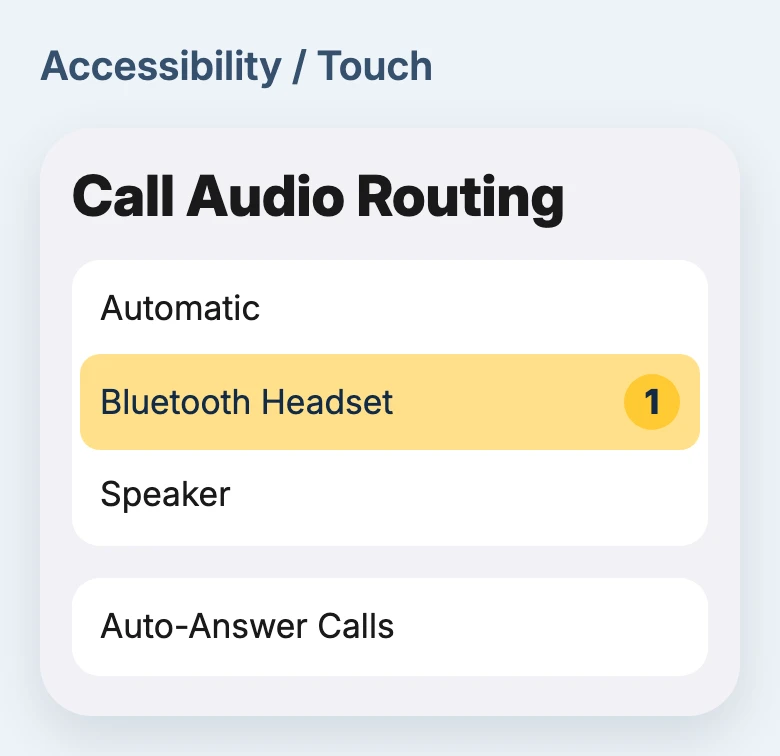
This setting controls where phone and FaceTime call audio goes. It isn't the same as Auto-Answer Calls, which controls whether an incoming call is answered after a delay. Leave auto-answer alone when the problem is where sound goes.
On the next call, check where the sound goes as well as what the setting says. If the AirPods aren't connected when that call starts, selecting a headset preference won't create the missing Bluetooth connection.
If sound keeps moving between your Apple devices, check AirPods automatic switching. A headset connected to another device needs a connection change, rather than louder call volume on this phone.
3. Enable Phone audio on an Android phone
Open Settings > Connected devices. If your phone shows Bluetooth, open it. If it shows Saved devices, select that list, then tap the settings control beside your AirPods.
Look for Phone audio and turn it on. Some phones label the equivalent control Phone calls or Calls. Use the label on your phone; the wording changes between manufacturers and Android releases.
Google's Bluetooth call checks separate Phone audio from music playback. Your AirPods can play music even when calls aren't enabled for them.
Check that another paired Bluetooth device isn't receiving the call. A car system or another headset can be the active destination while the AirPods remain listed among saved accessories.
Make another call after changing the call-audio control. If it now reaches the AirPods, leave the working pairing in place. Keep the other Bluetooth pairings; a disabled call connection doesn't require deleting them.
If that switch is absent, choose the connected headset from the call's audio selector. Use the phone maker's call instructions for that model if the selector isn't clear. Don't disable system services to force a missing switch to appear.
4. Separate silent playback from a microphone failure
During a call, check both directions: can you hear the other person, and can they hear you? Both can feel like a broken call. Check which part fails: sound reaching your ears or your microphone picking up your voice.
If only the other person can't hear, check the call's Mute control first. Make sure it's off. If the issue is muffled speech or a silent microphone after that, use the AirPods microphone checks.
Make one ordinary phone call and compare it with the failing app. If Phone works through the AirPods but another app doesn't, check that app's audio destination and microphone access rather than changing the iPhone's cellular settings.
On iPhone, app microphone permission is under Settings > Privacy & Security > Microphone. Enable access for the calling app when you intend to use its microphone. That permission affects outgoing voice, not which speaker receives the call.
I'd test Phone and the failing app before resetting the AirPods. A working call in one app gives you a useful next step: check the failing app's controls, updates, and support instructions.
5. Reconnect the earbuds when they aren't available for calls
Set both earbuds inside the case and shut its lid. Check that the AirPods have charge before pairing again. Keep the phone nearby and make sure its Bluetooth switch is on.
To pair AirPods Pro 3, AirPods 4, or AirPods 5, open the case and double-tap its front until the case light flashes white. Those models have a touch control on the front rather than a rear button.
For AirPods 1, 2, 3, or AirPods Pro 1 or 2, keep the case open. Hold down its rear setup button until the light blinks white. Select the AirPods entry in Bluetooth settings afterward.
Hold AirPods Max's listening mode button for around 5 seconds. Once the light flashes white, find AirPods Max among your phone's Bluetooth devices and tap that entry.
Once connected, repeat the call-destination check. If the phone still can't offer the AirPods for calls, try them with another compatible phone to see whether the failure follows the earbuds or stays with the first device.
If that failure follows the earbuds to another phone, request an AirPods audio assessment from Apple Support. Include your AirPods model, whether music works, and whether you can't hear the caller or they can't hear you.
When only one calling app fails, send those details to its developer.
The Short Version
Choose AirPods in the iPhone call's Audio menu. Check Call Audio Routing when every call starts on the wrong output.
On Android, turn on the accessory's Phone audio control. Outgoing microphone trouble needs a different check from silent playback.
Checked November 29, 2026.
 If you have any business, I can build it online